 Cella PDF
PDF markup, takeoff, sketching and set review for construction drawings
Redline and measure sets to scale, sketch options on trace paper with your pen, and compare every new issue with the last. Mark up live with your team, ask your AI assistant about the set, and keep it all in ordinary PDFs on your own computer.
Mac, Windows, Linux and iPad · Free 14-day trial · $149 once, no subscriptions
Every tool
No tools match. Try another word.
Mark up
28 tools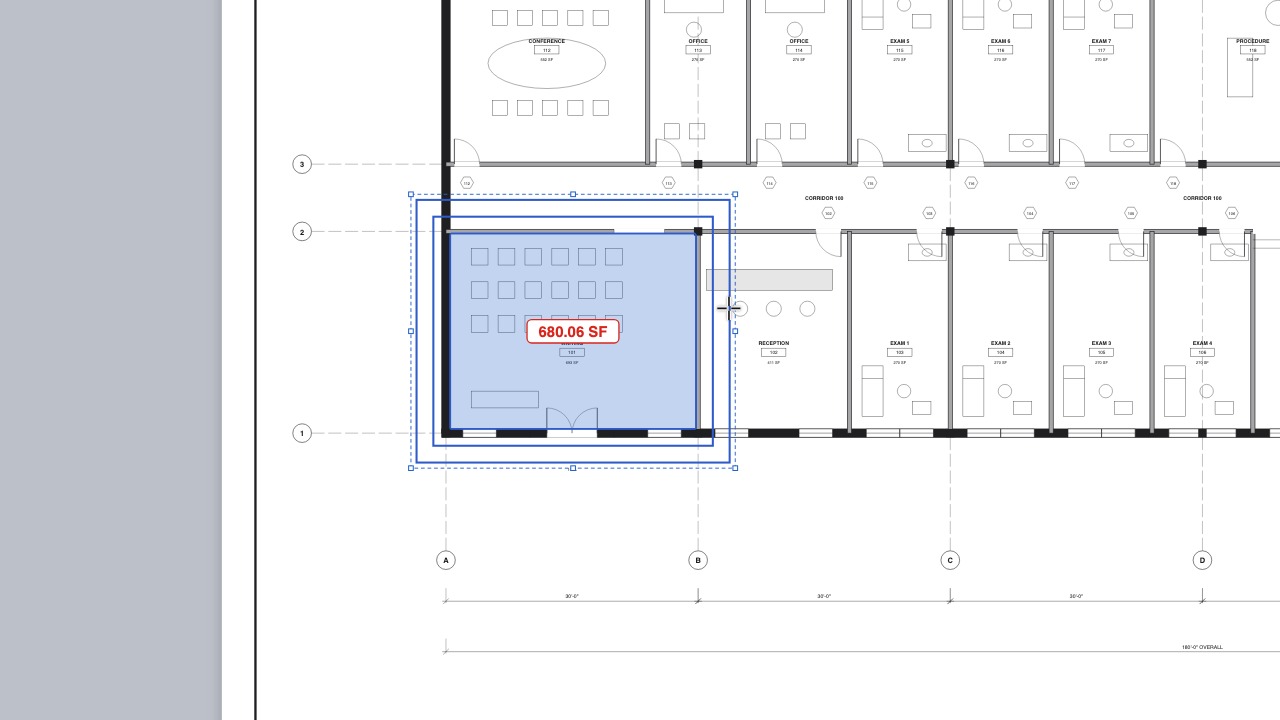 OffsetCopy lines, shapes and areas a set distance away.
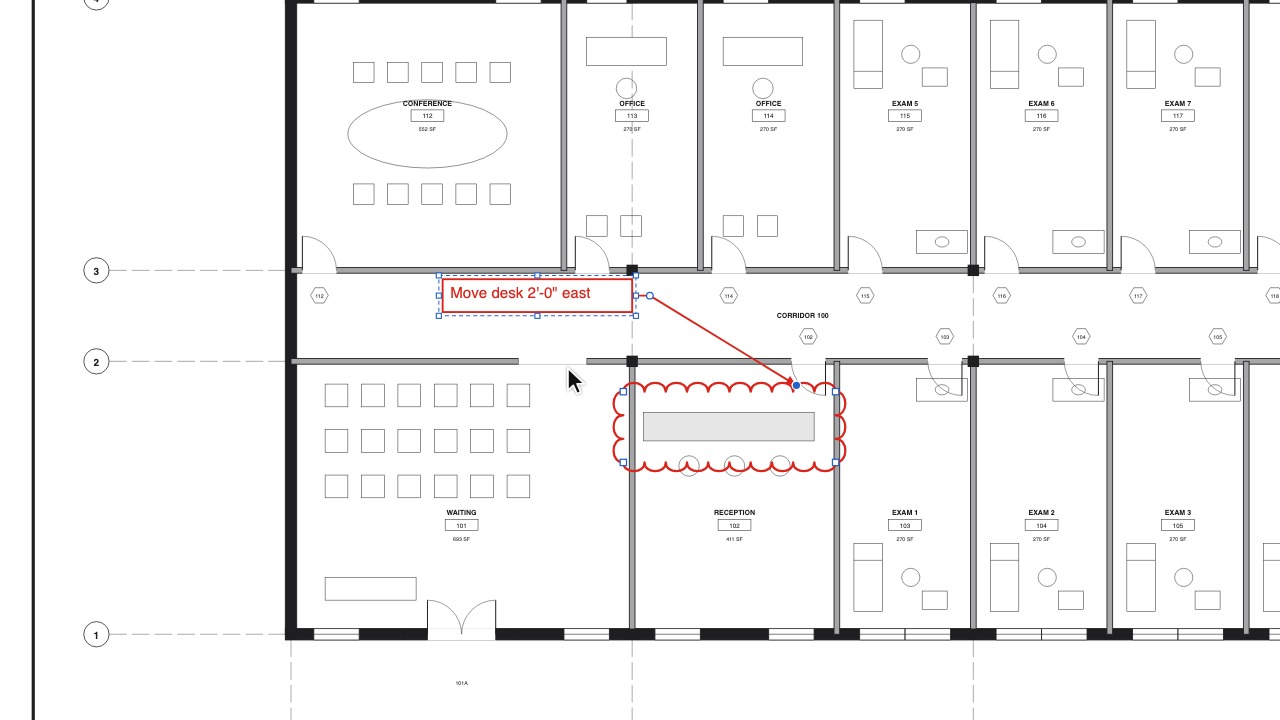 Cloud CalloutA revision cloud and its note as one markup: move the note and the cloud stays, and other apps' cloud notes open the same way.
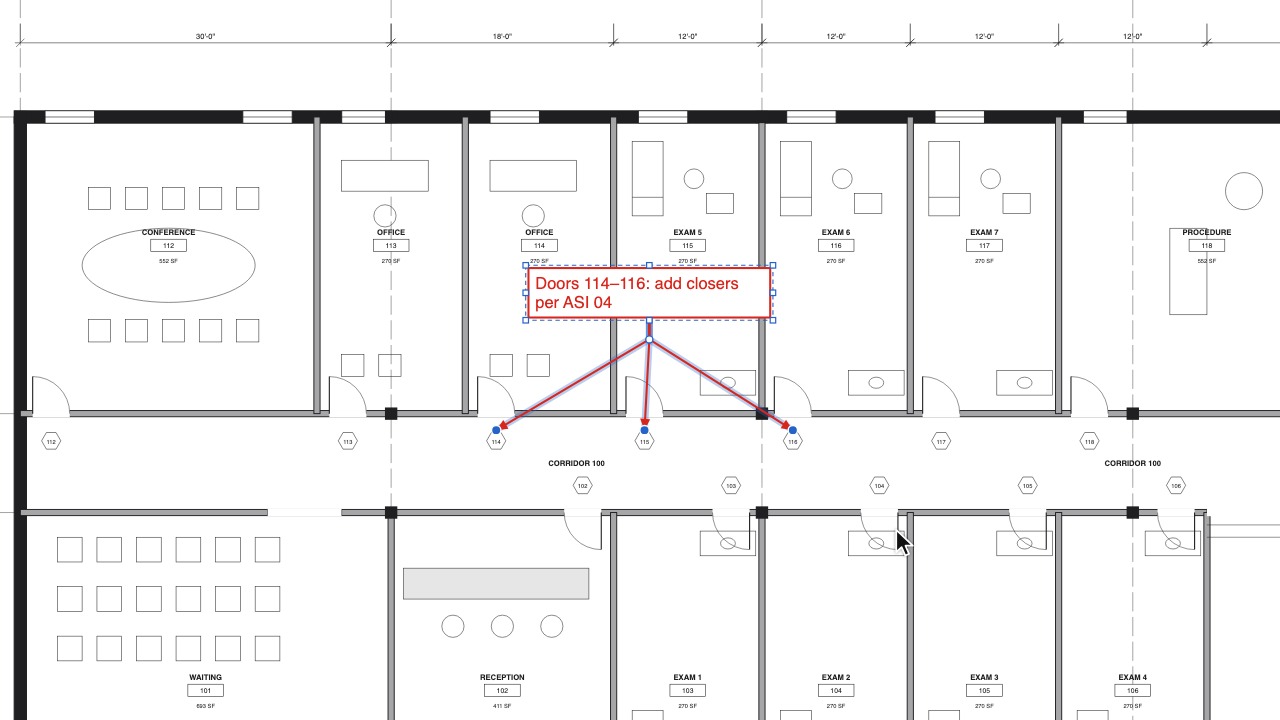 Callout leadersMove the box and the arrow keeps its point; add as many leaders as you need.
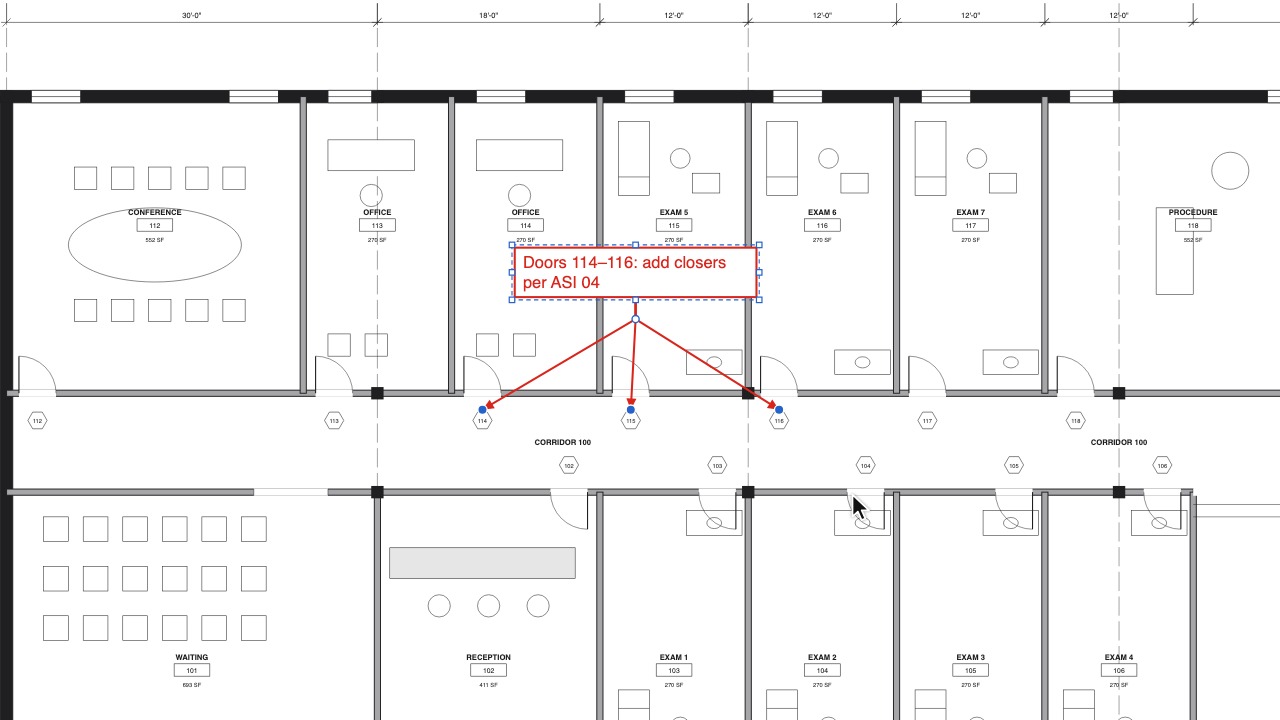 Add a leader in one stepThe new leader's tip follows the pointer; one click puts it where it points.
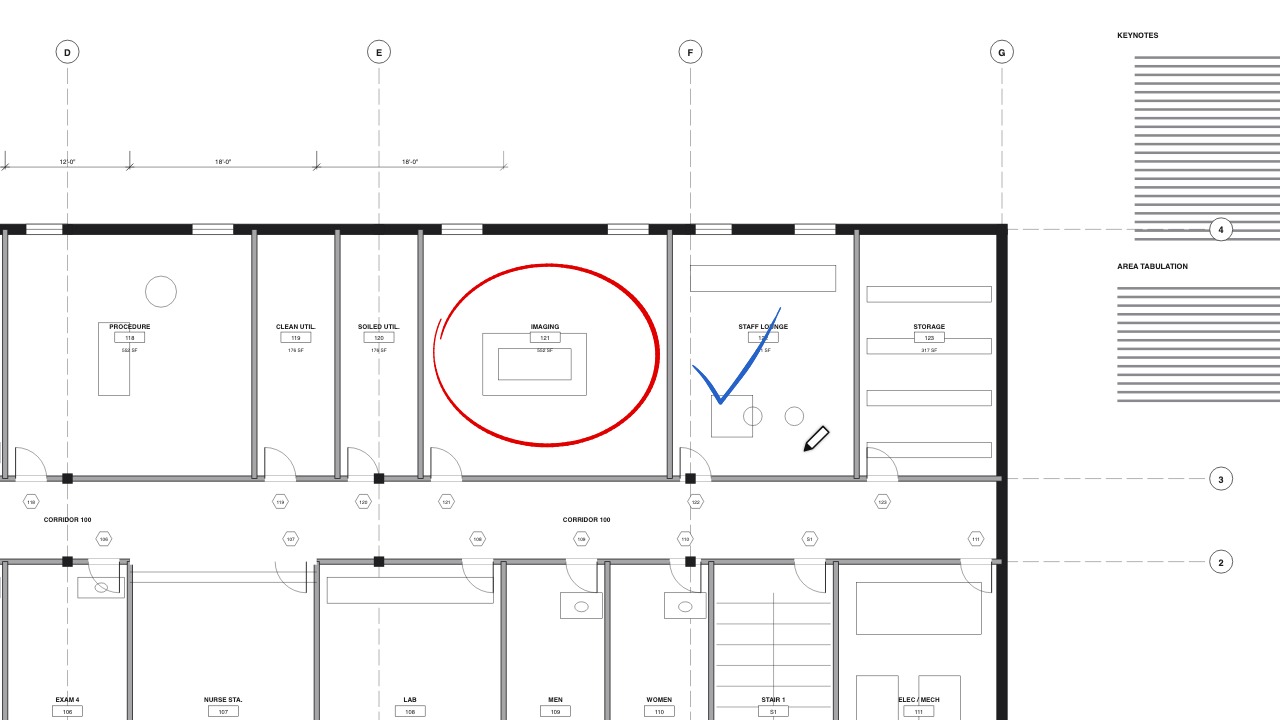 A better penSmooth strokes that follow pen pressure, with Steadying, and favourites on keys 1 to 9.
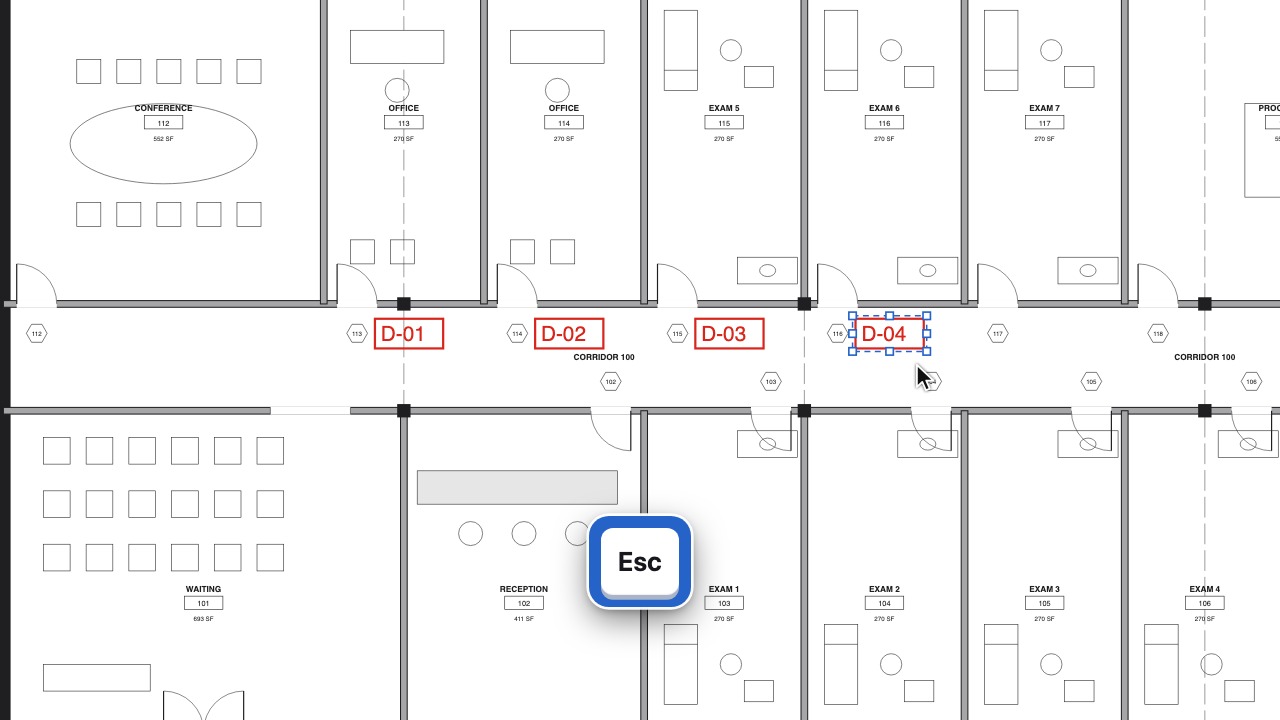 SequencesTags that number themselves: 1, 2, 3, A, B, C or D-01.
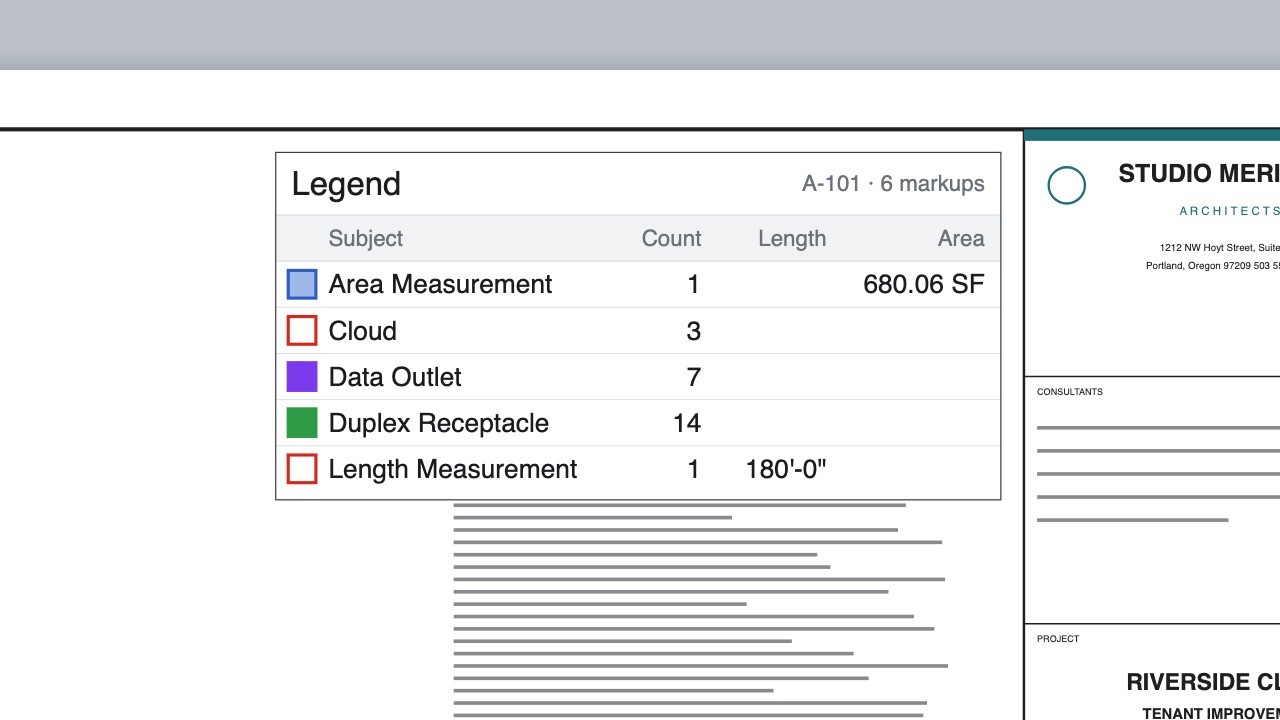 LegendsA live legend table that keeps up as you draw.
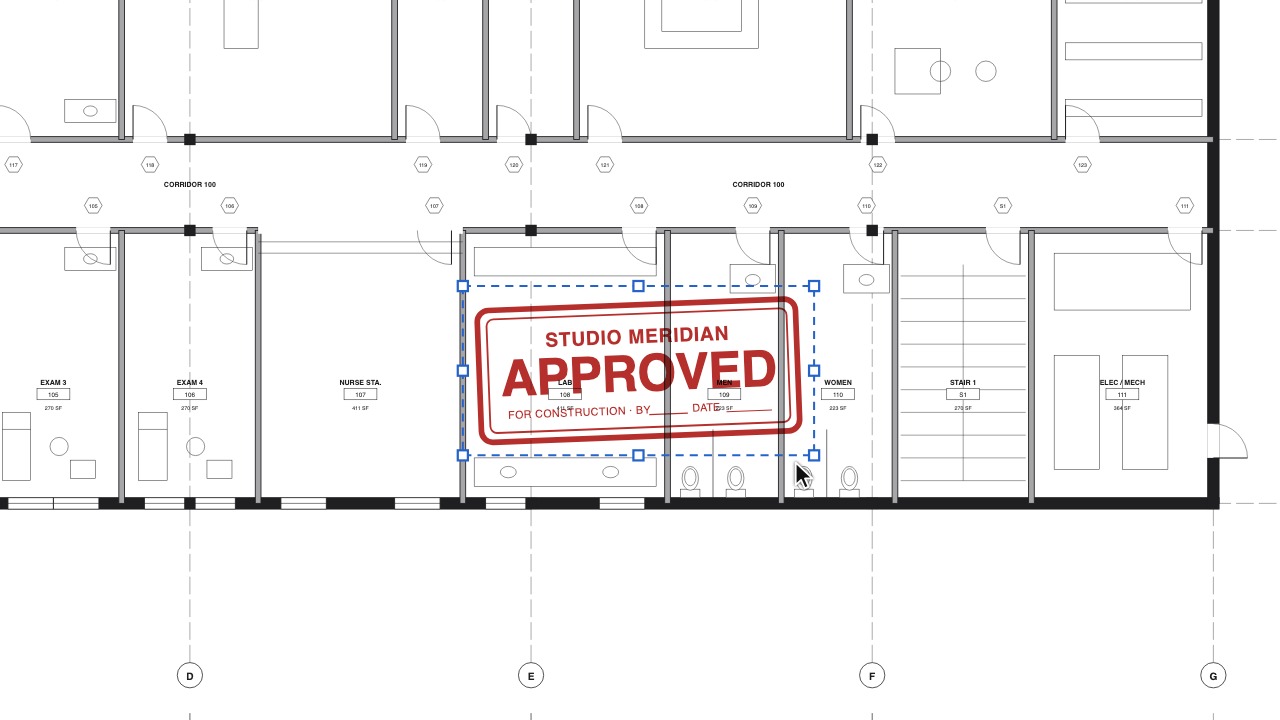 Picture stampsTurn a PNG or JPEG of your firm's stamp or logo into a stamp.
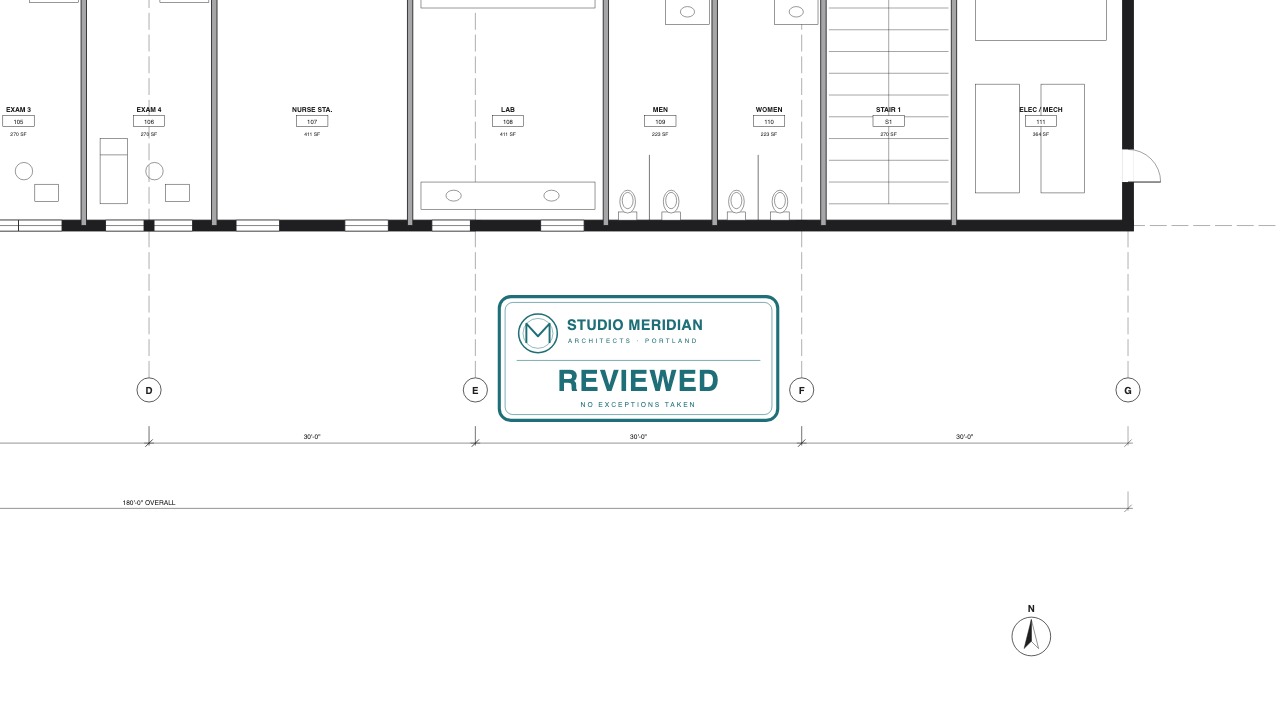 Stamps from a PDFMake a stamp from any PDF page; it stays sharp at any zoom and is stored once in the file.
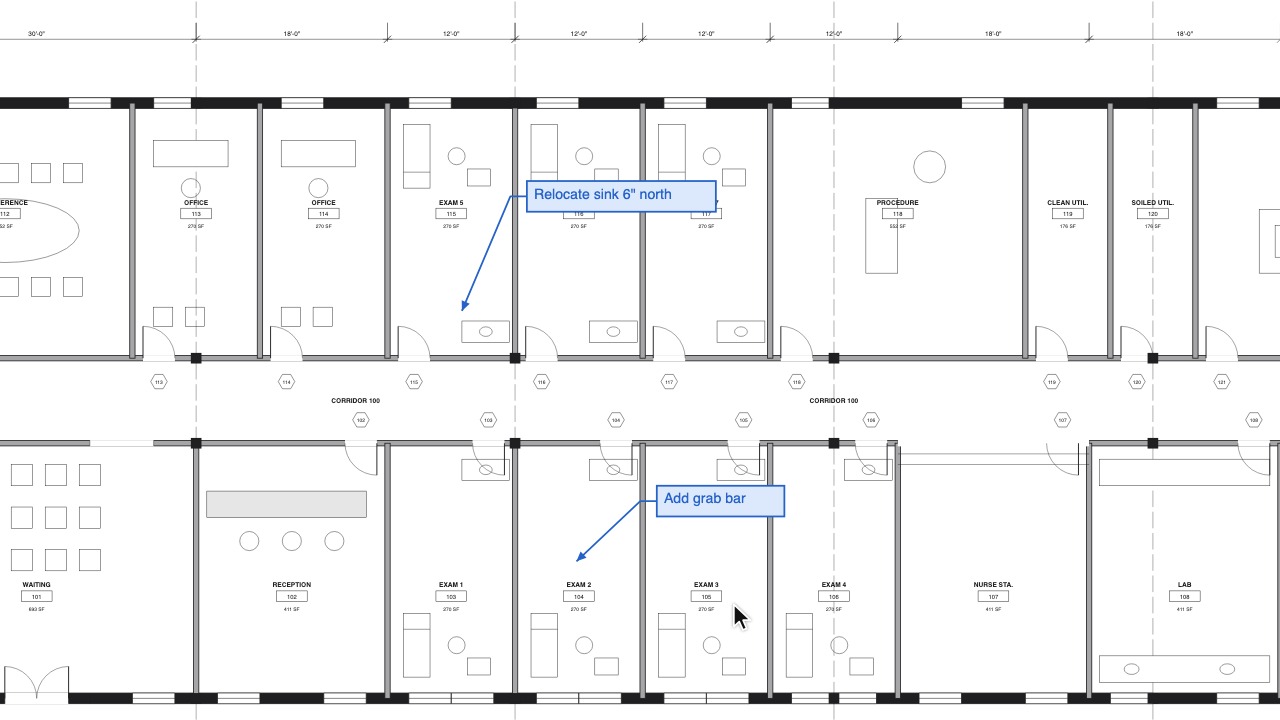 Set as Default for ToolStyle one markup the way you like and every next one from that tool looks the same.
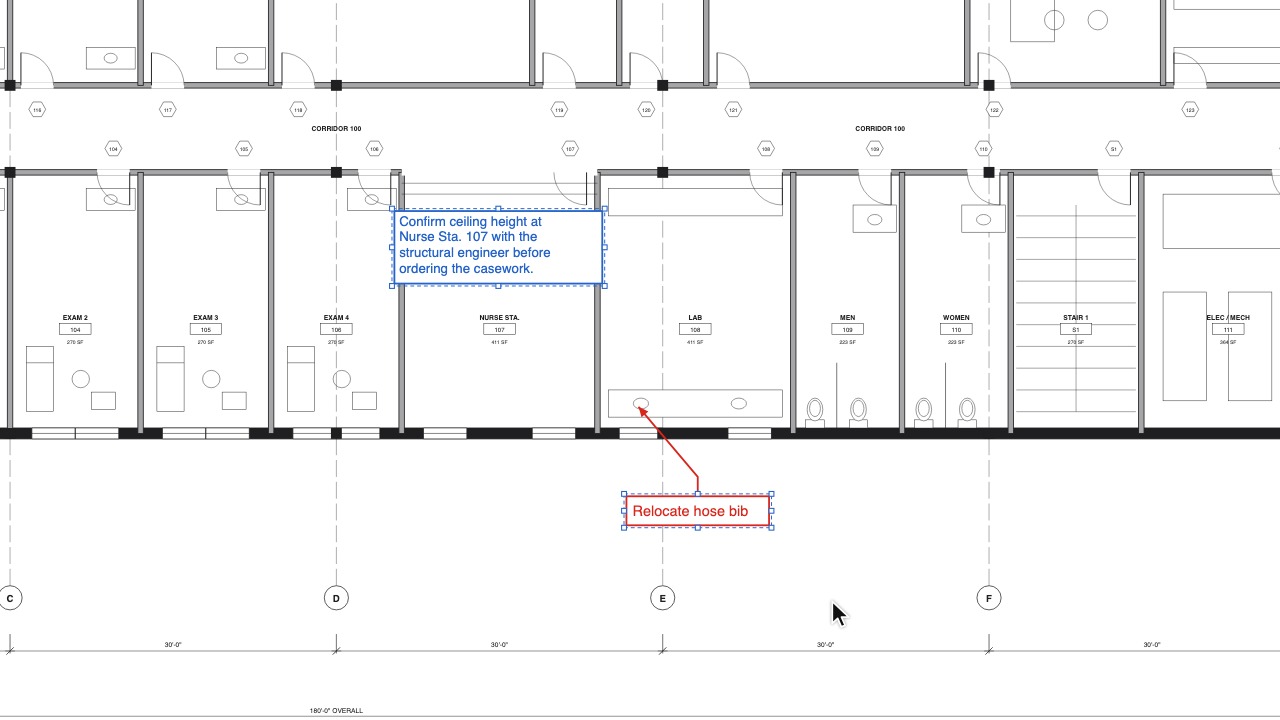 Autosize Text BoxFit a text box or callout to its words with one key.
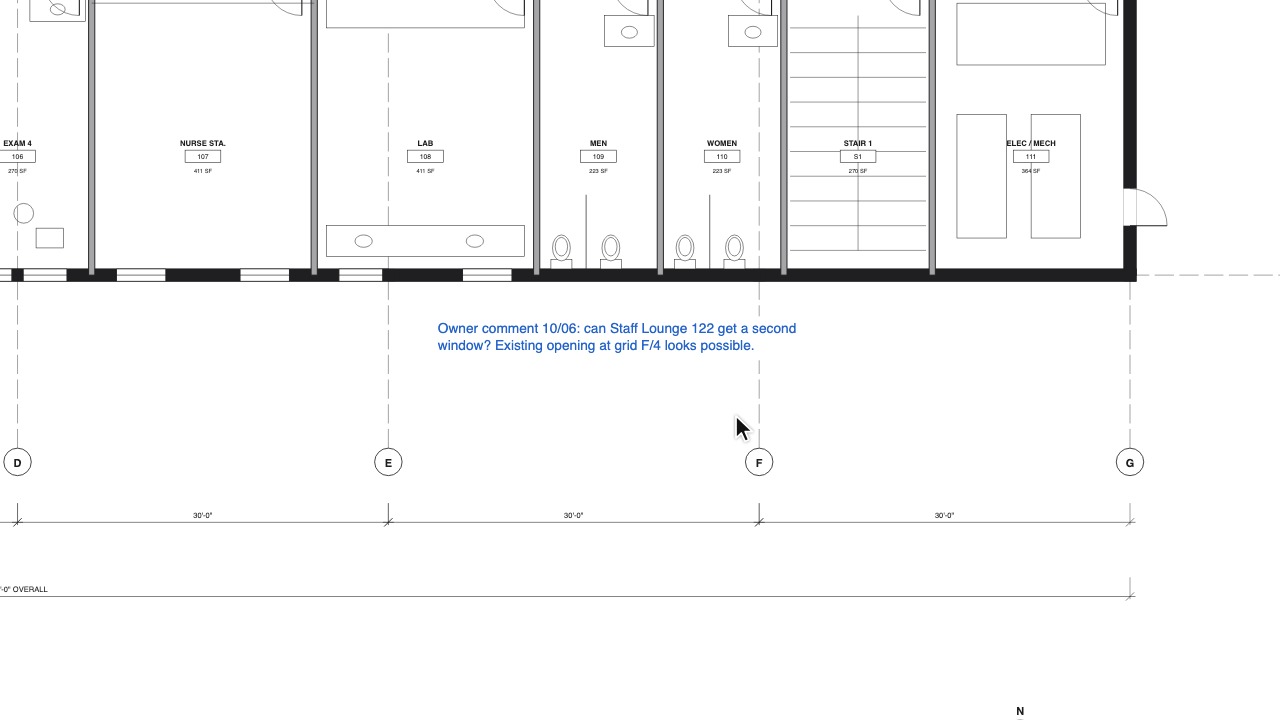 Borderless textText with no box around it, on screen and in the PDF.
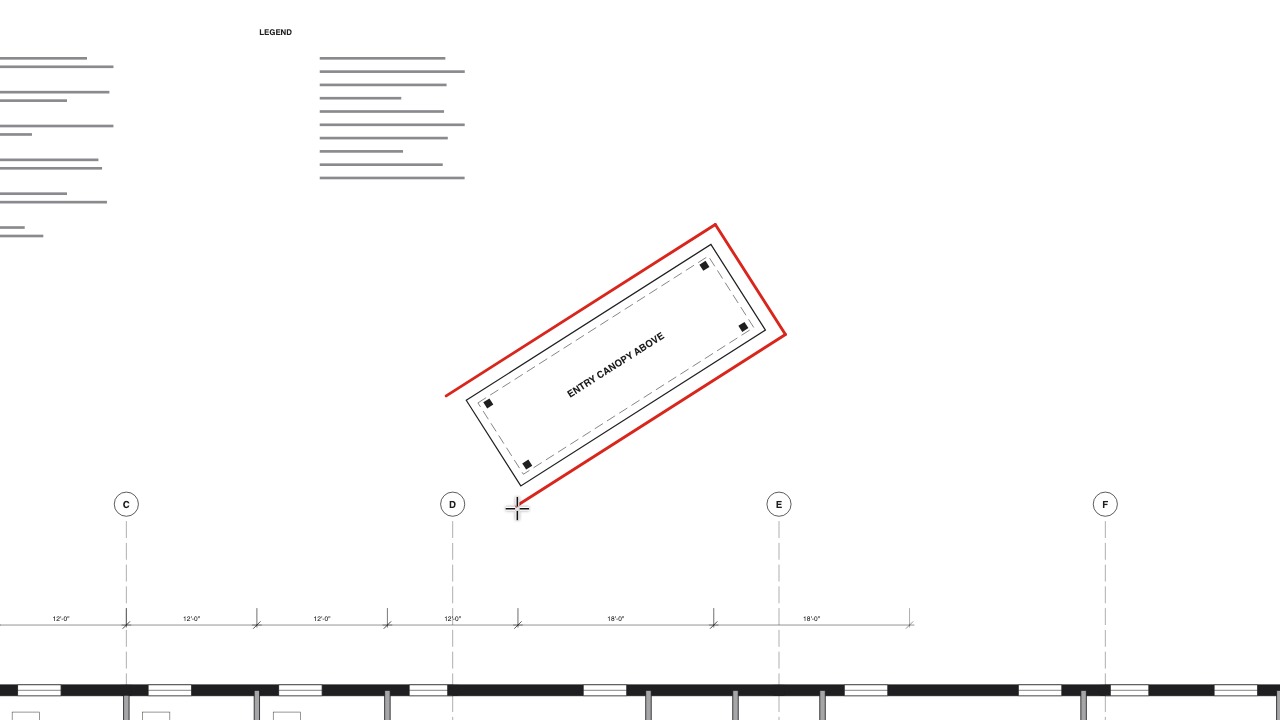 Ortho at any angleKeep lines straight, even on a skewed plan.
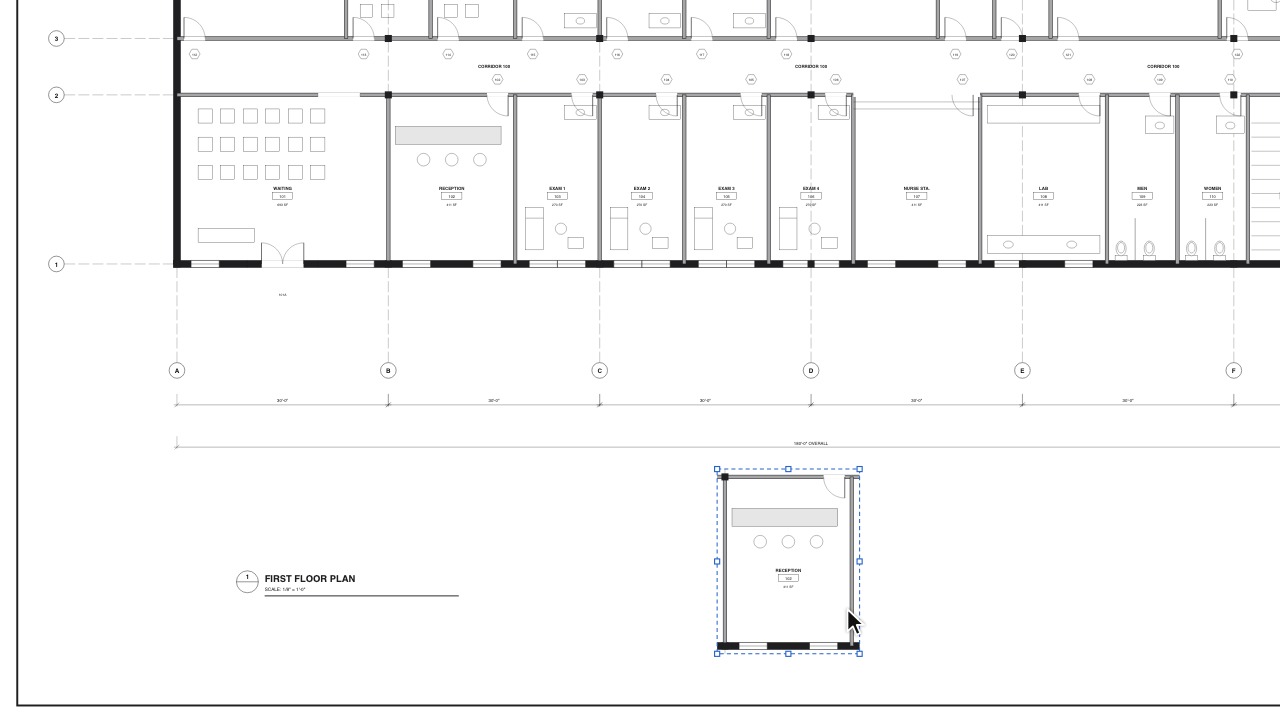 SnapshotCopy part of a sheet as a picture you can move.
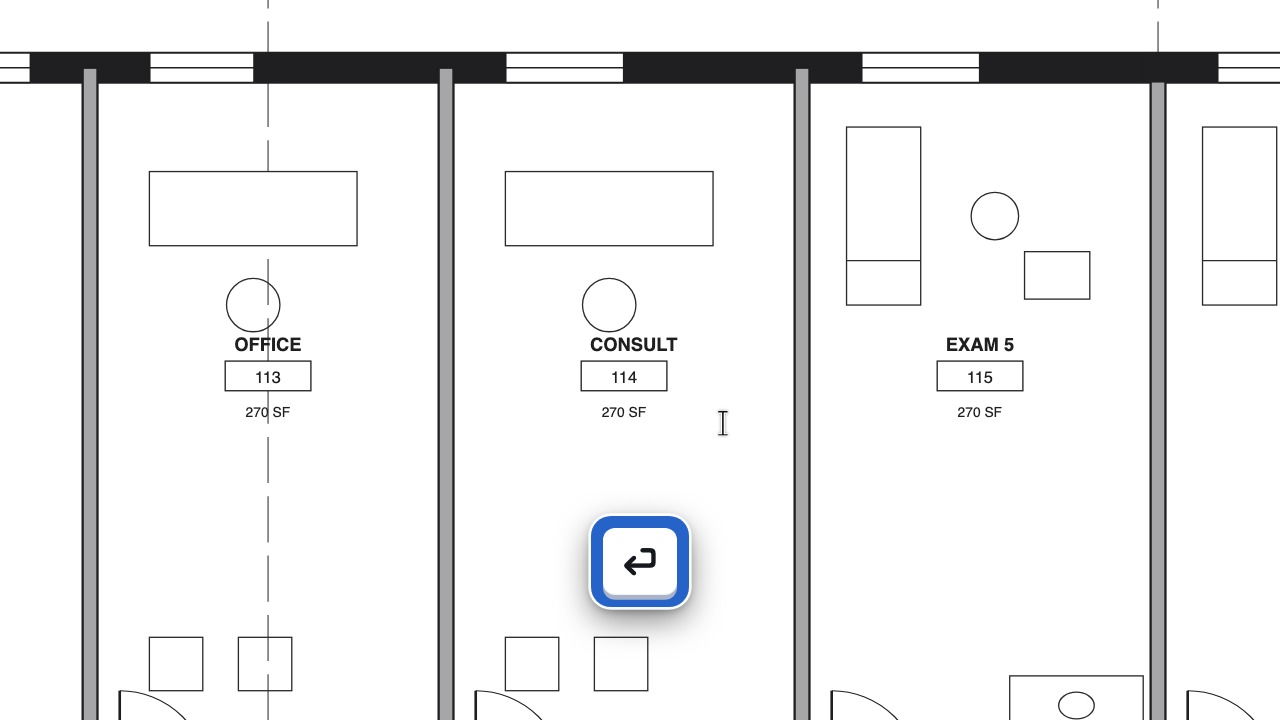 Edit TextFix a wrong label right in the drawing.
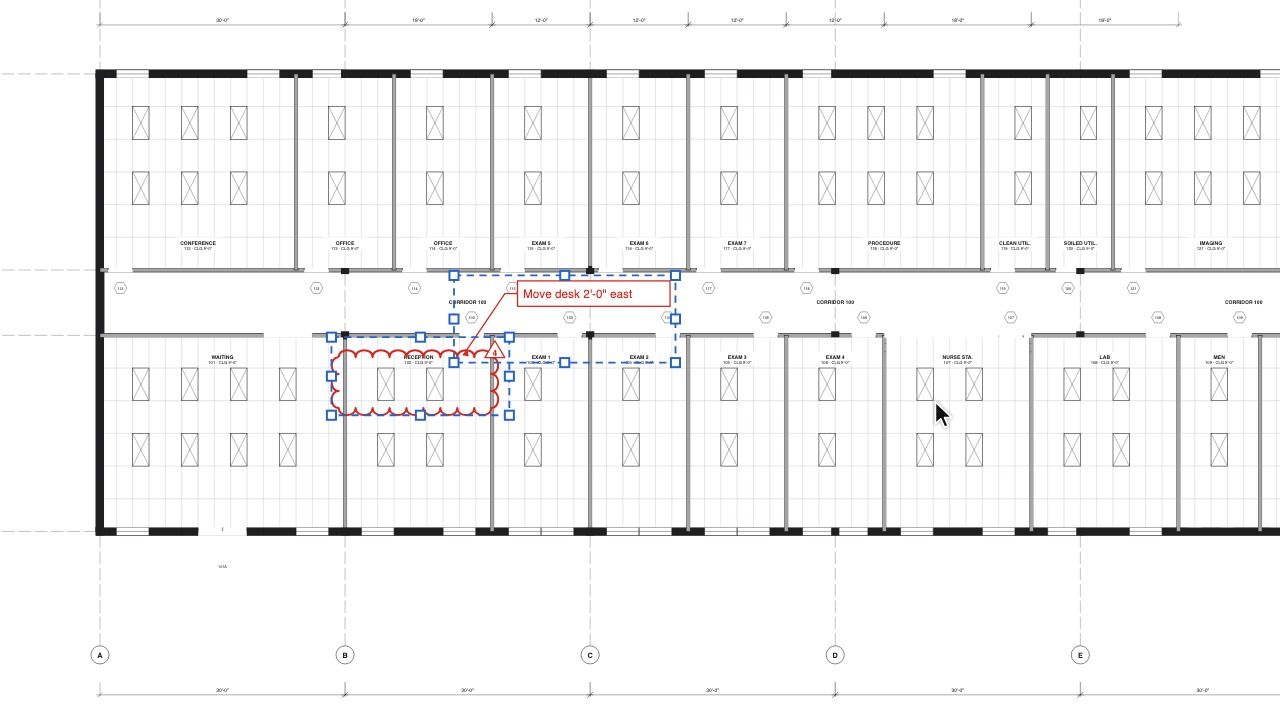 Copy and paste markupsCopy markups to another sheet, document or tab; Paste in Place puts them exactly where they were.
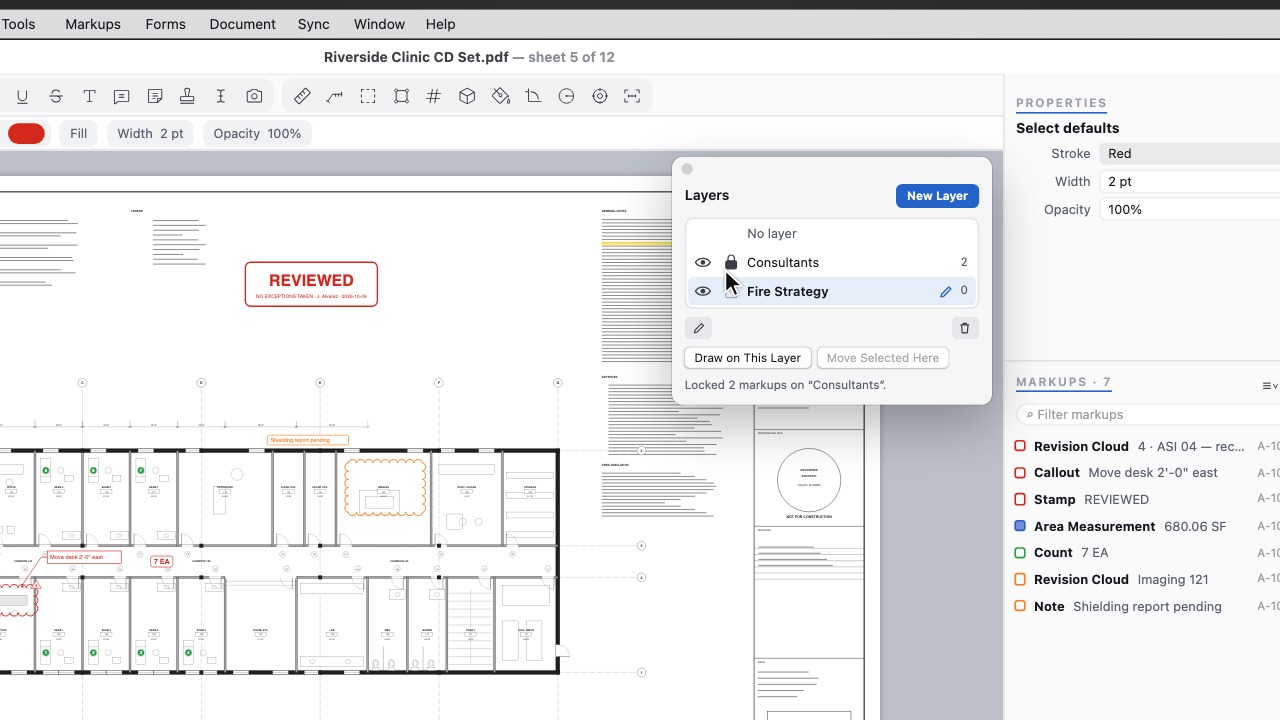 Layers panelAdd, rename, hide and lock markup layers, and choose the layer new markups go on.
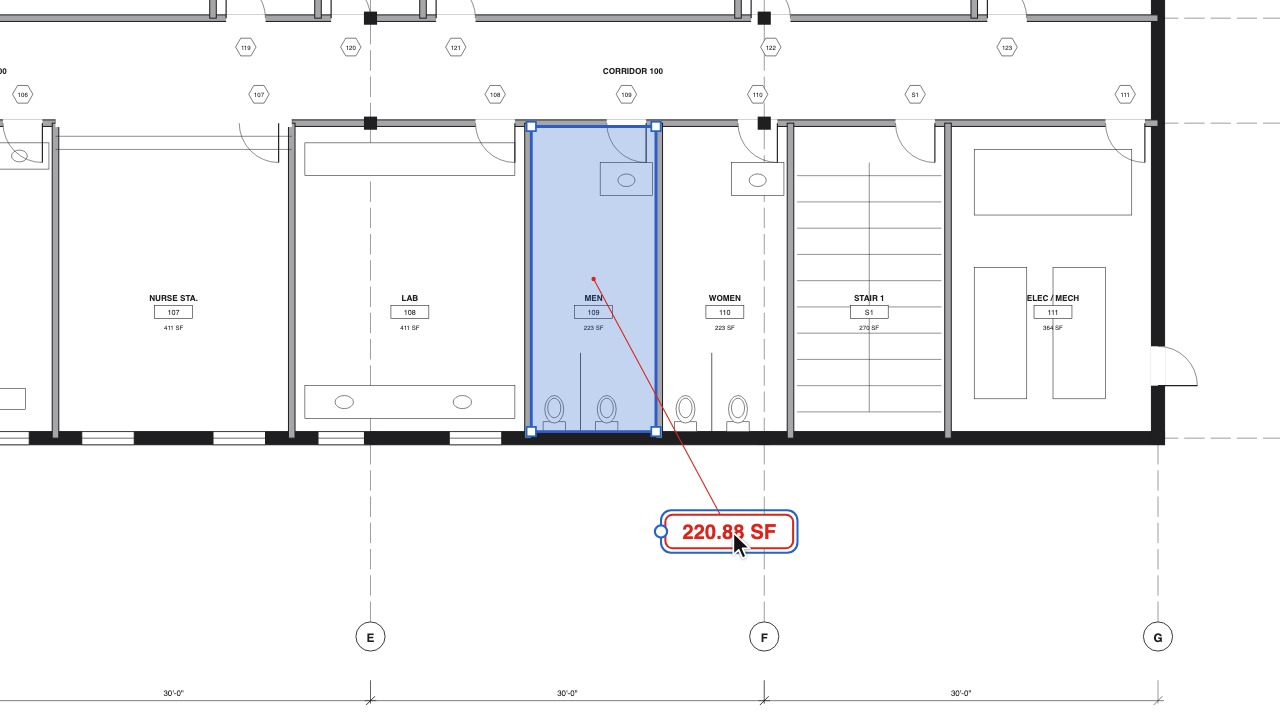 Move measurement valuesDrag any area, length or count value off the shape to where it reads best, with a leader back to what it measures.
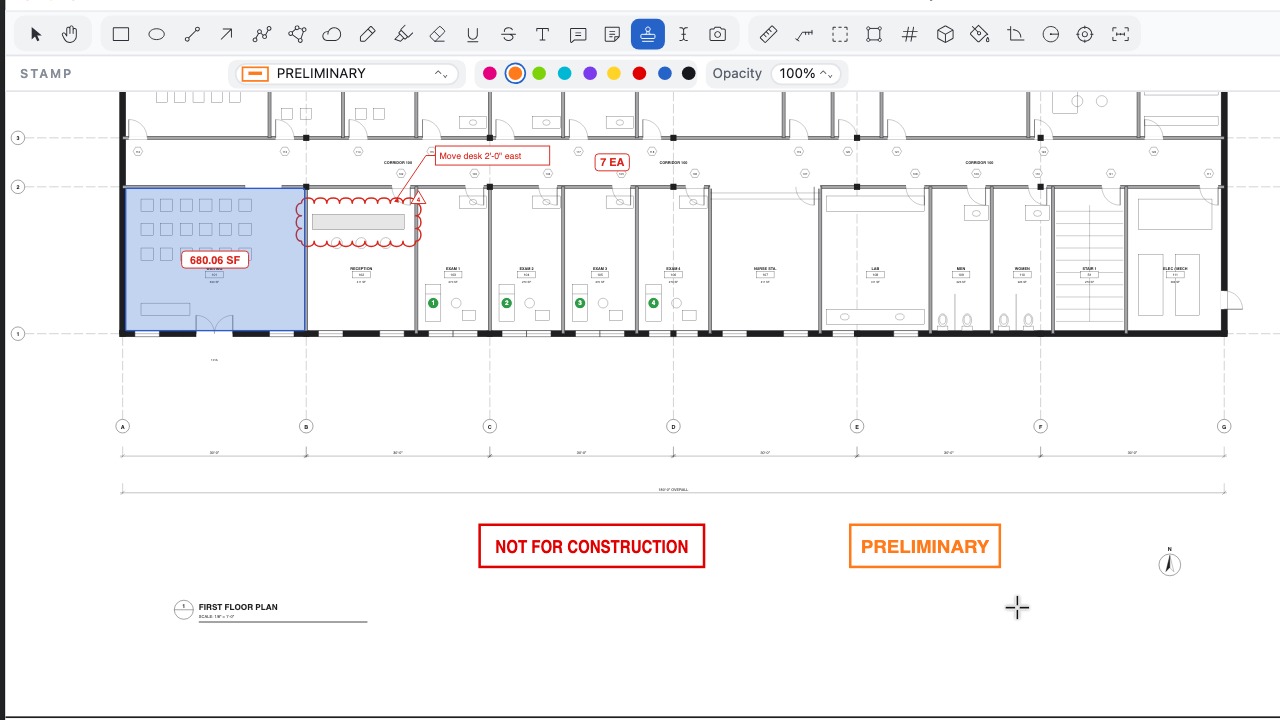 Switch stamps on the flyPick any built-in or firm stamp from the Stamp tool's bar, or press [ and ], without going back to the menus.
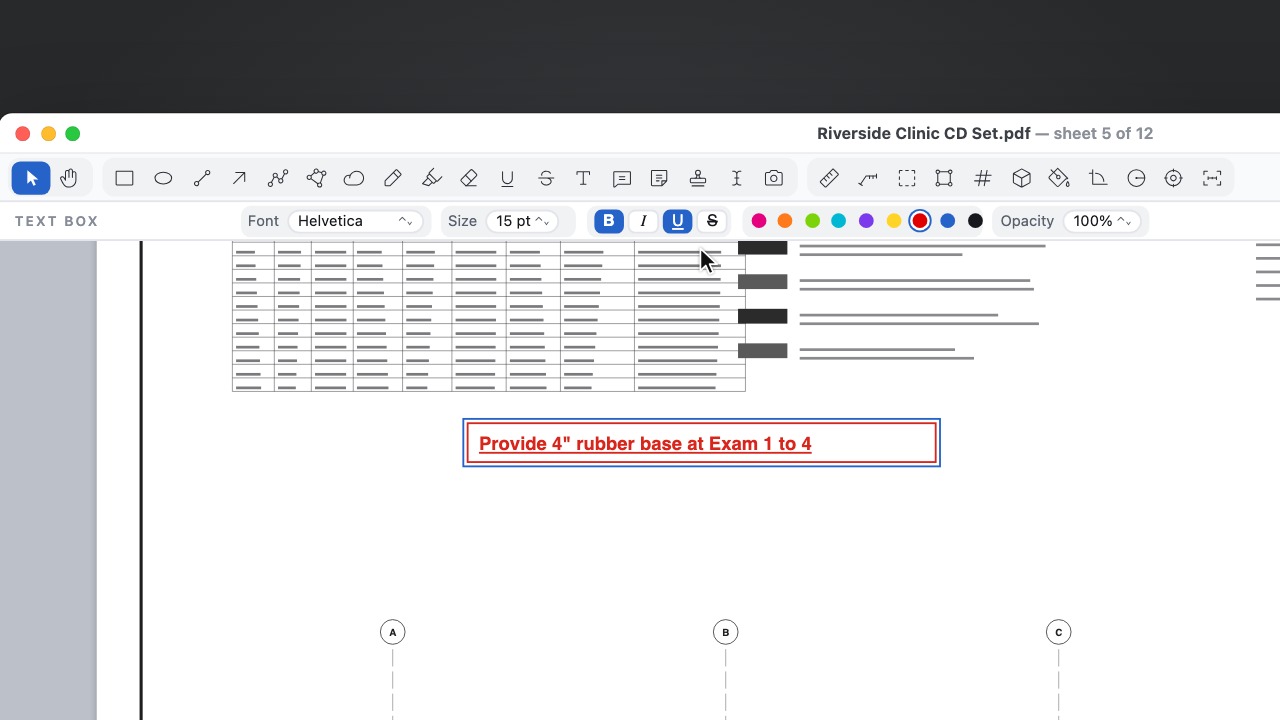 Bold, Italic and Underline keys⌘B, ⌘I and ⌘U (Ctrl on Windows and Linux) style the text you type, and underline and strikethrough travel with the file.
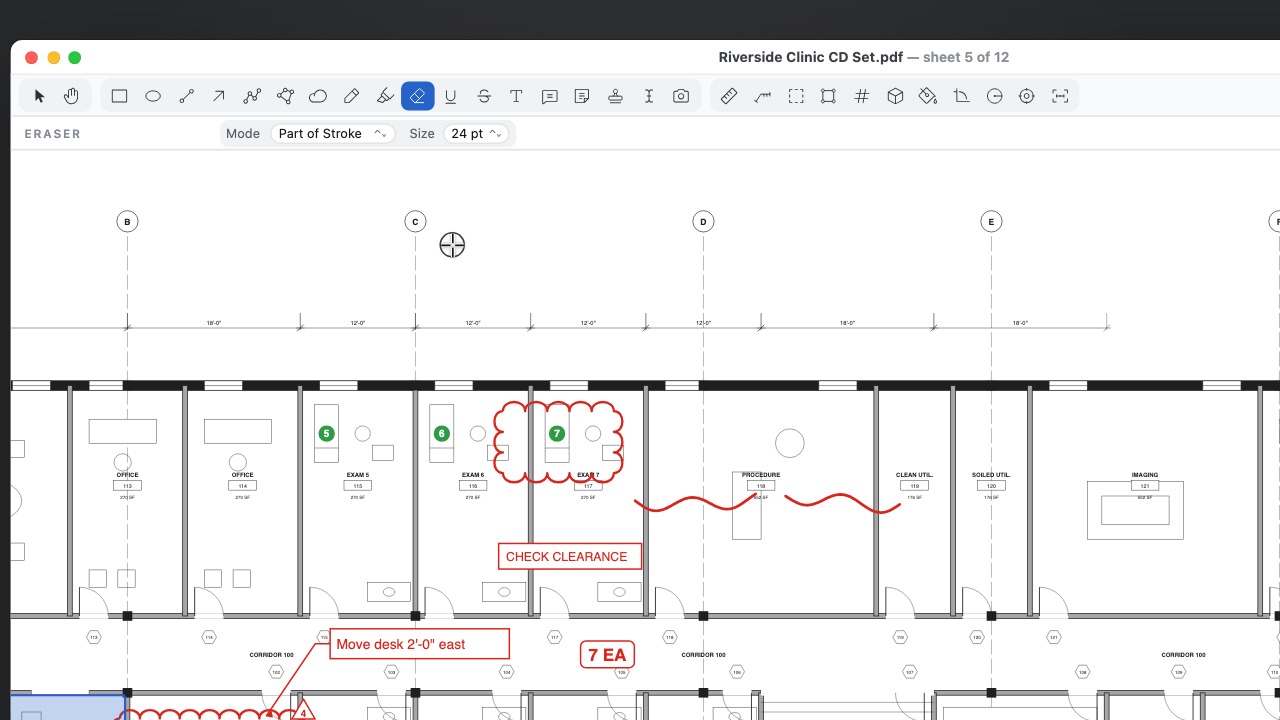 Erase part of a strokeTrim pen and highlighter strokes like a real eraser, or erase whole markups with one drag.
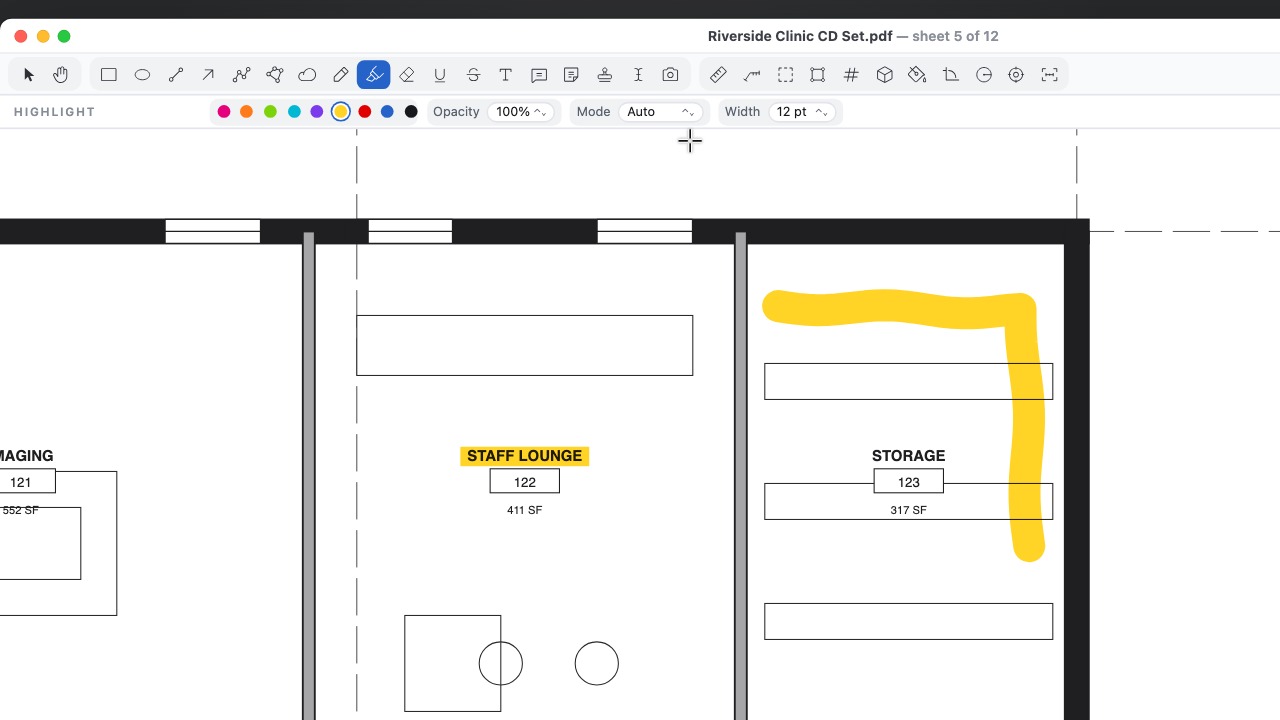 Freehand HighlighterHighlight freely in open areas or along text, with the drawing showing through.
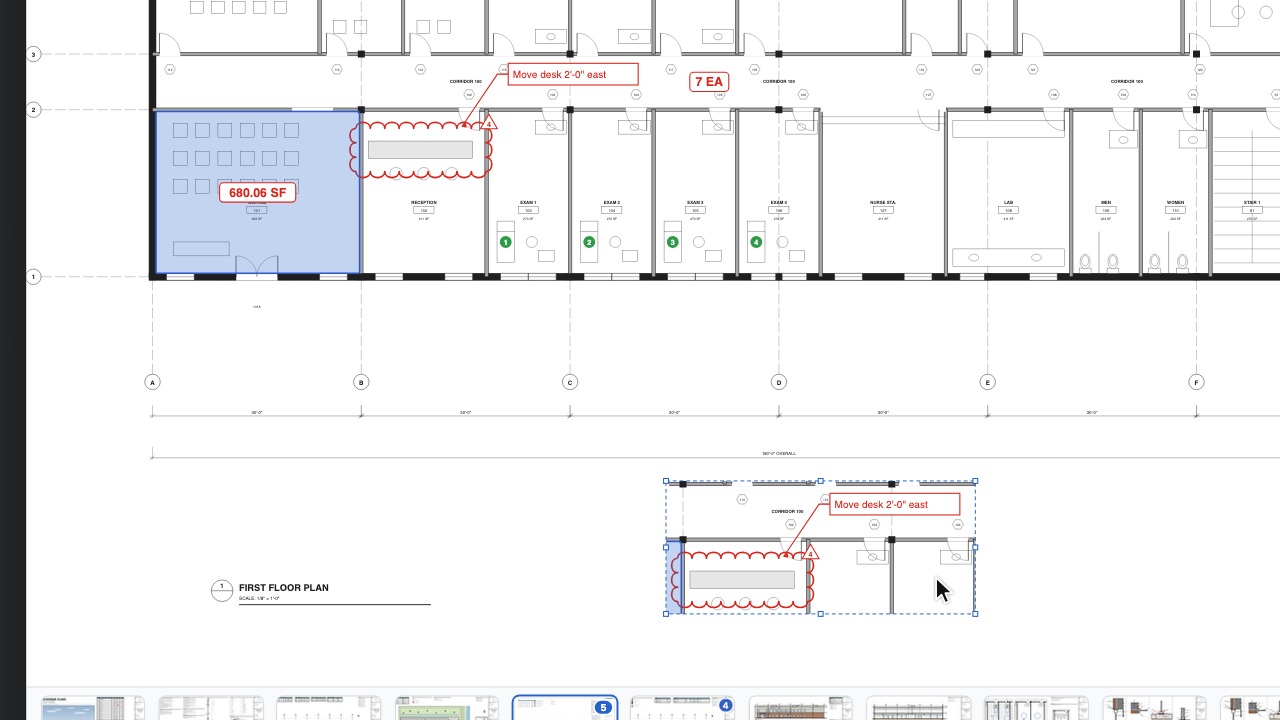 Snapshot to the clipboardCopy any area of the drawing with its markups and place it on another sheet or paste it into any app.
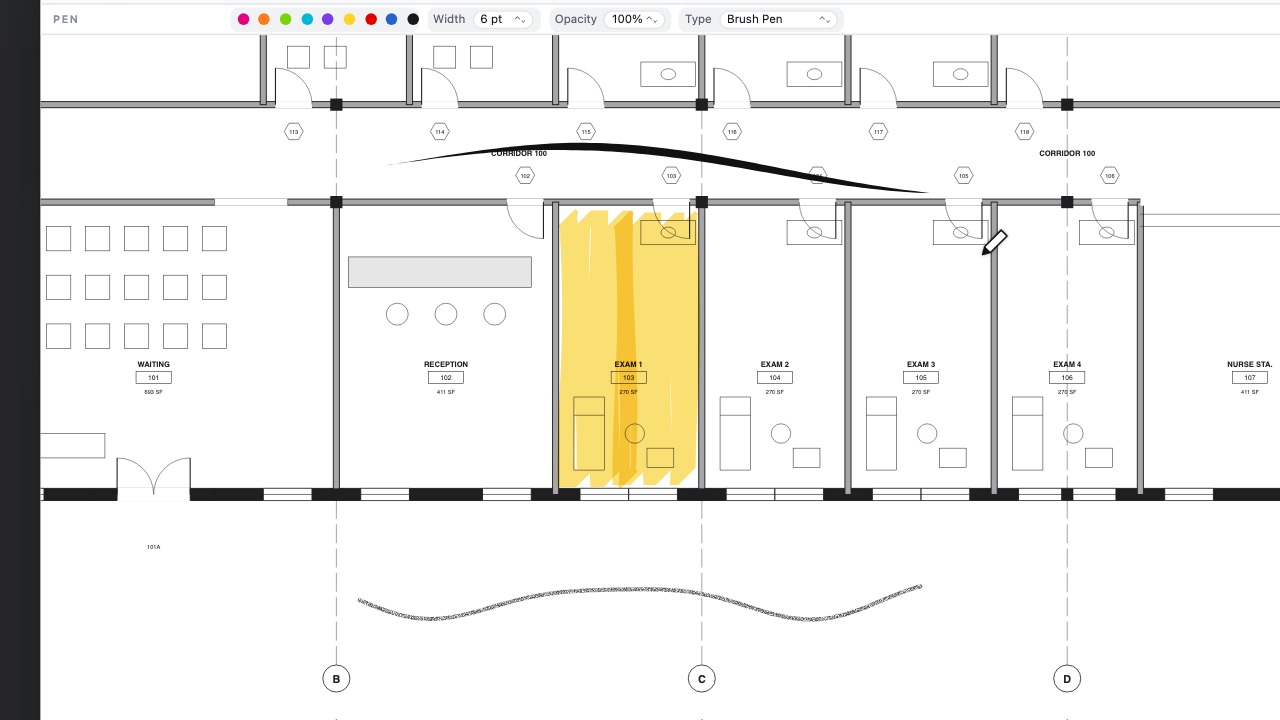 Pens with characterSketch over a drawing with pencil, marker, charcoal or brush pen, and it looks the same in every PDF reader and on paper.
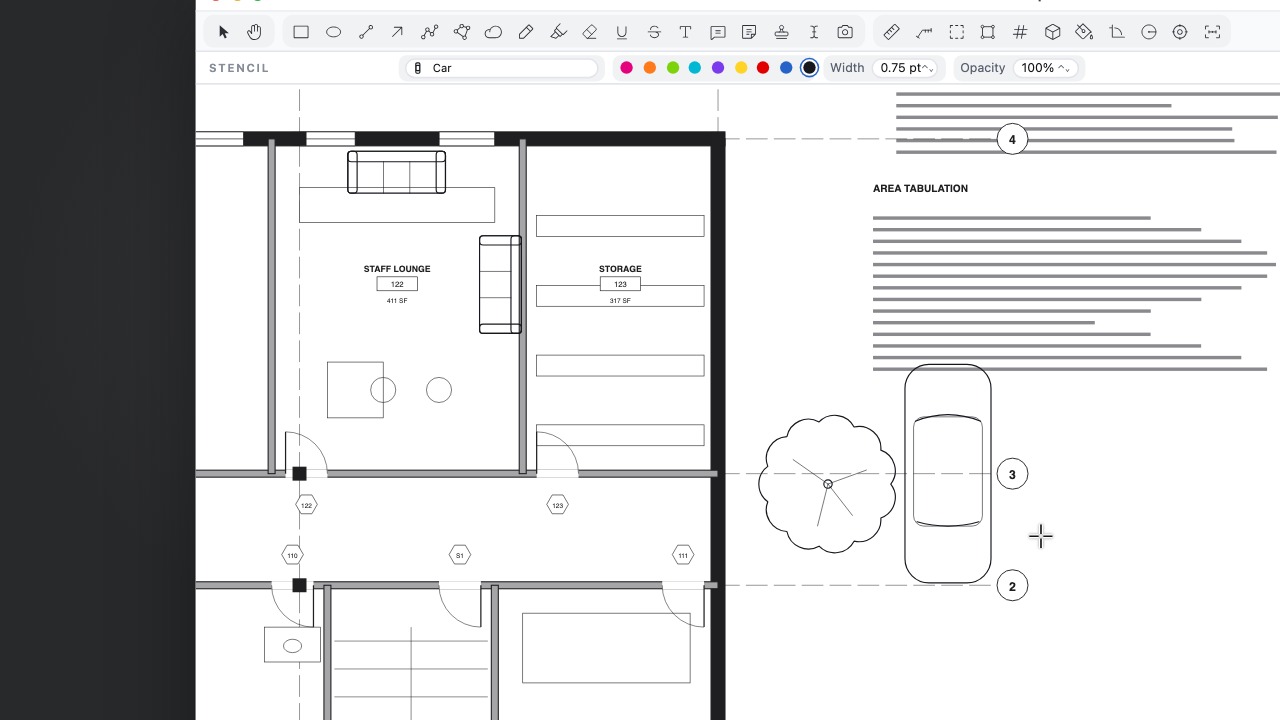 StencilsPlace furniture, trees, people, cars and north arrows at true size in the sheet's scale, or save your own as a stencil to share.
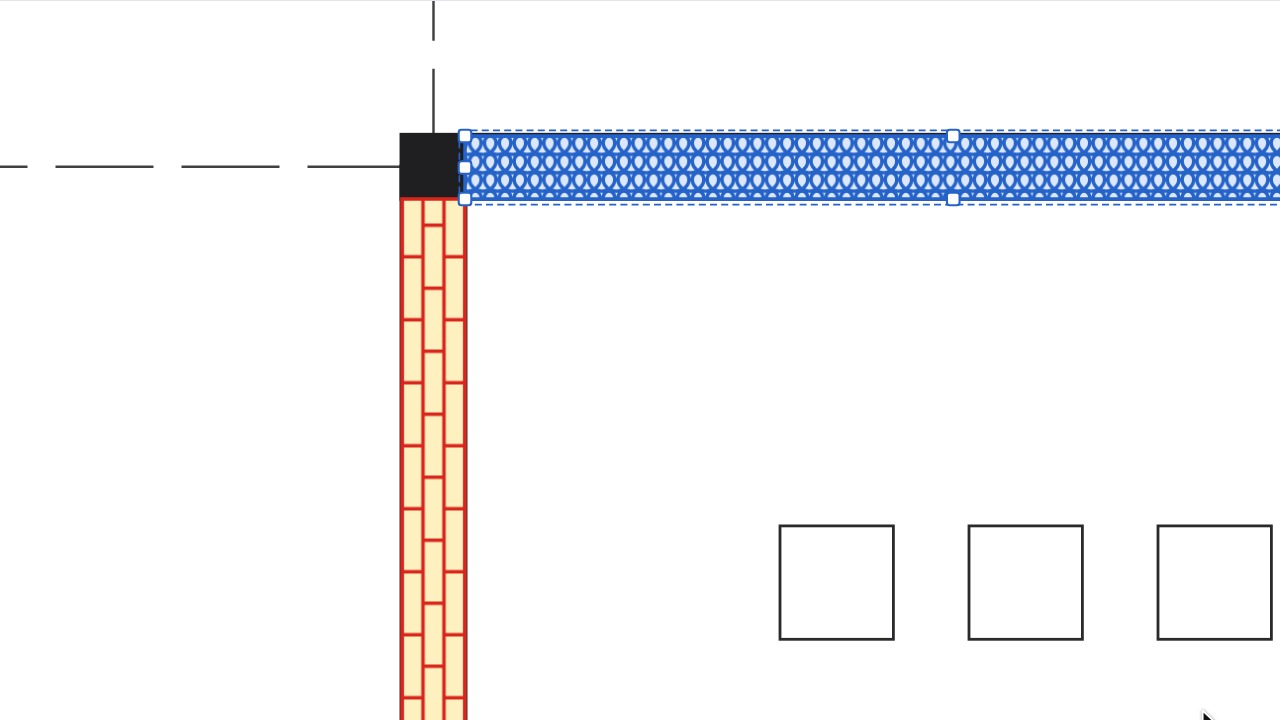 Hatch PatternsShow materials and intent with a vector hatch over any fill, at true size on scaled sheets and identical in every PDF viewer.
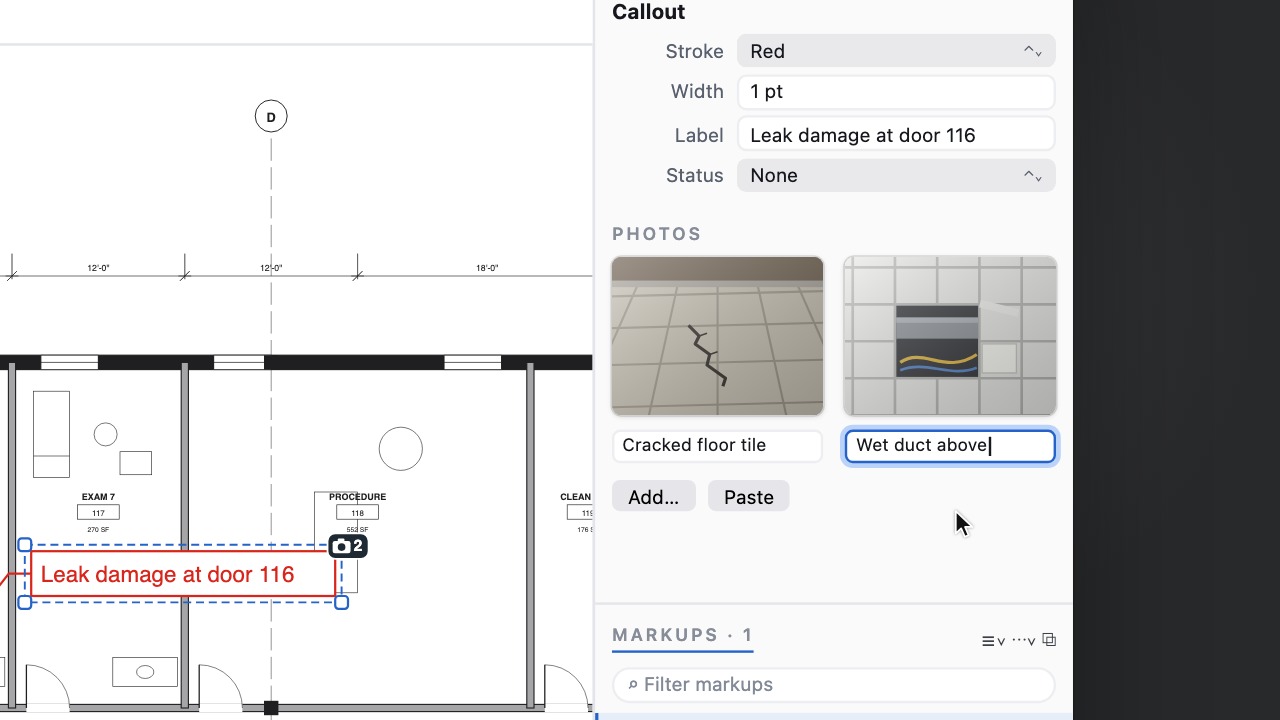 Photos on a markupKeep site photos with the note they belong to, without covering the drawing.
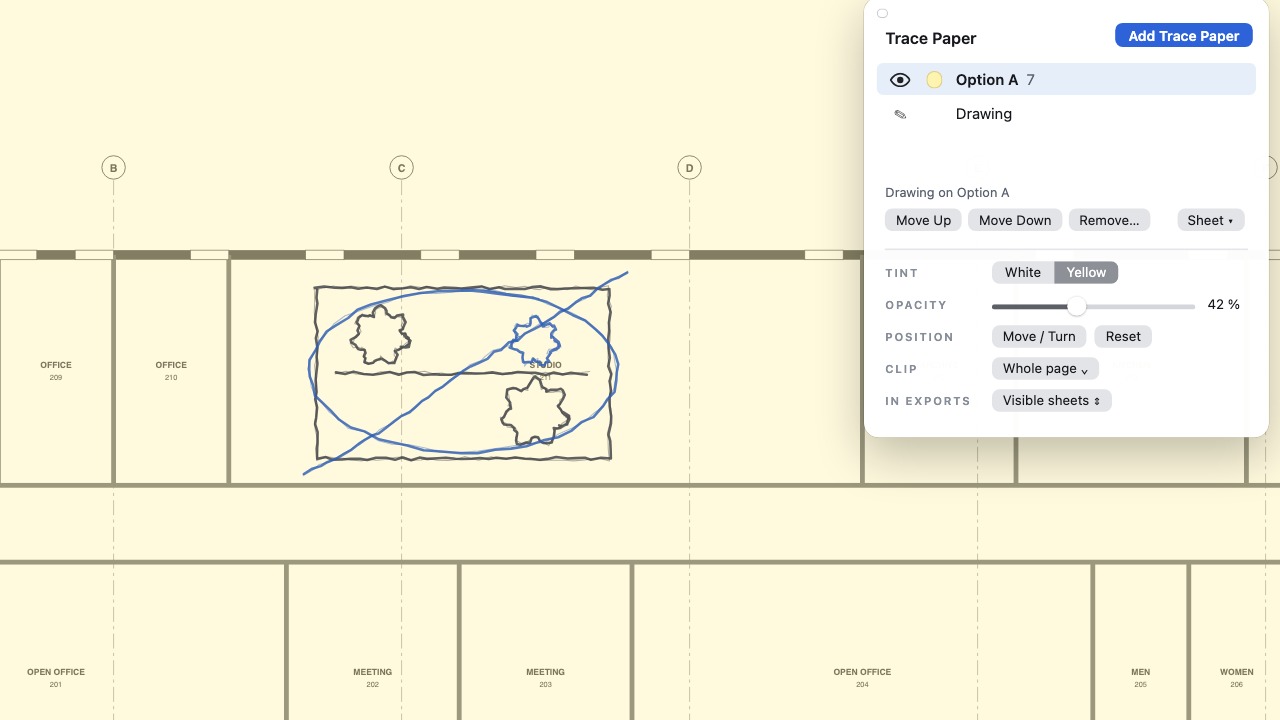 Sketch in optionsStack schemes on trace paper, then merge the keepers or carry a sheet onto the next floor's plan at real size.
Measure and take off
12 tools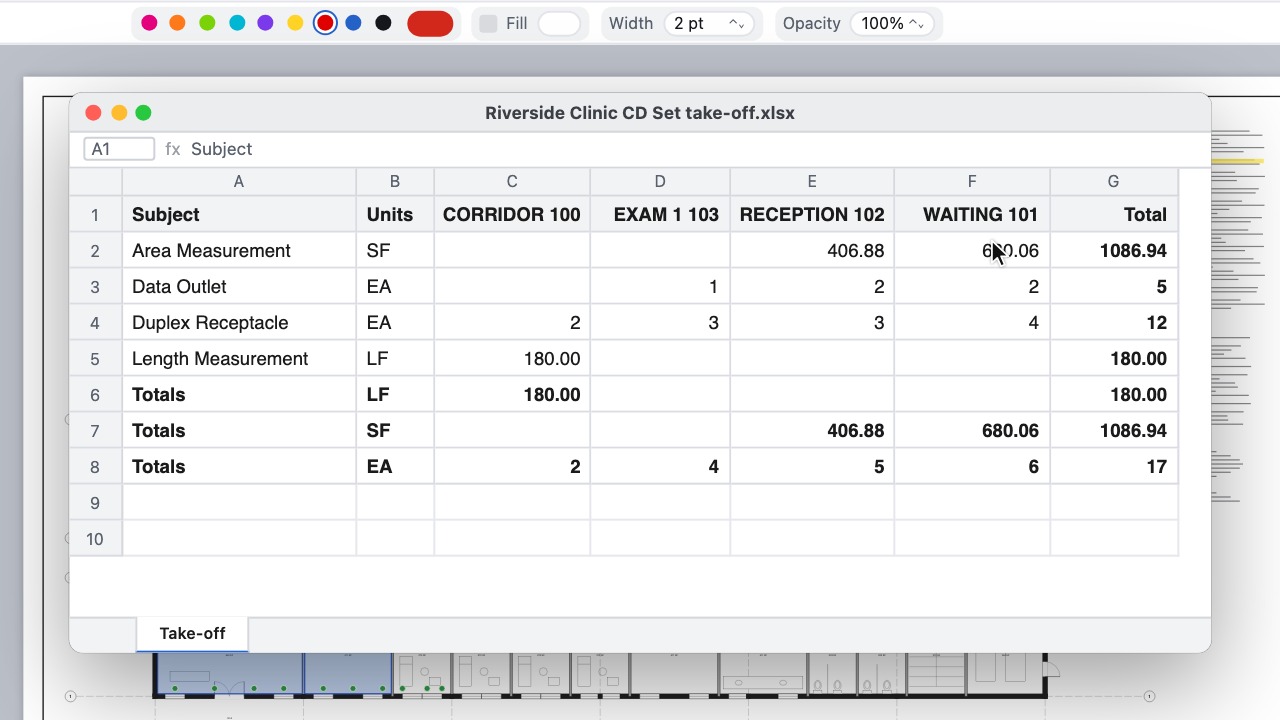 Take-off summaryQuantities per room, sheet or layer, in Excel.
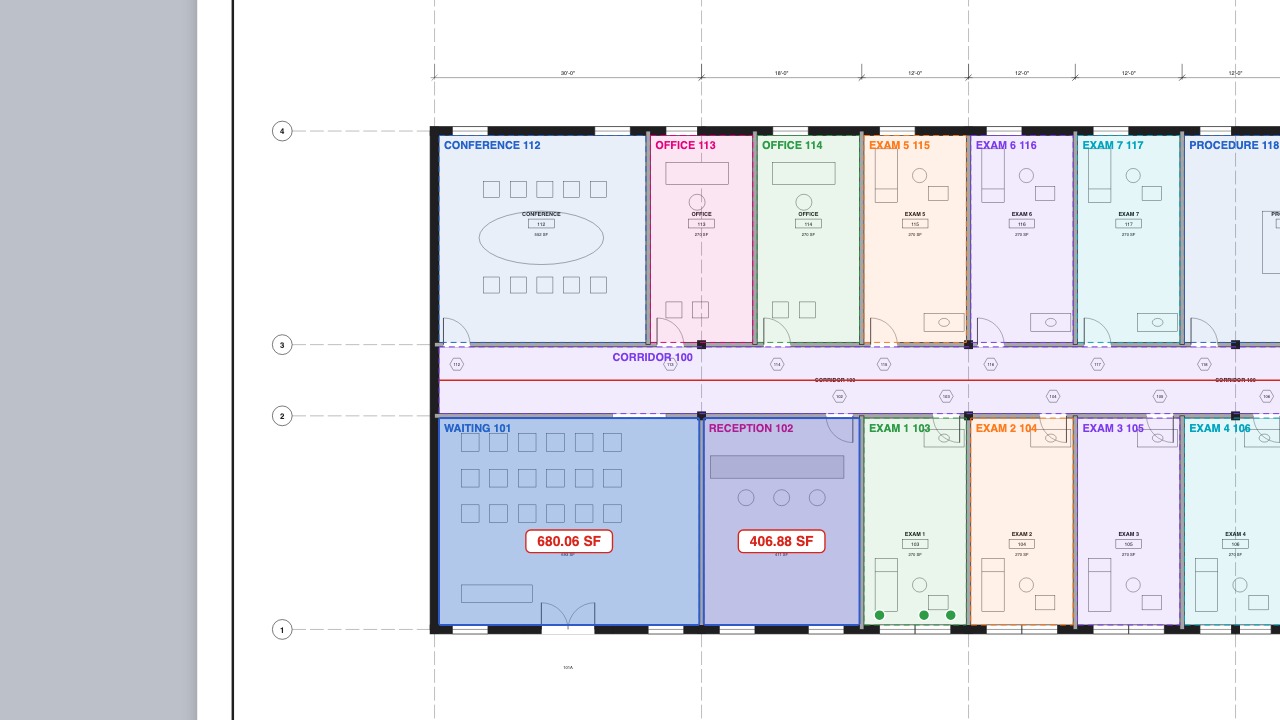 Spaces from roomsFind every room, name it from its label and total by room.
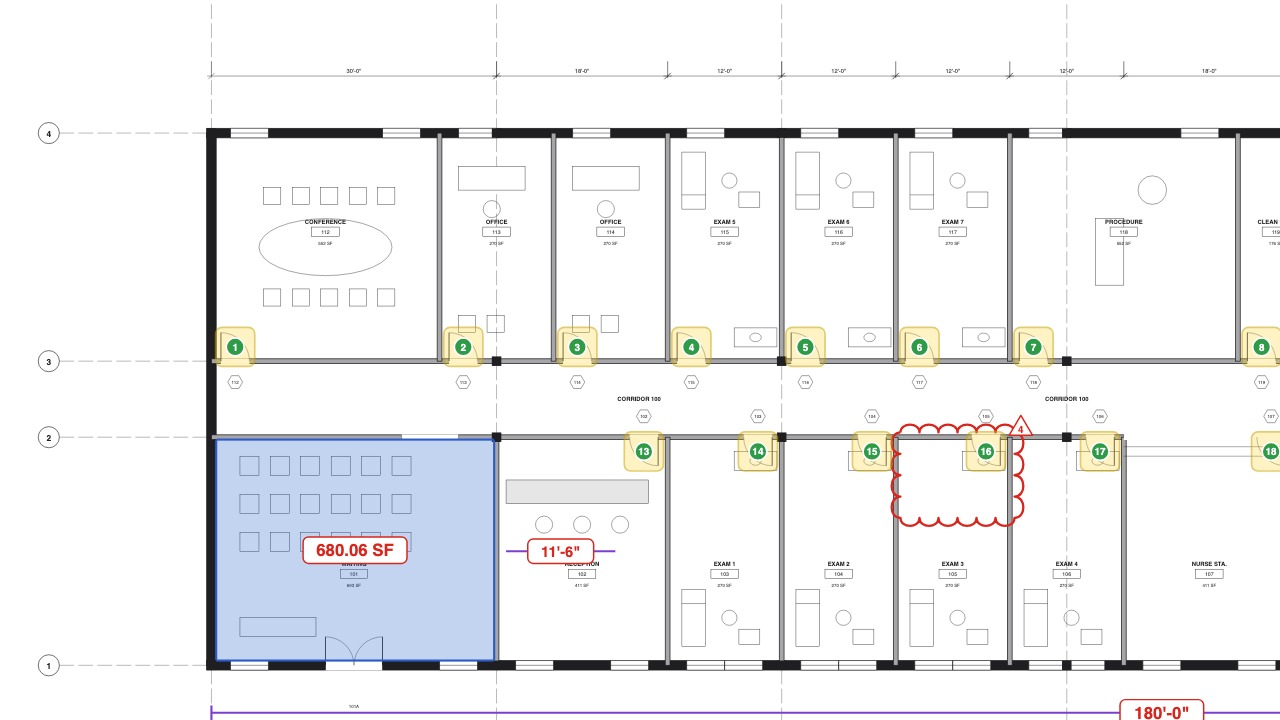 Visual SearchFind and count every instance of a symbol.
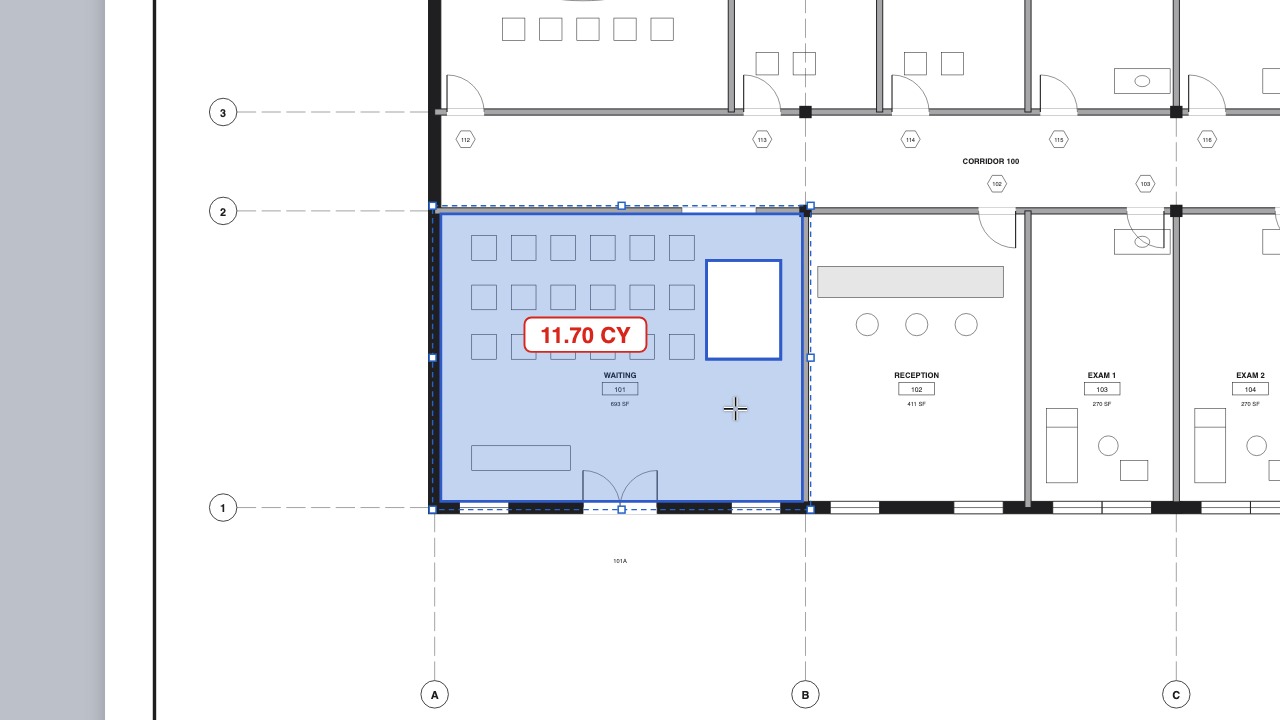 Volumes and cut-outsVolumes, openings cut out of areas, and scale regions for details.
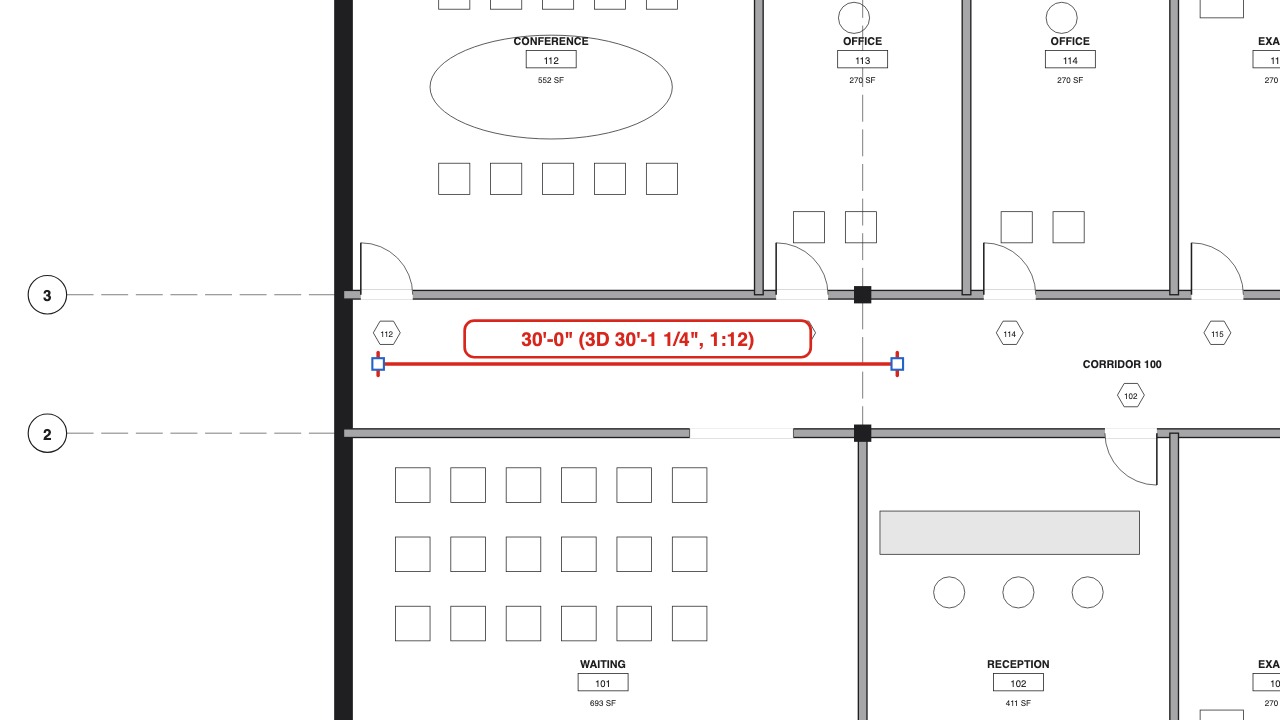 Slope and 3D lengthTrue lengths for pipe runs, ramps and roofs.
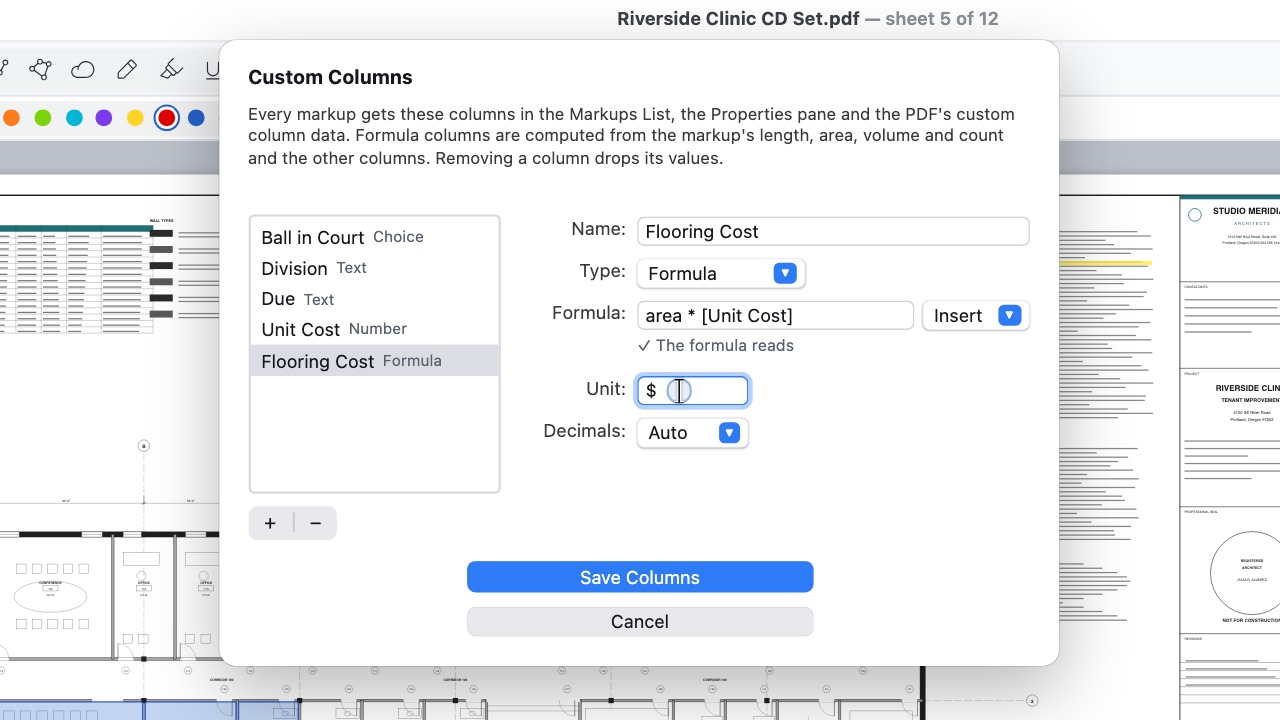 Formula columnsColumns such as area × unit cost, totalled for you.
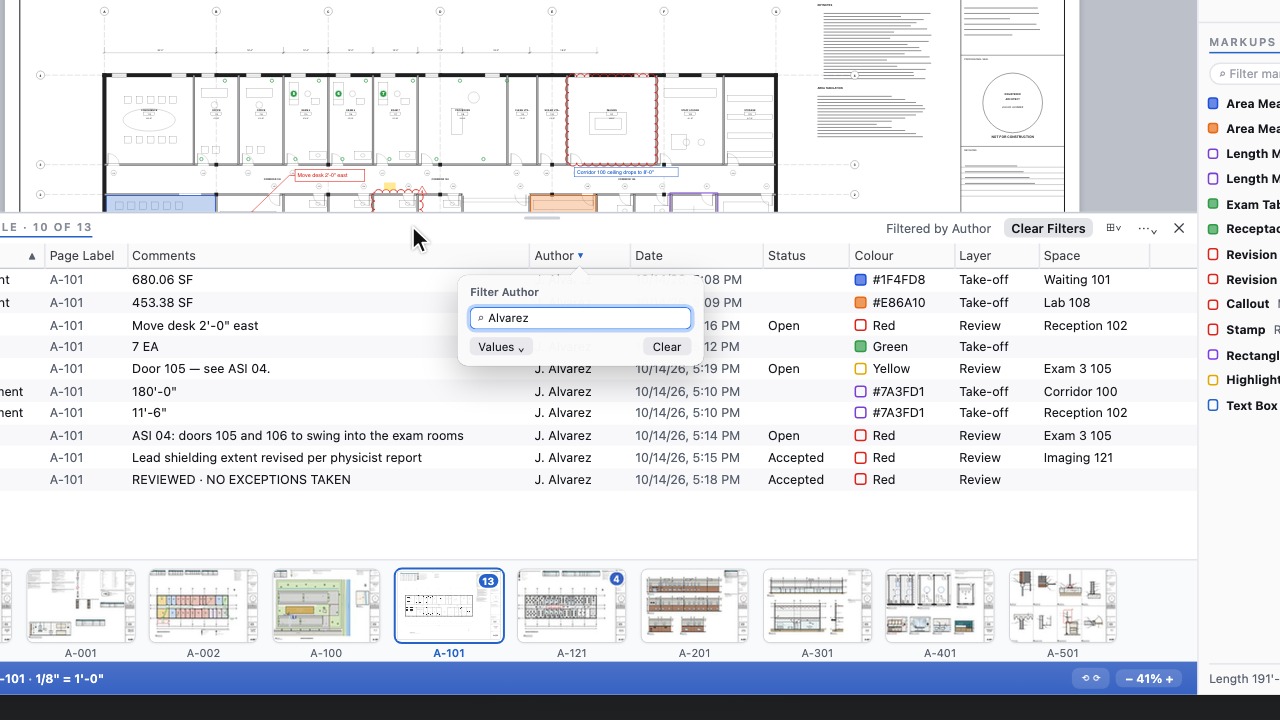 Markups TableEvery markup in a wide table to sort, filter and save as a view.
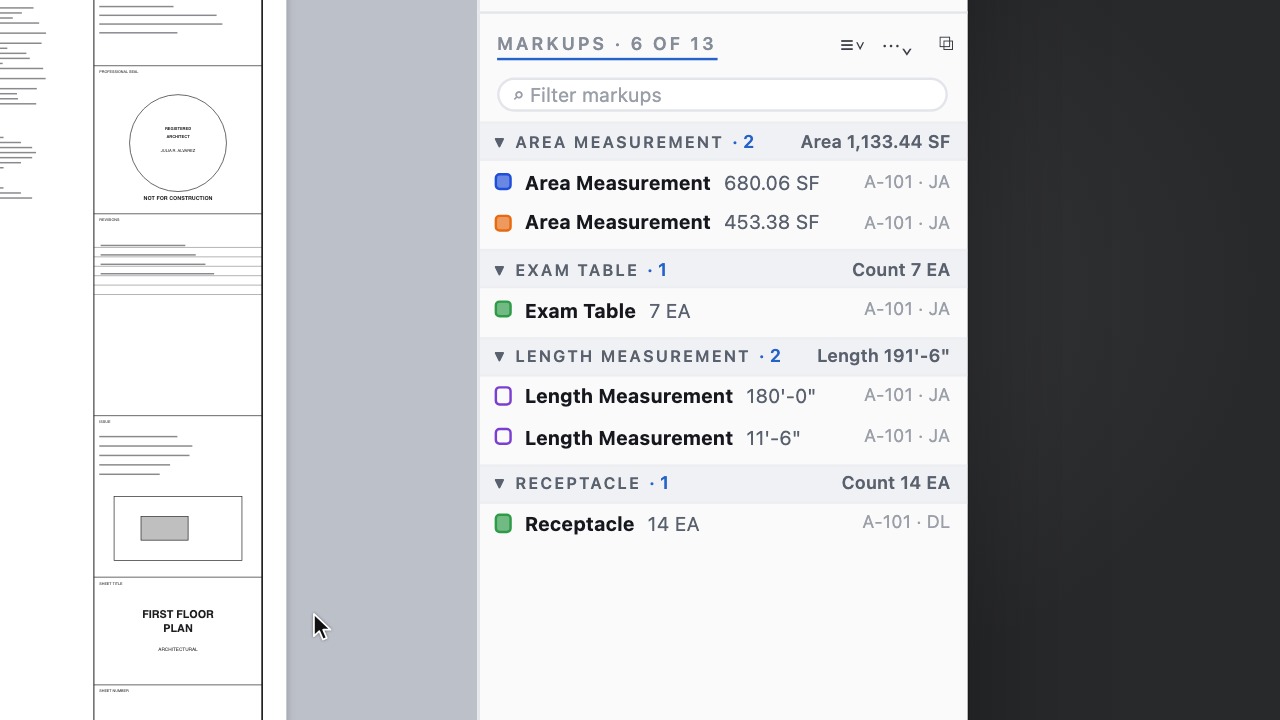 Saved list viewsKeep your sort, groups and columns; Review and Take-off built in.
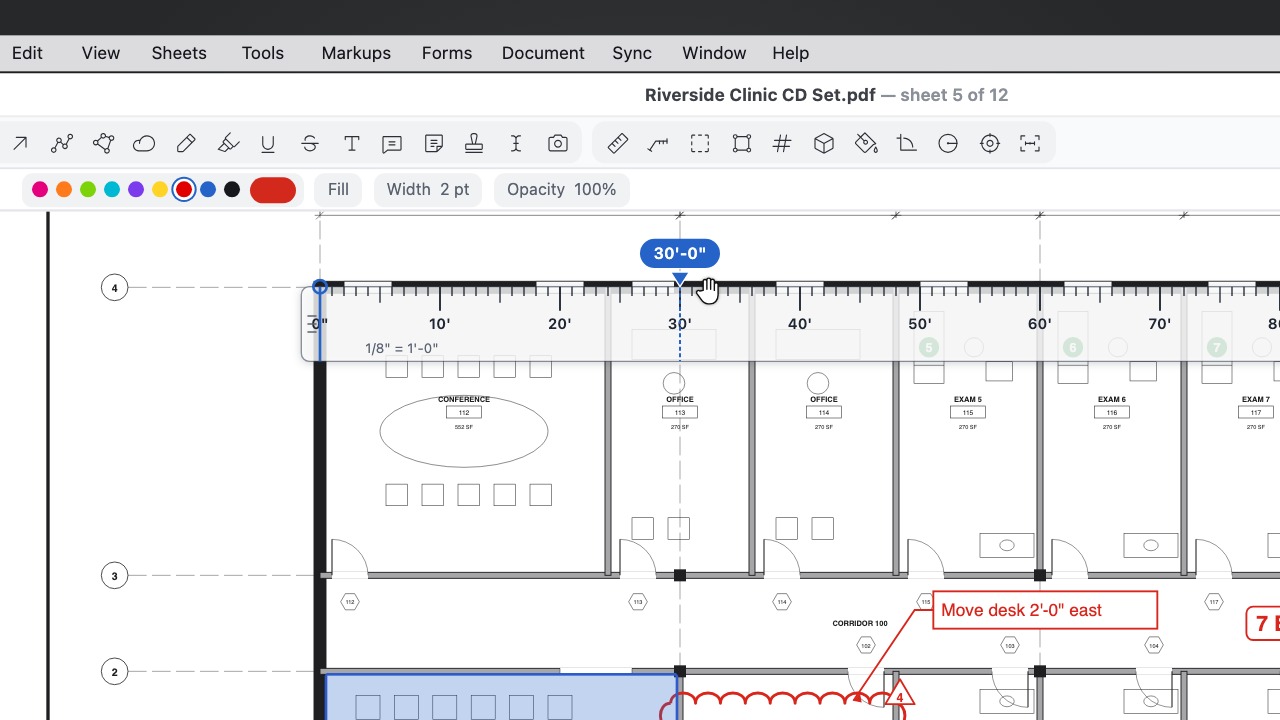 Scale RulerA see-through ruler that reads in the sheet's scale: drag it, turn it and snap its zero to the drawing.
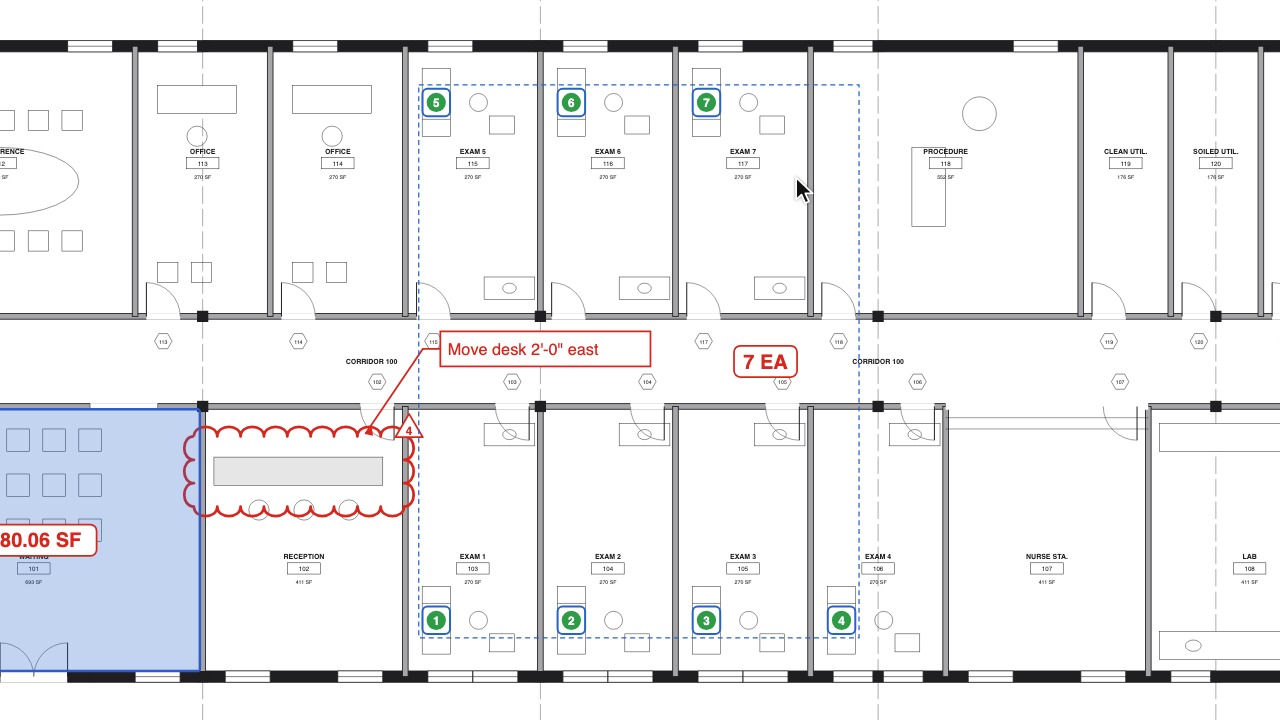 Add to CountPick up a count you started earlier and carry on numbering.
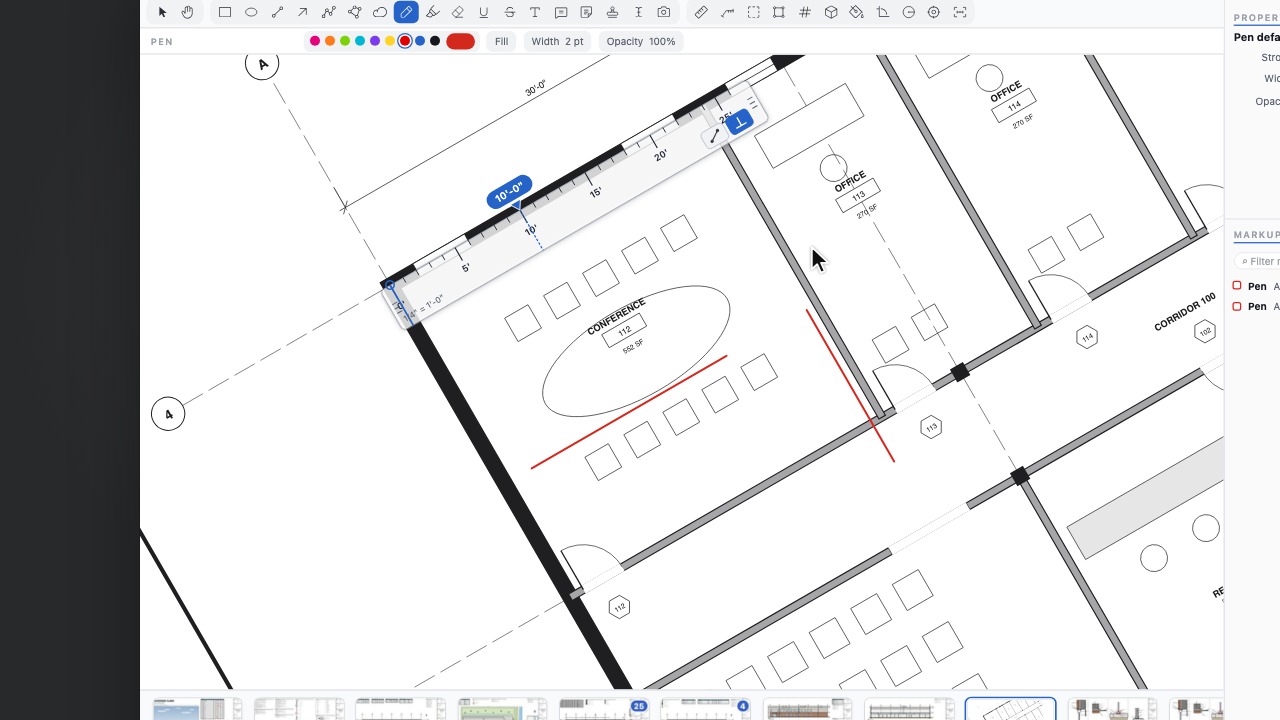 Constrain to RulerKeep every stroke parallel or square to the Scale Ruler anywhere on the sheet; stretch it, turn it and reverse it with a click.
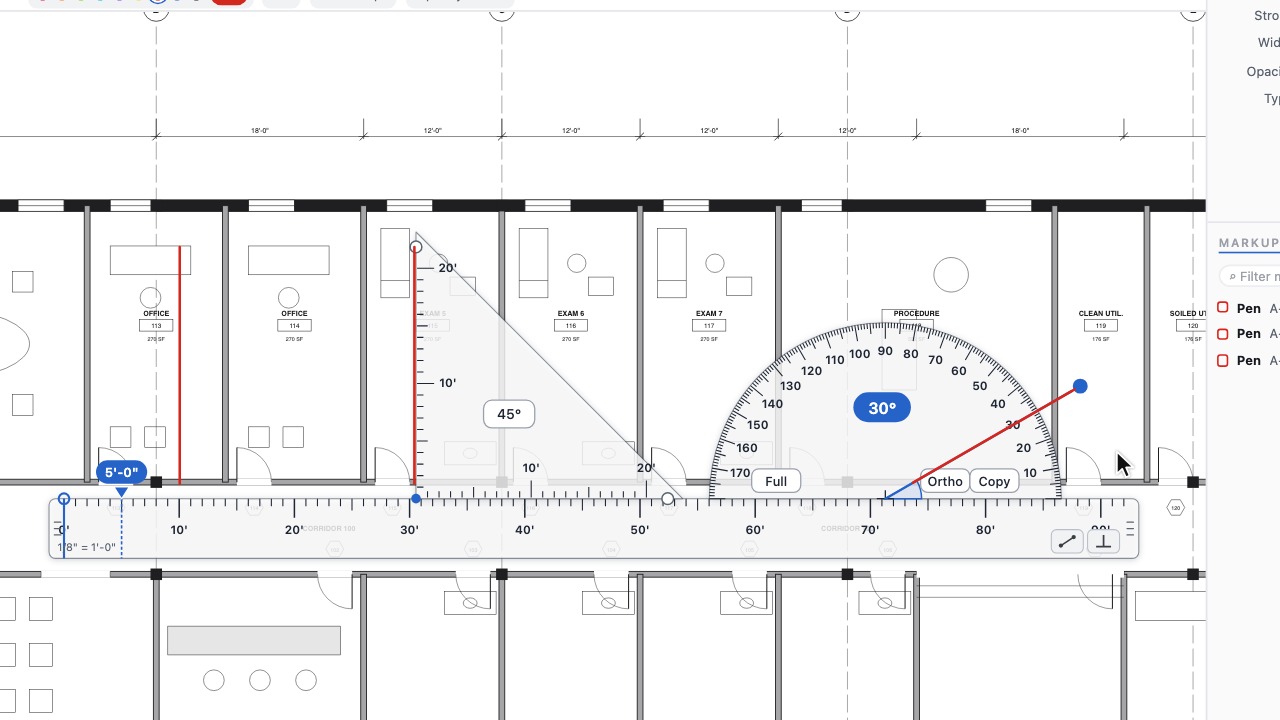 Triangle and ProtractorSlide a set square along the scale ruler and set angles with a protractor arm, then draw straight along their edges.
Sheets and sets
10 tools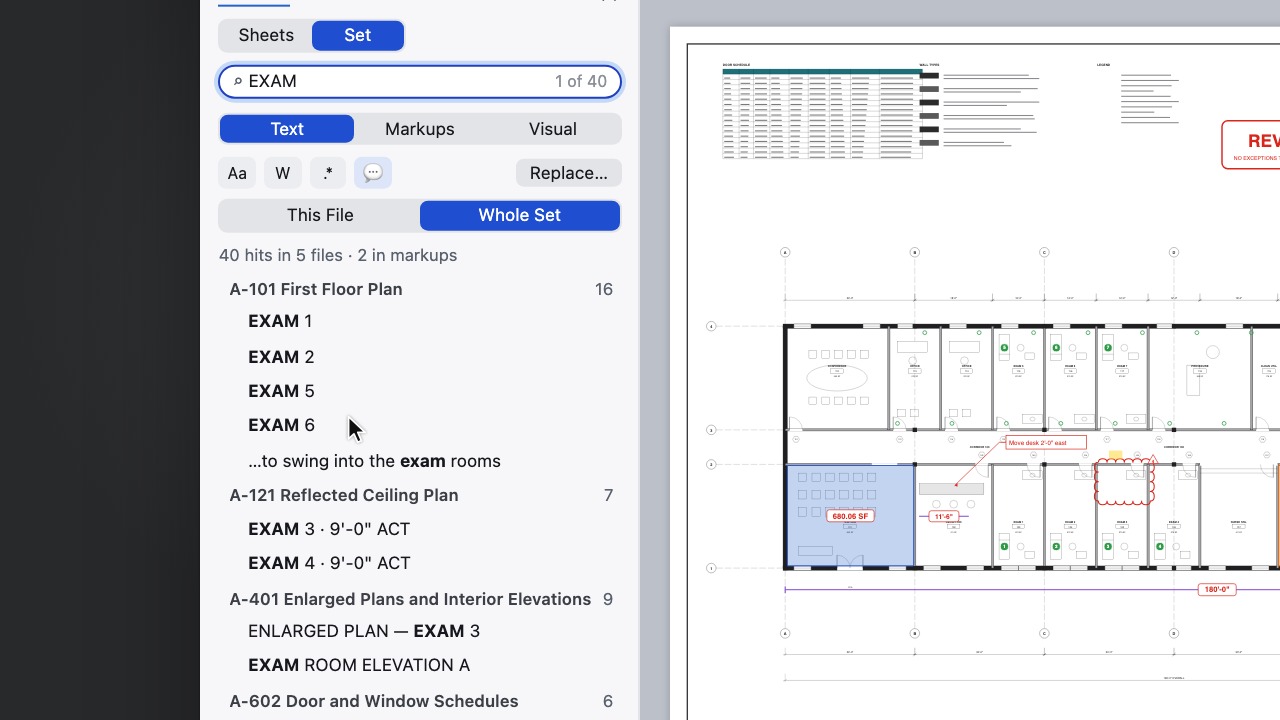 Whole drawing setsOpen a folder as one set and search every sheet.
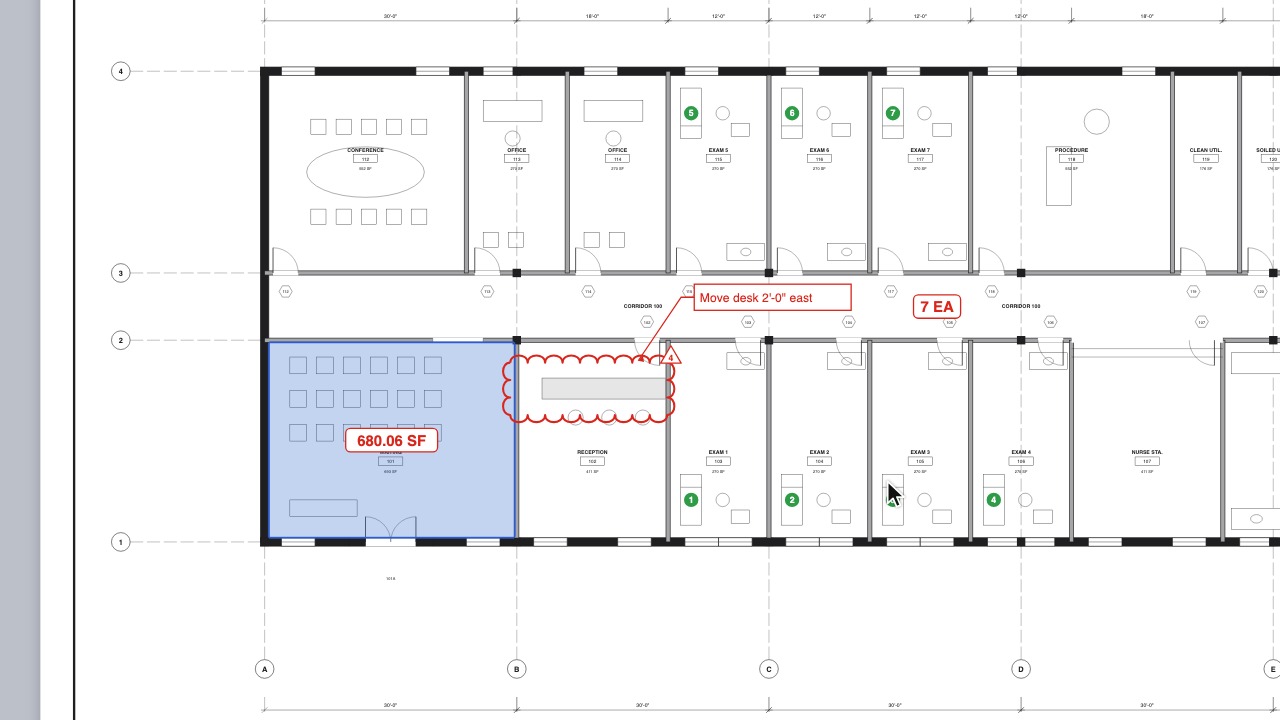 Slip-sheetingDrop in a new issue and every markup stays in place.
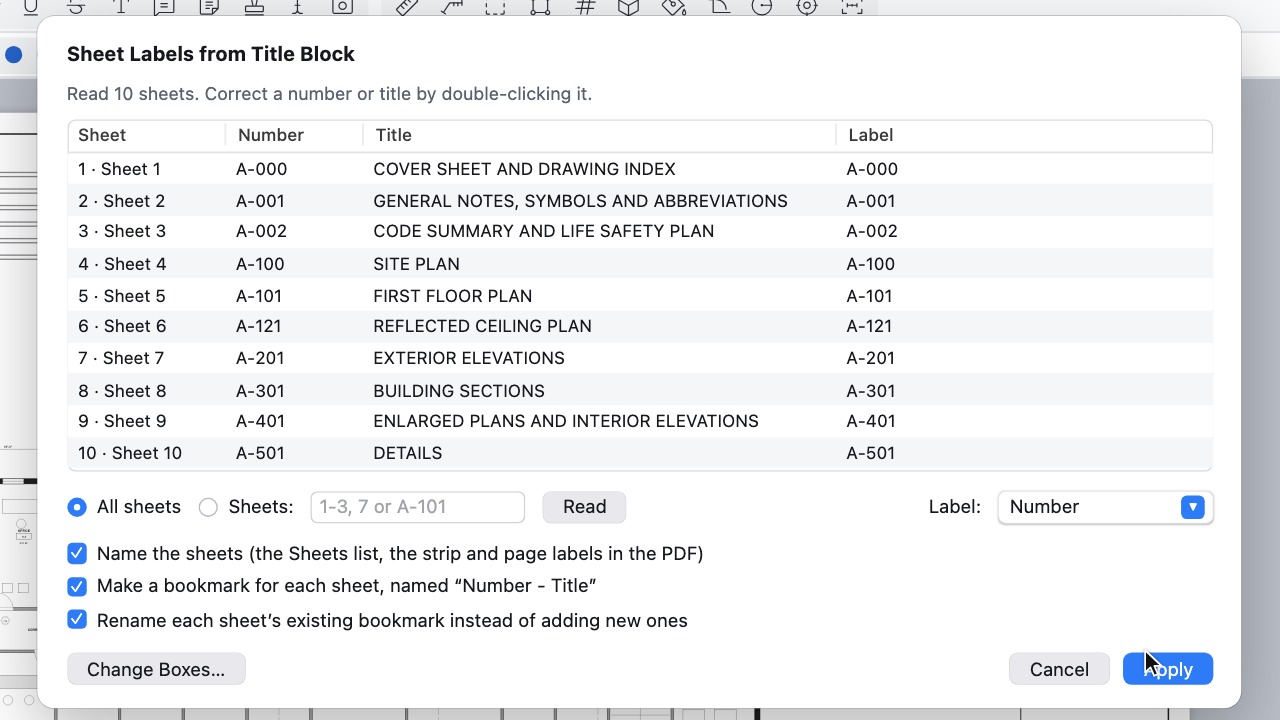 Sheet labels from the title blockBox the sheet number and title once; every sheet in the set is named and bookmarked from it.
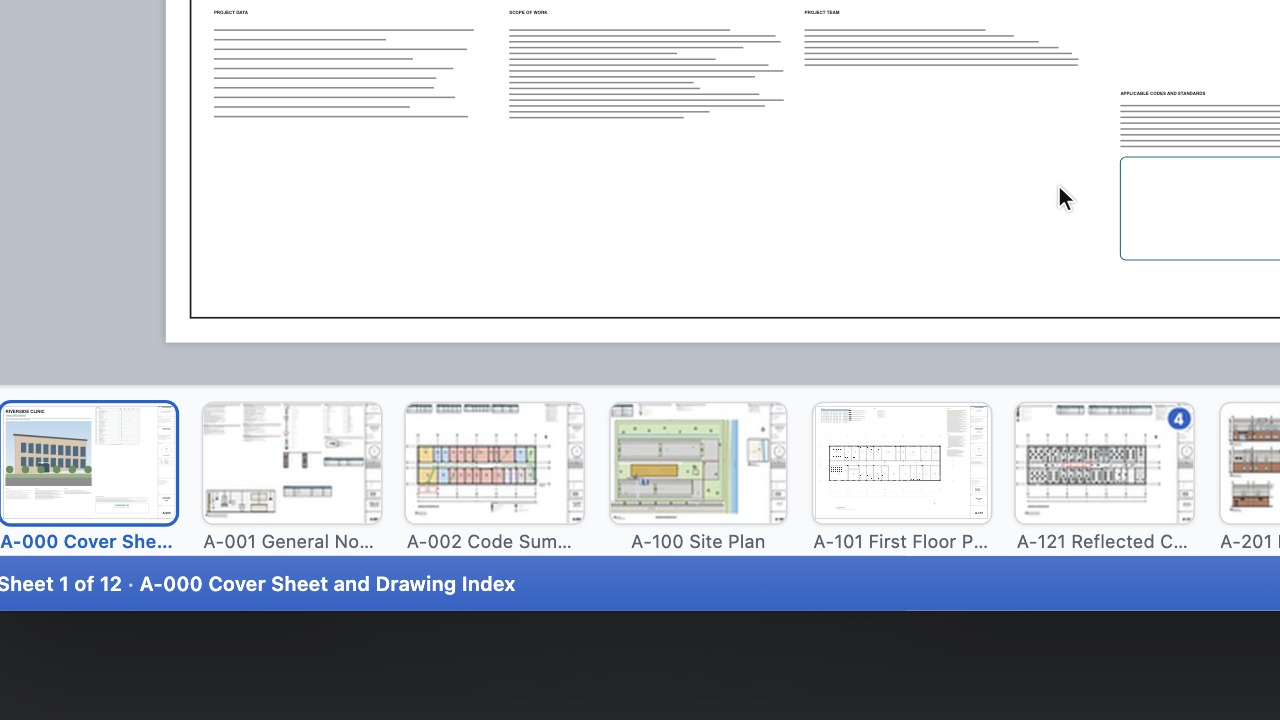 Sheet IndexRead the cover sheet's index to name and order the set.
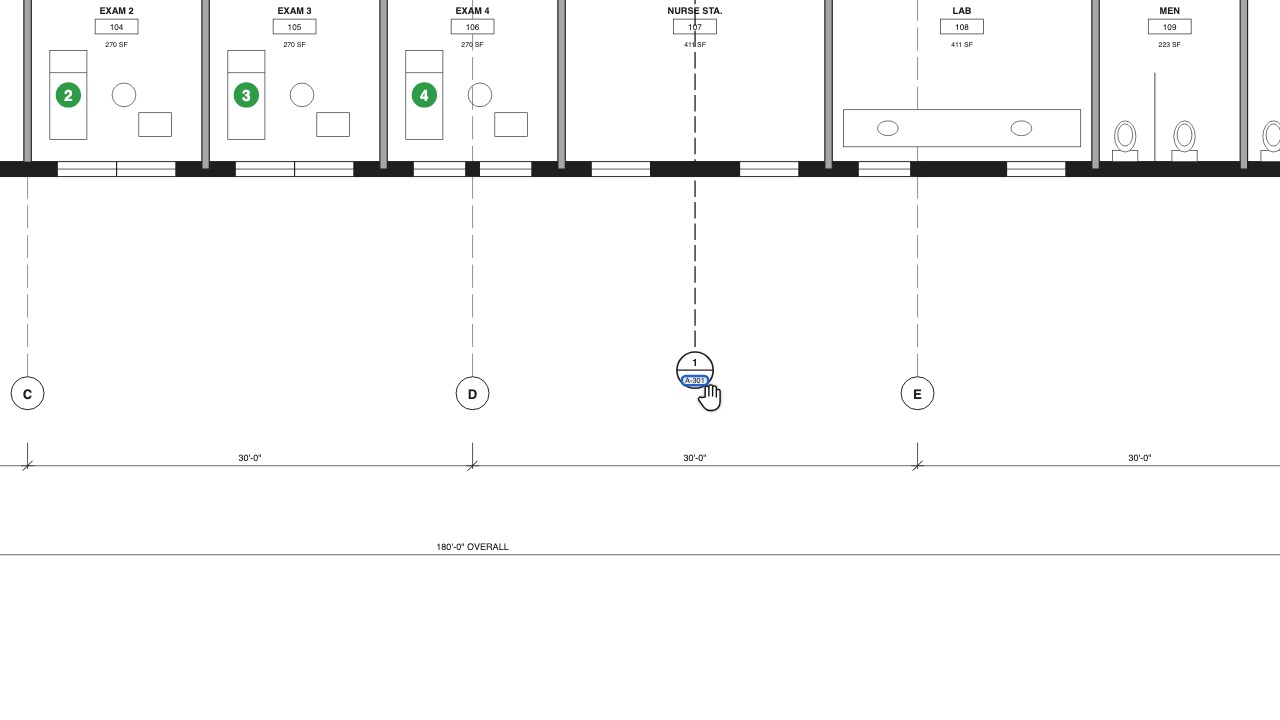 Sheet linksEvery sheet number on the drawings becomes a link.
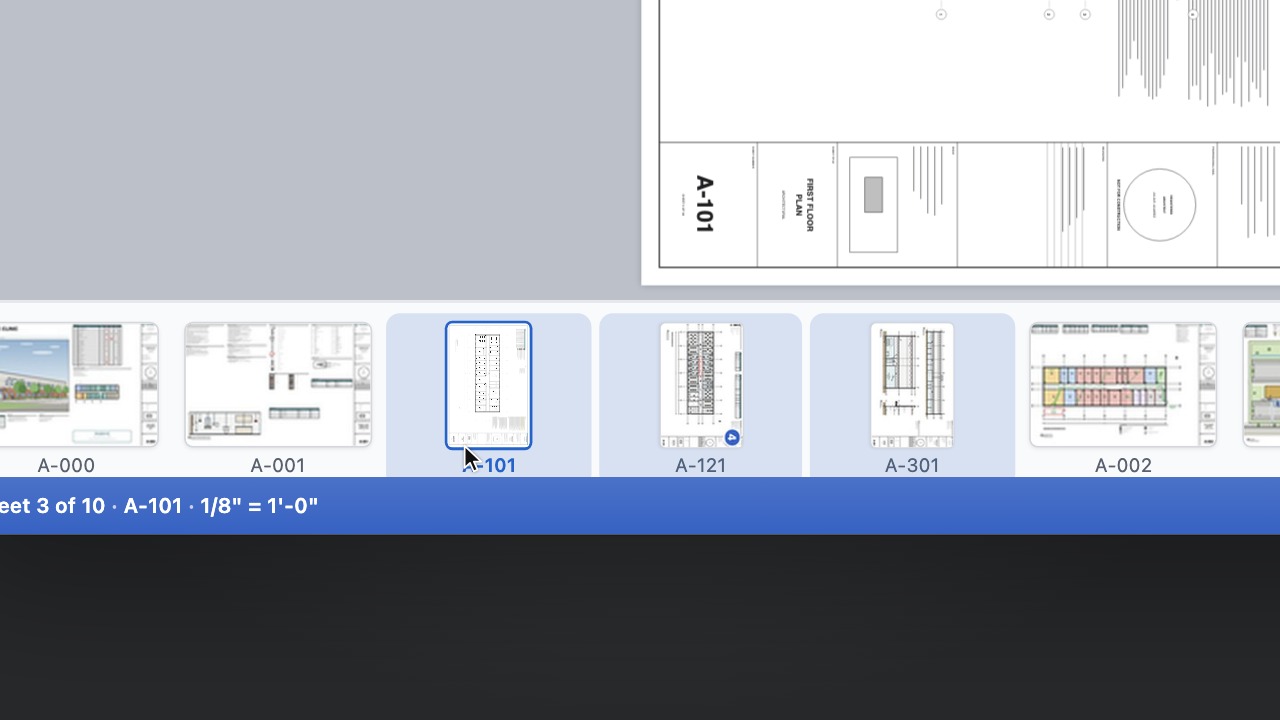 Several sheets at onceShift- or Ctrl-click thumbnails, then delete, extract, turn or drag them together.
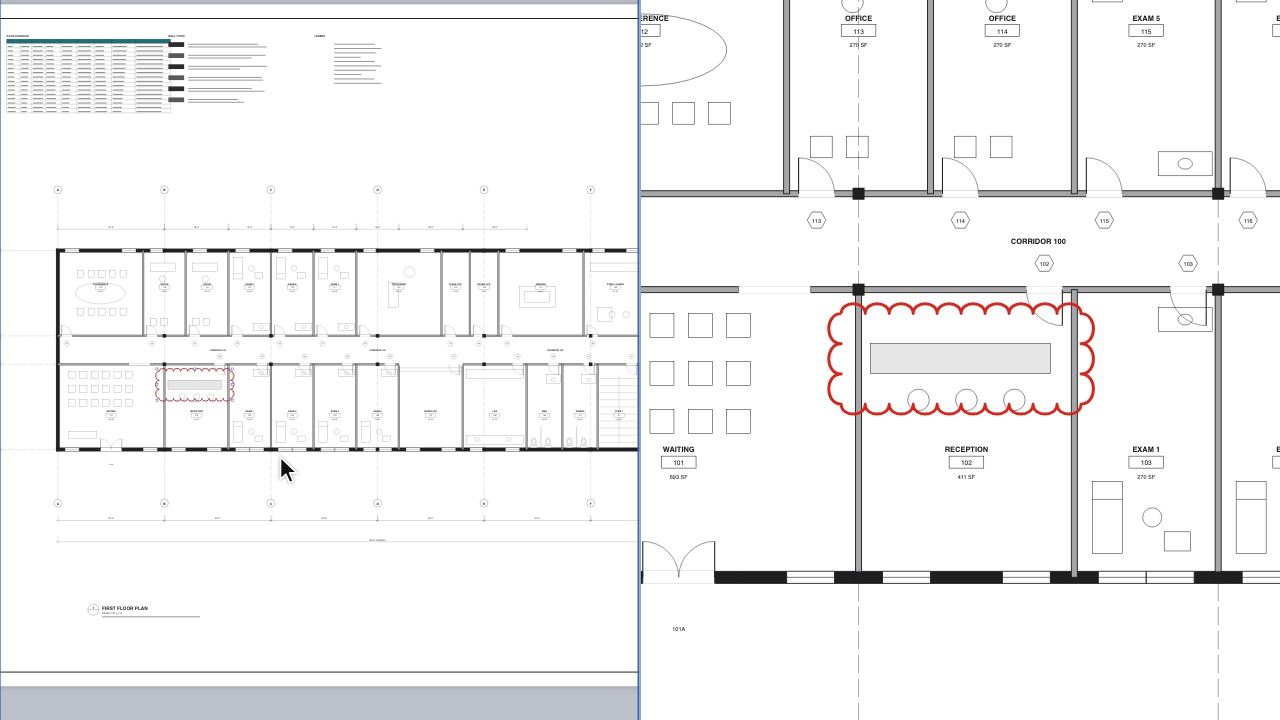 Split ViewTwo sheets side by side, in sync.
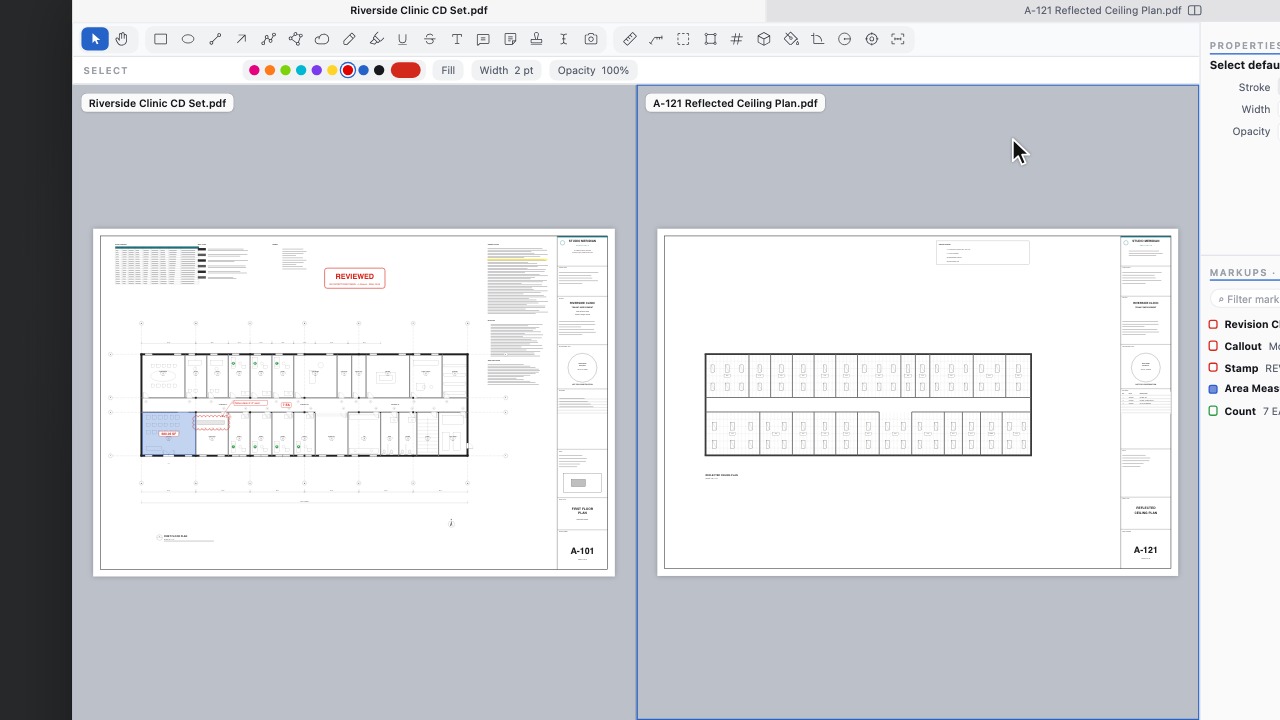 Two documents side by sideSplit View shows another open document in the second pane; swap them with one command.
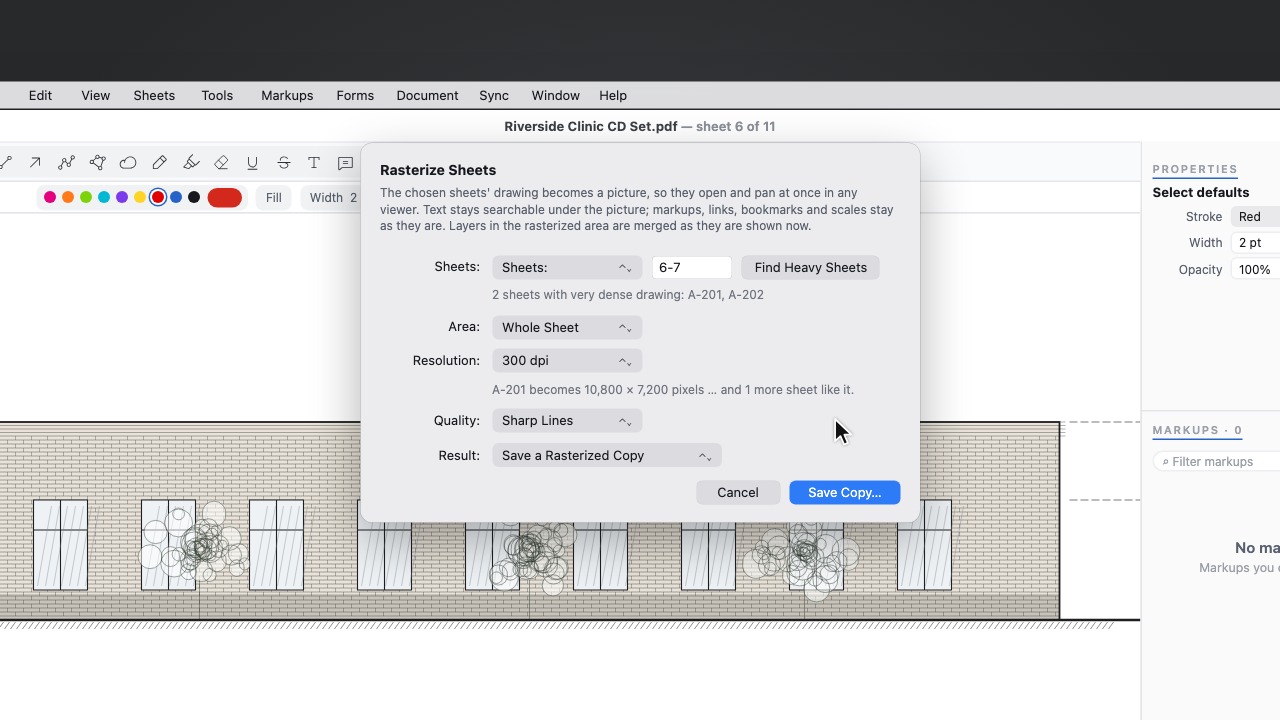 Rasterize SheetsTurn heavy elevations into a crisp picture so the sheet opens at once anywhere, with text still searchable and markups still live.
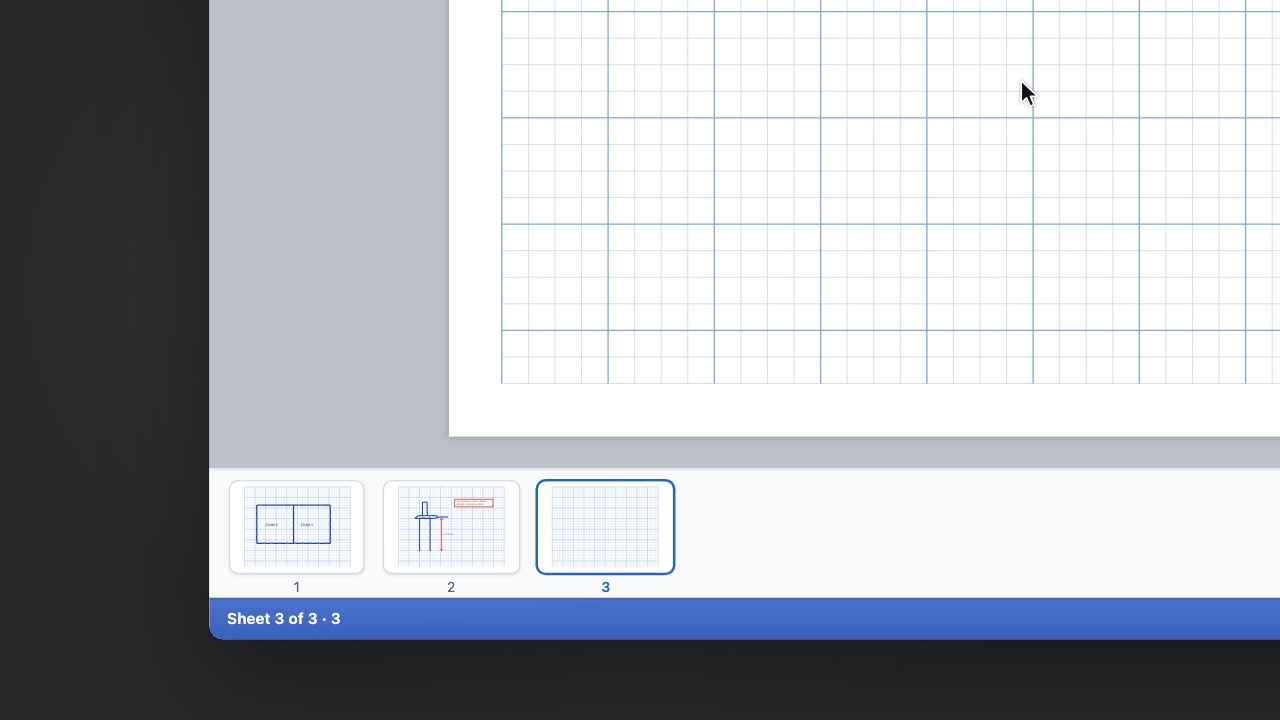 Another Sheet Like ThisAdd the next page of your letterhead, template or graph paper in one click, without the markups.
Compare and revise
6 tools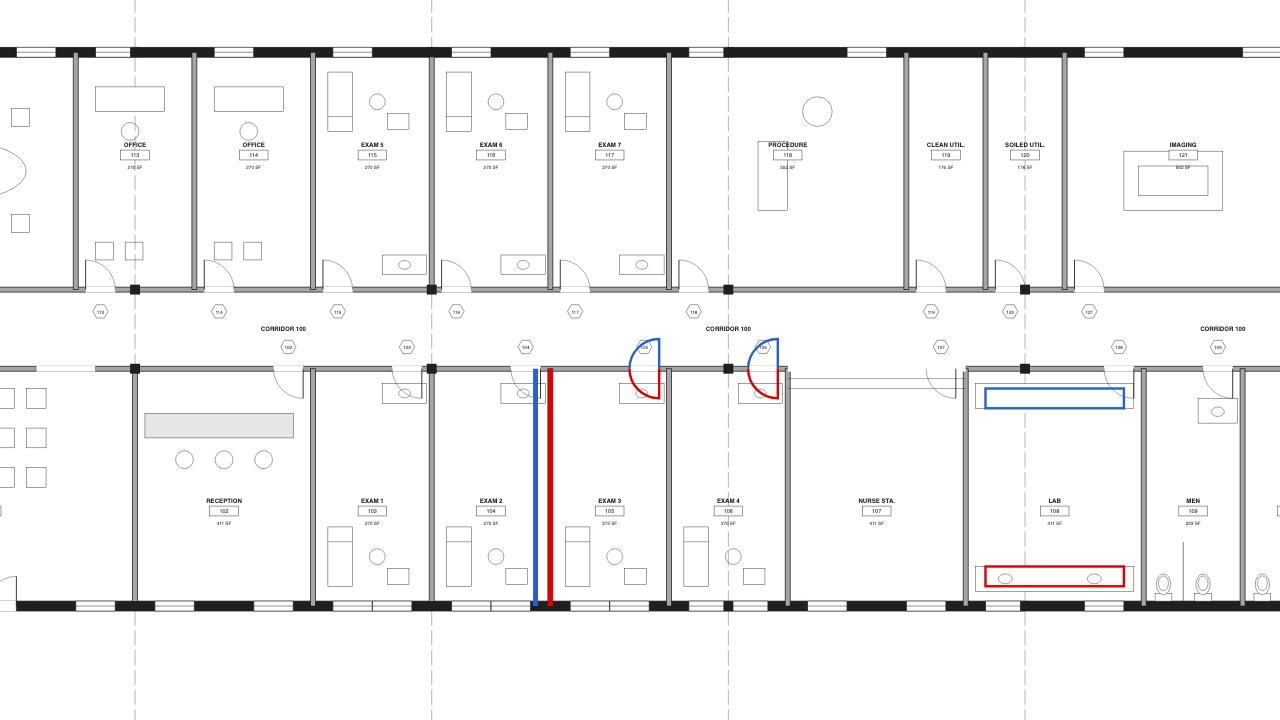 Compare what's openCompare an issue with any PDF you already have open.
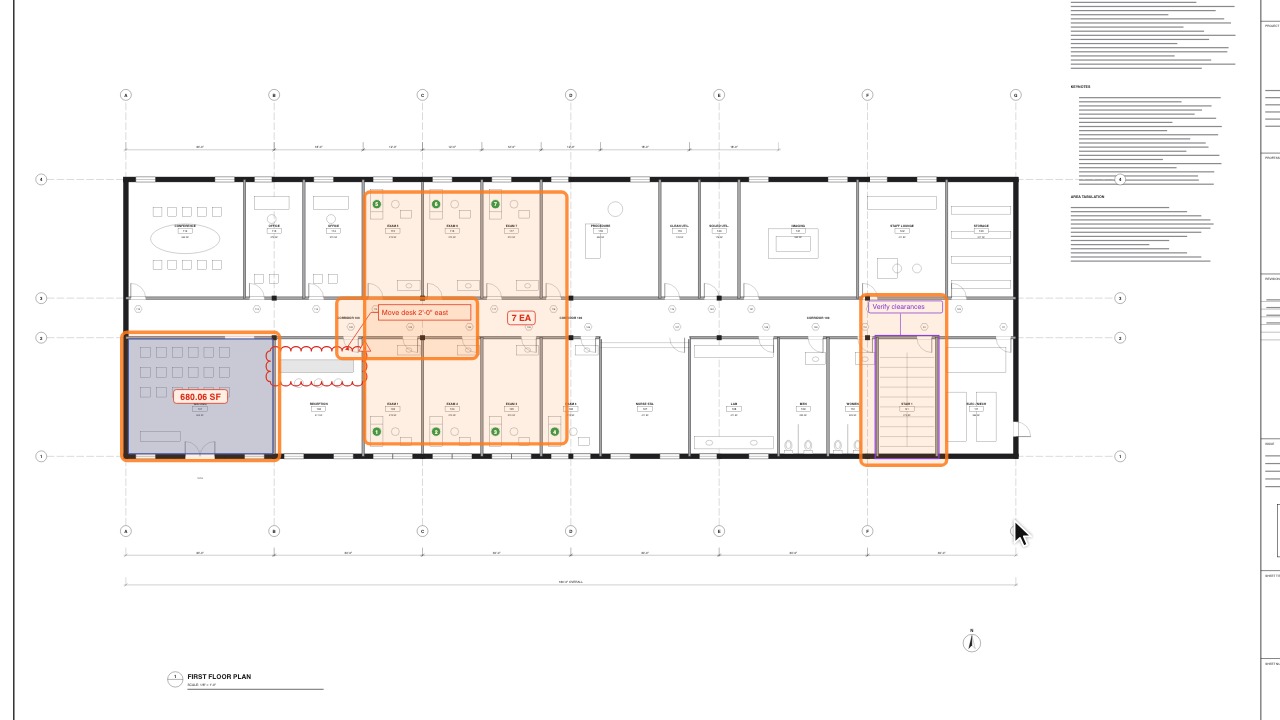 Changes SinceOutline everything changed after a date or a revision.
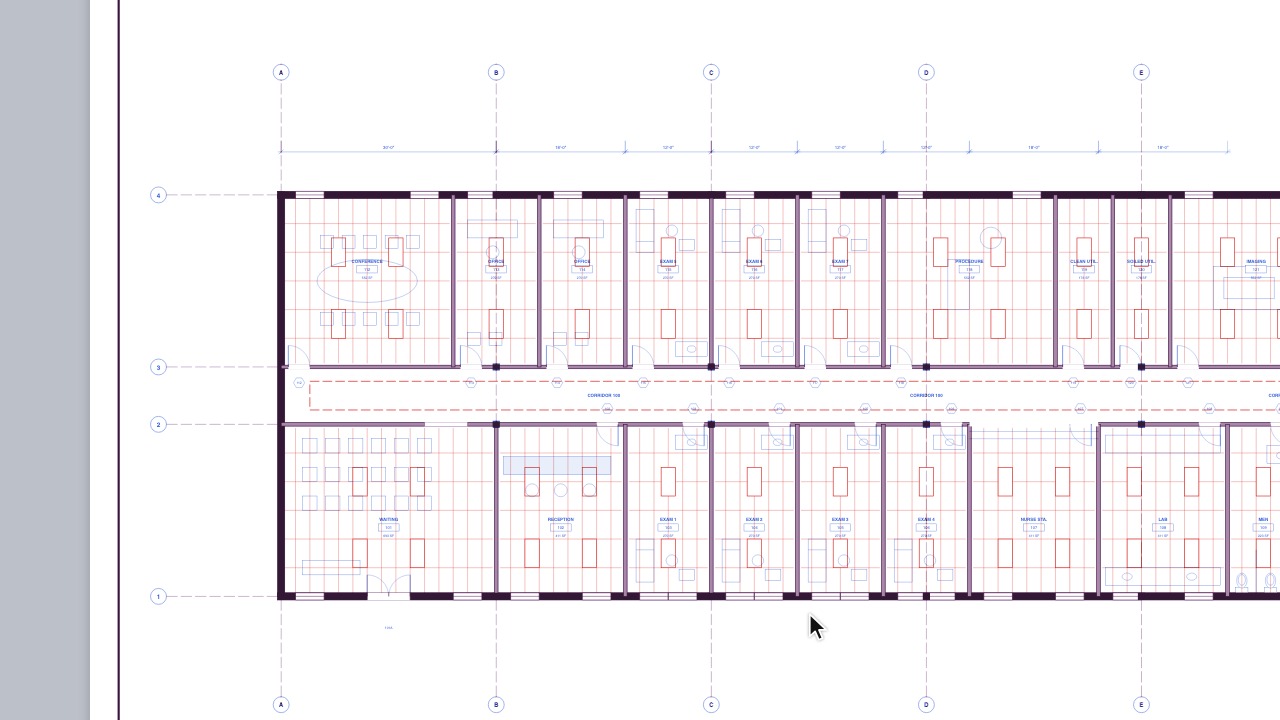 Overlay PagesTwo to four sheets over each other, each in its own colour.
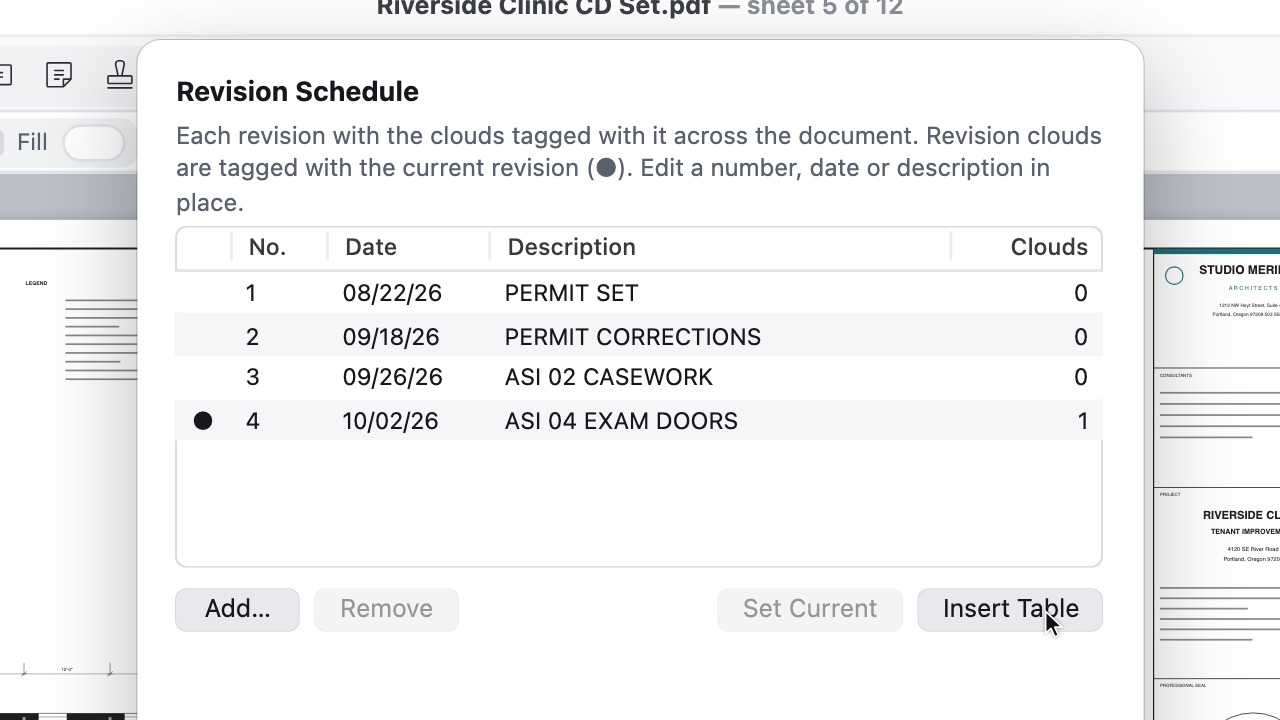 Detect RevisionsFill the revision schedule from each title block.
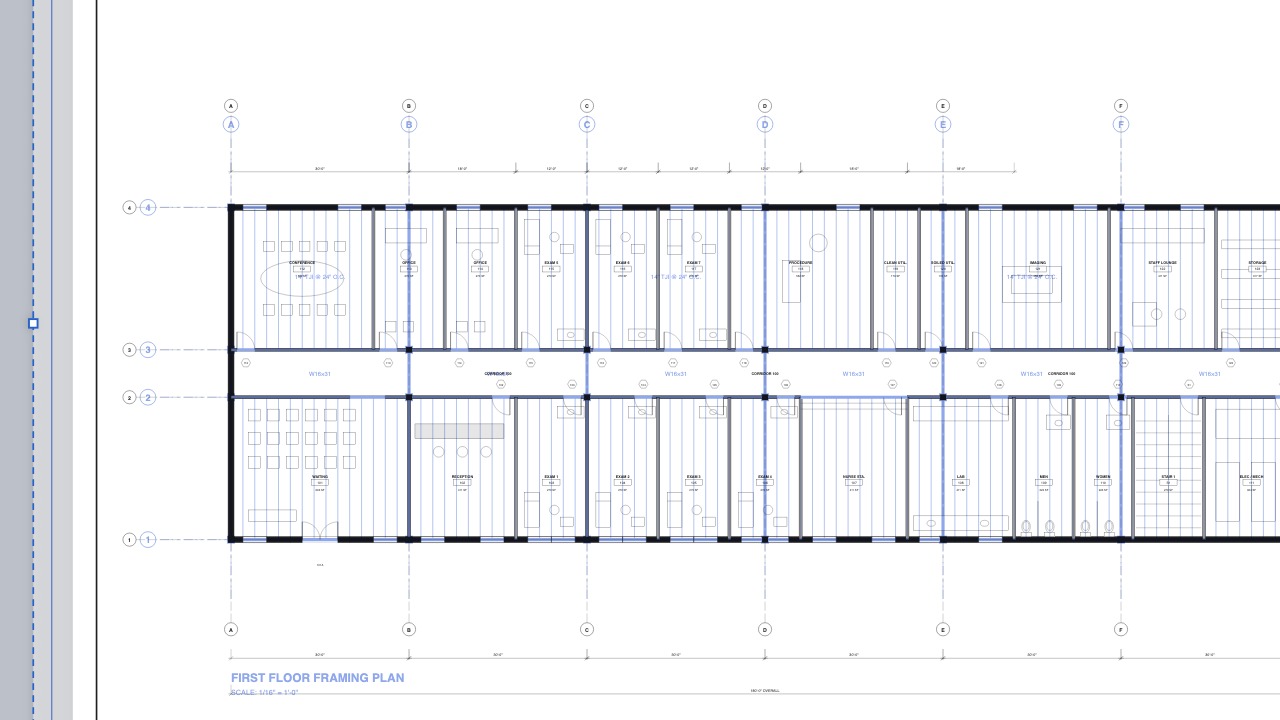 Place PDFLay a consultant's drawing over your sheet, then move, scale and tint it.
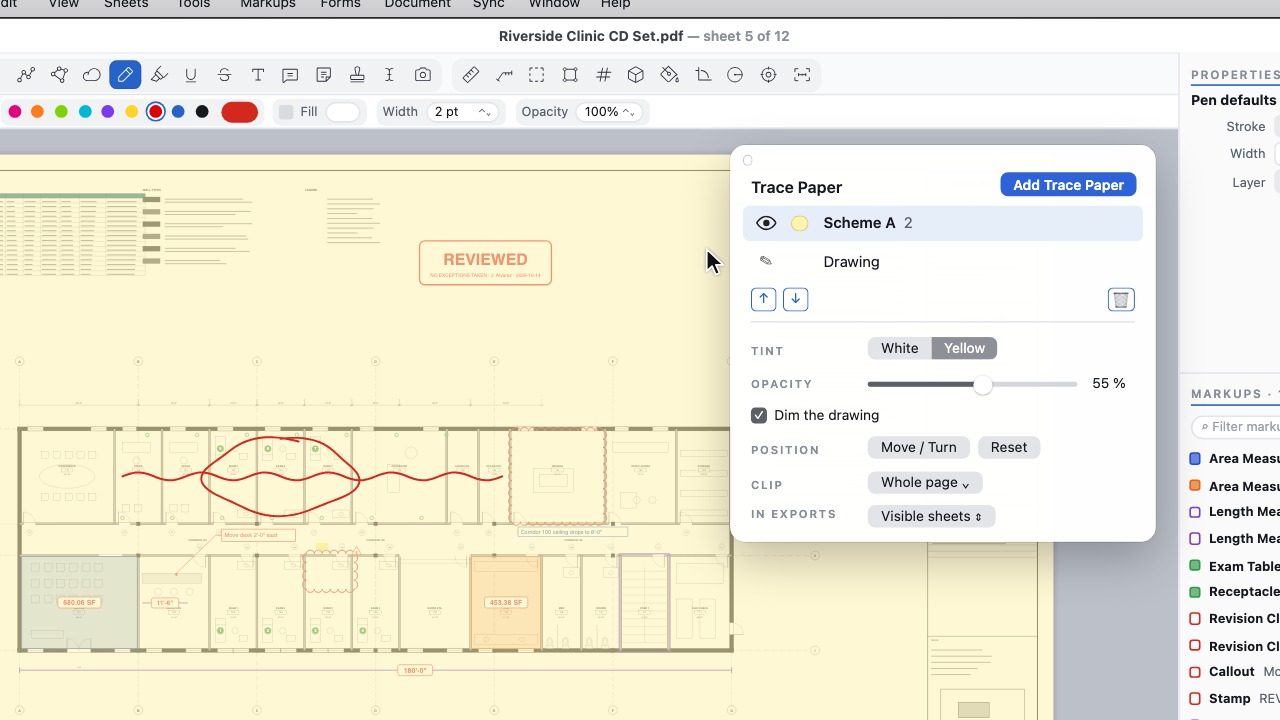 Trace PaperSee-through sheets to sketch on, each its own PDF layer.
Review and issue
10 tools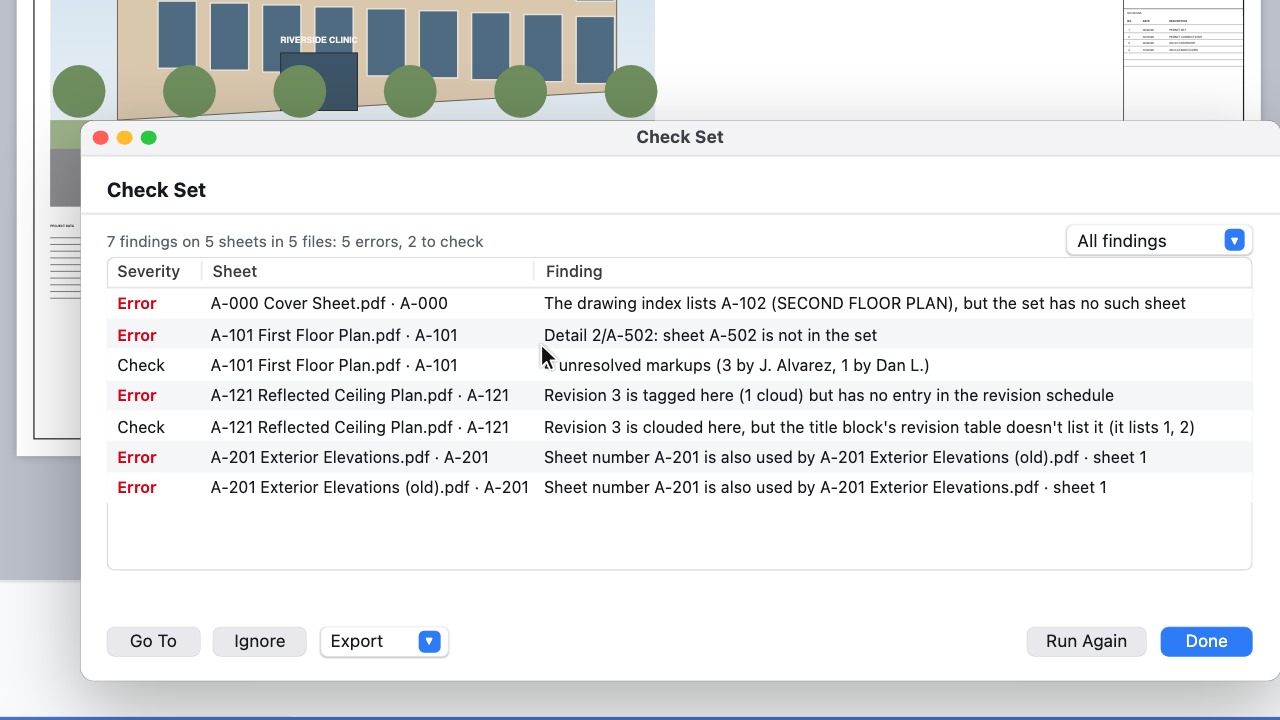 Check the set before issueOne report of callouts to missing sheets, duplicate or skipped numbers, index gaps, stray revision triangles and open markups, each a click from its sheet.
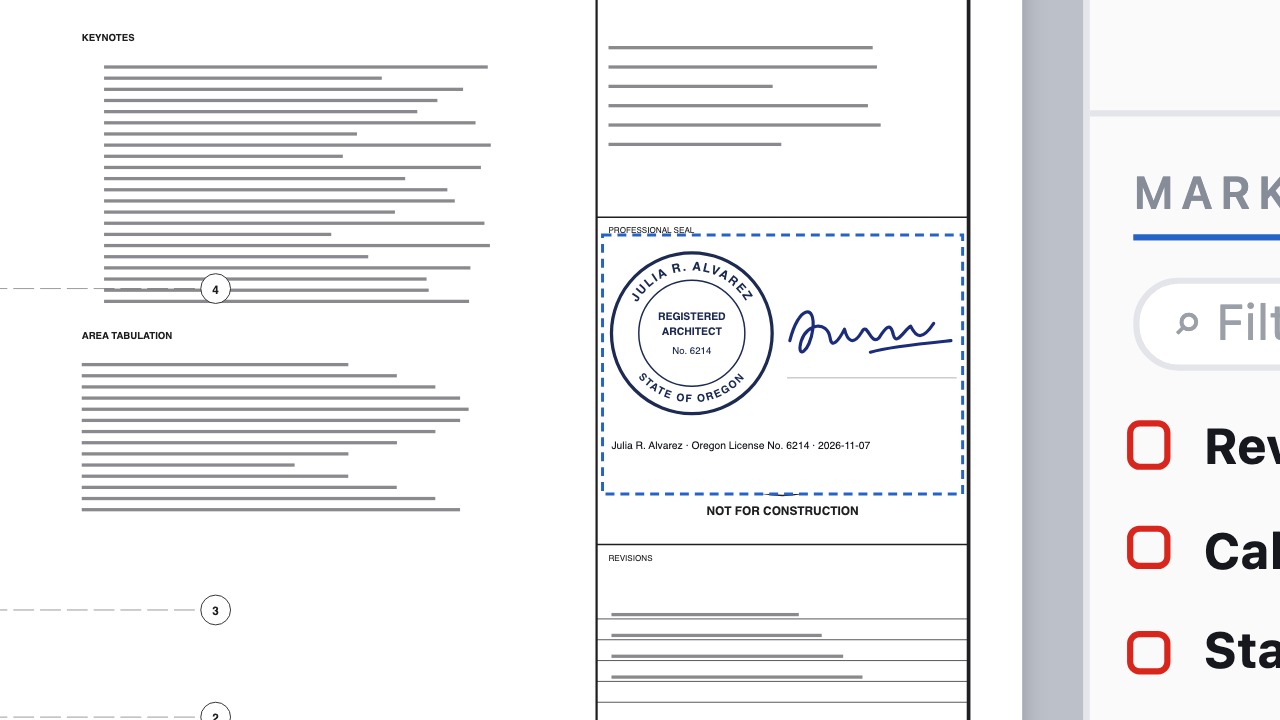 Seal SetYour seal, signature and statement on every sheet of an issued set, each file signed digitally, with a verification page.
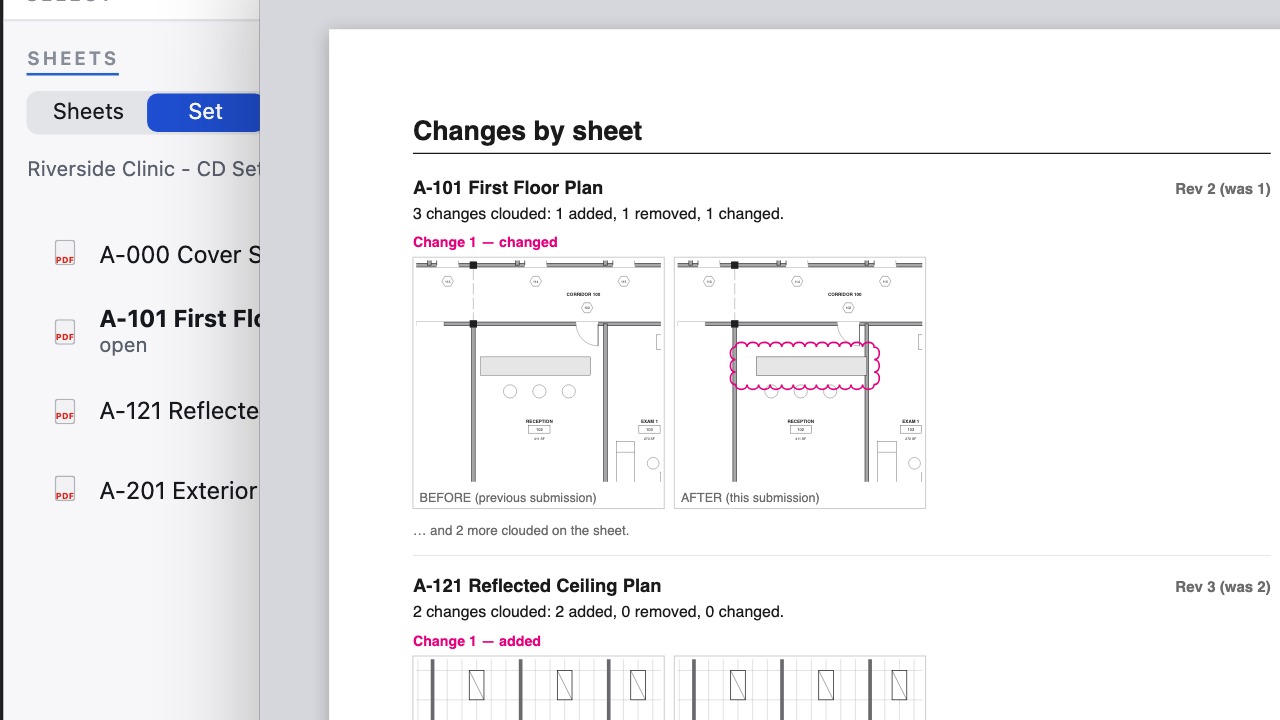 Resubmittal ReportThe plan reviewer's response, written for you: every change since the last submission with before-and-after pictures, and each review comment answered.
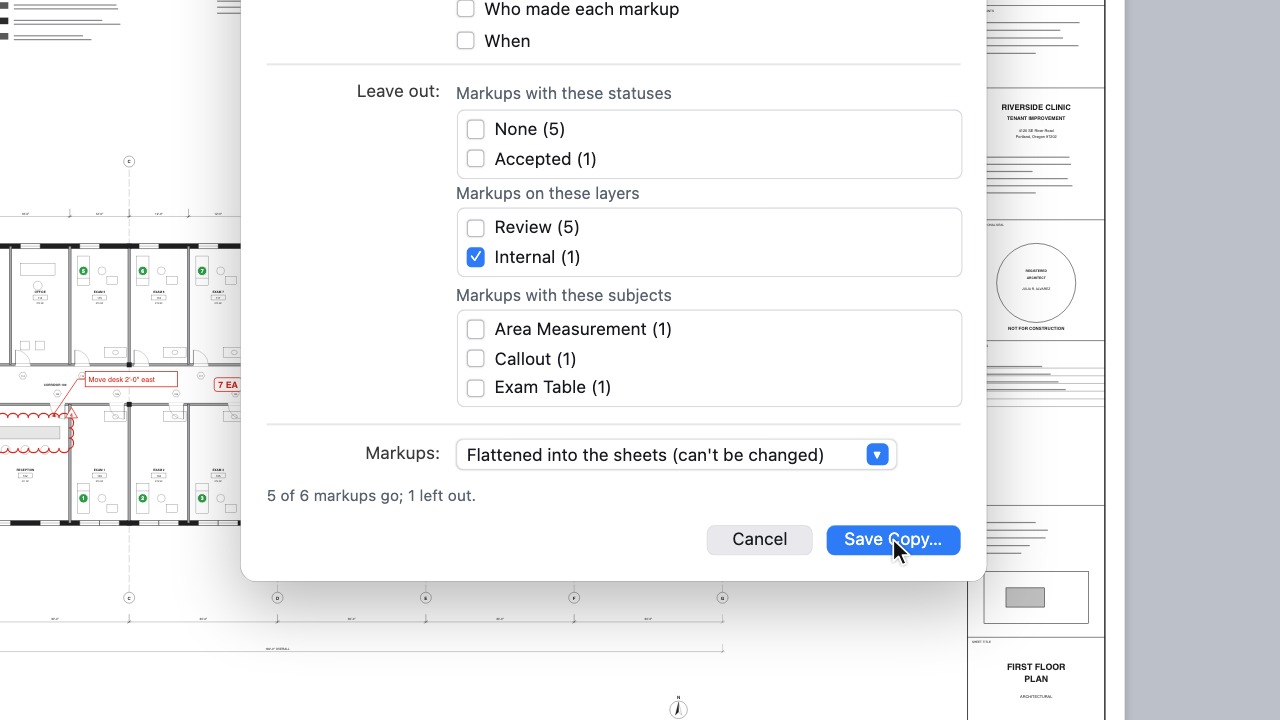 Send to ClientOne copy with only what the client should see; internal notes, statuses and authors are taken out, not hidden.
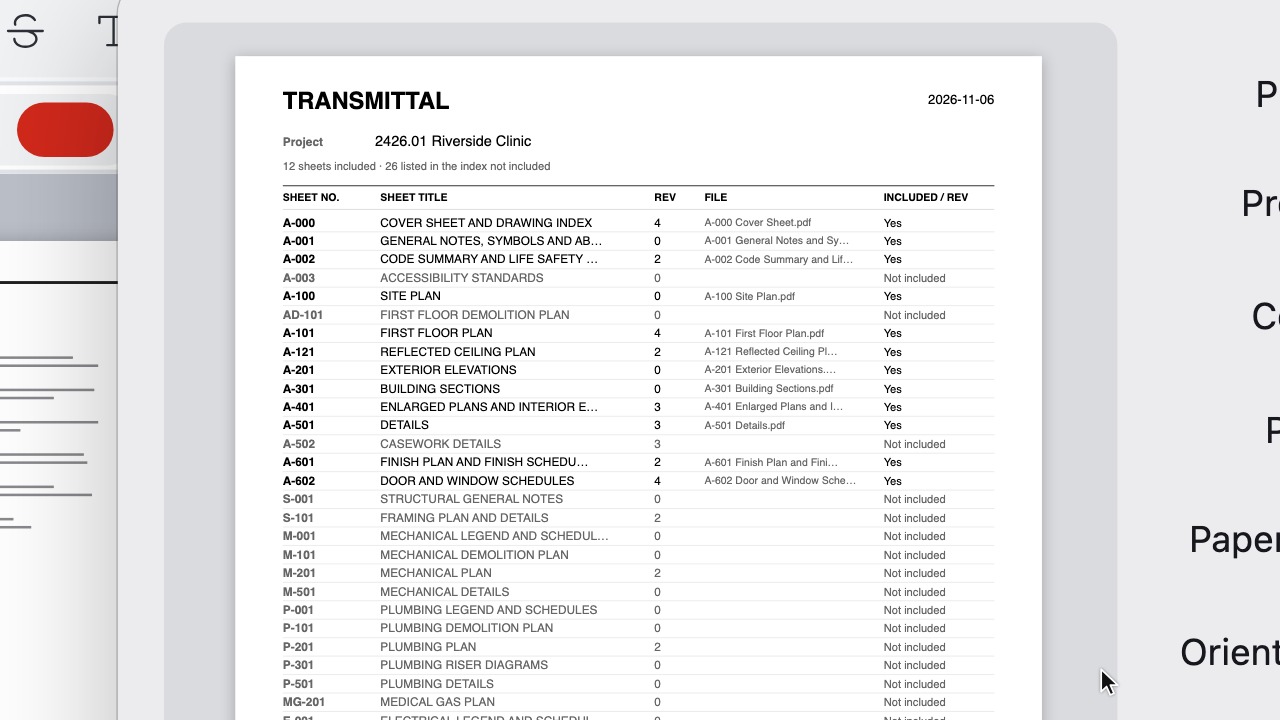 TransmittalsPrint a set as one job with a transmittal cover.
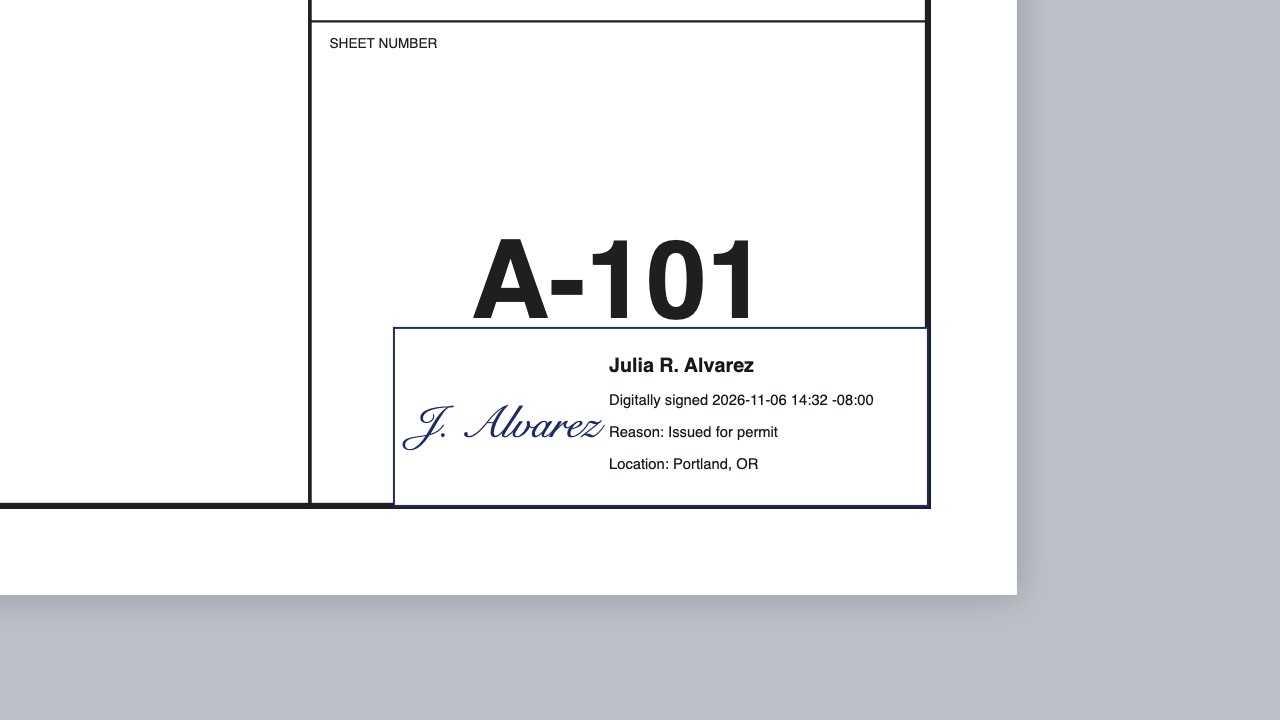 Digital signaturesSign and certify PDFs with your certificate.
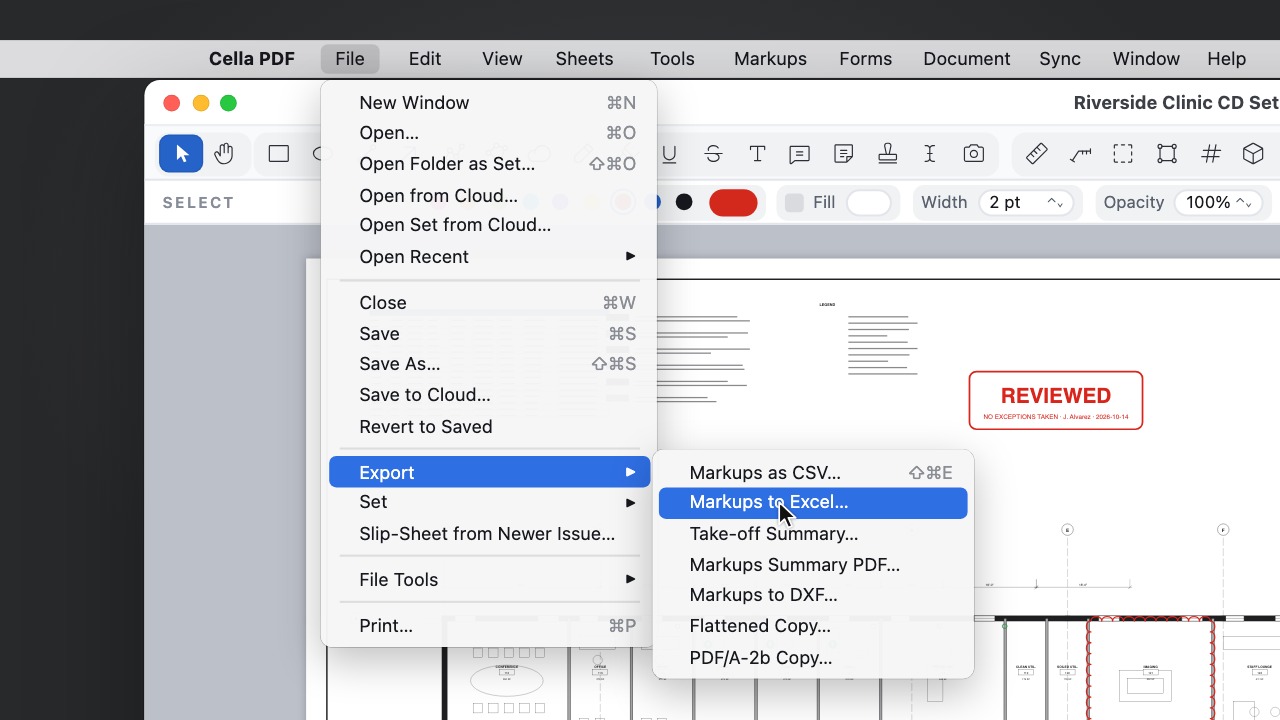 ExportsExcel, CSV, DXF, PDF/A and flattened copies to issue.
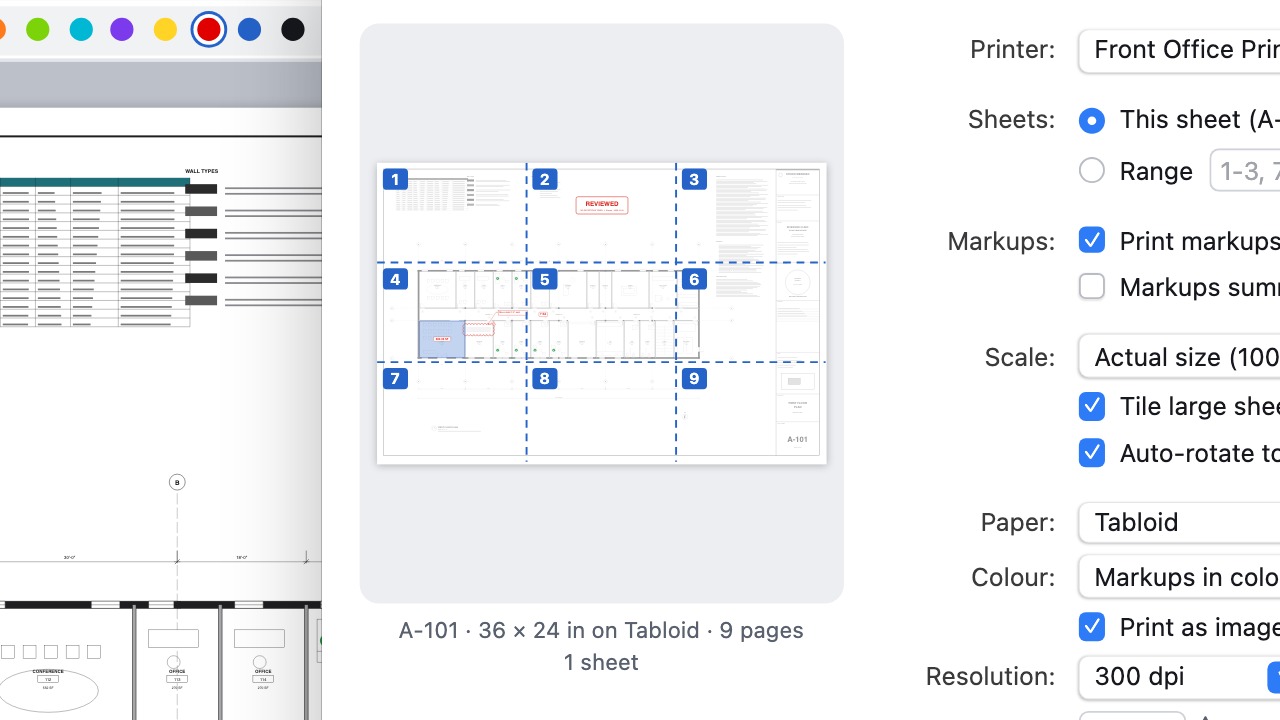 PrintTile big sheets, print in grey or as an image.
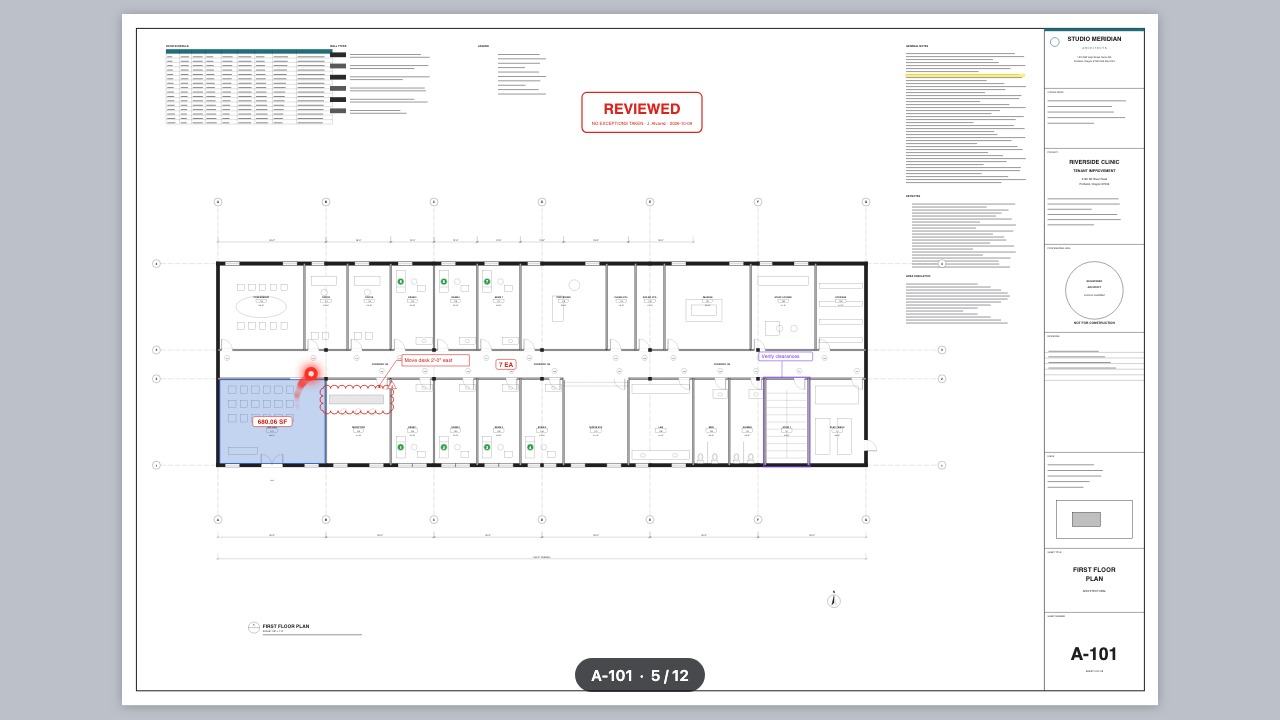 Presentation modeFull screen for the meeting: a laser pointer, arrow keys between sheets, type a sheet number to jump.
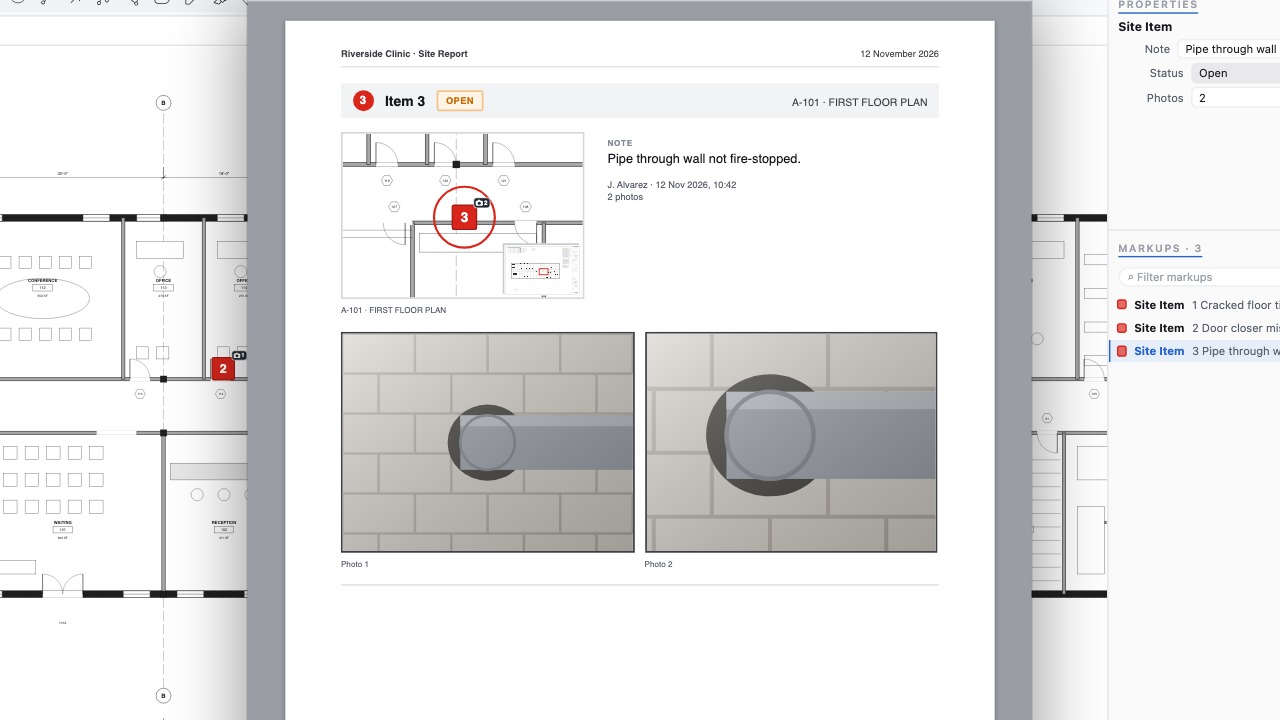 Site ReportSend the contractor a numbered report of every item with its photos, location and status.
Documents and pages
10 tools Page toolsSplit, combine, crop, resize, stamp, headers and footers, Bates numbers.
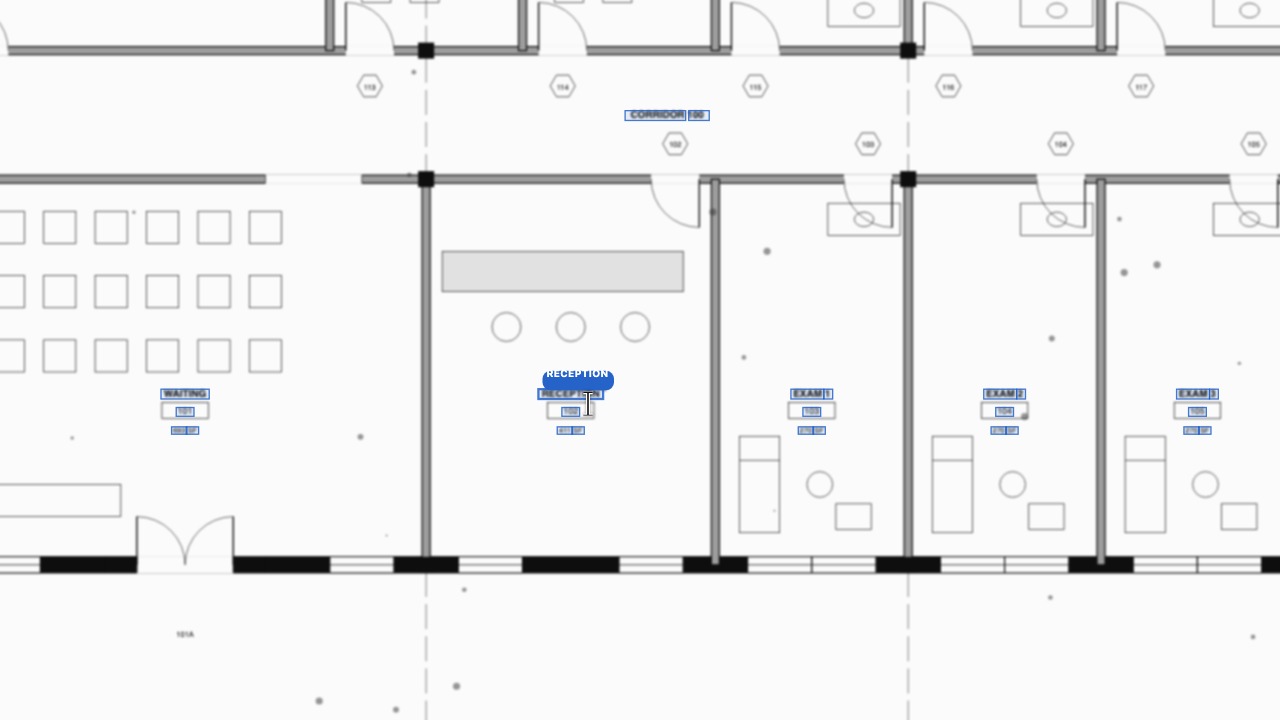 OCR for scansMake scanned sheets searchable.
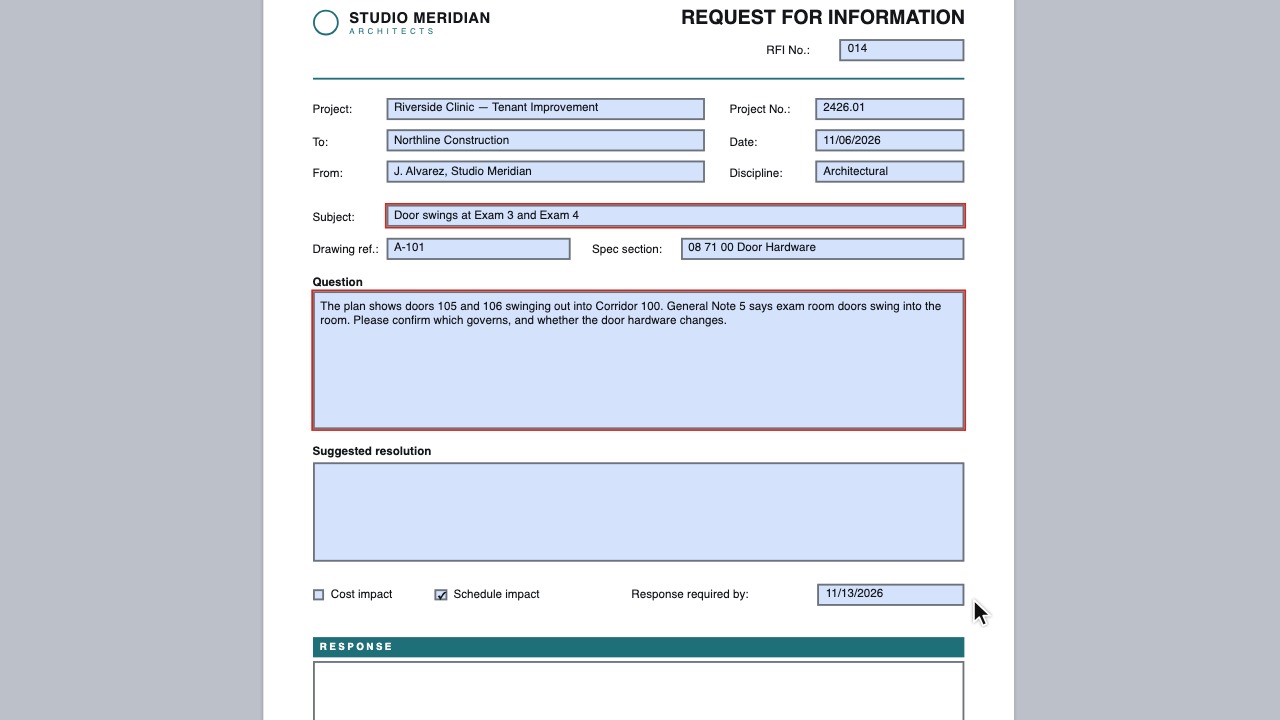 PDF formsFill RFIs, transmittals and checklists.
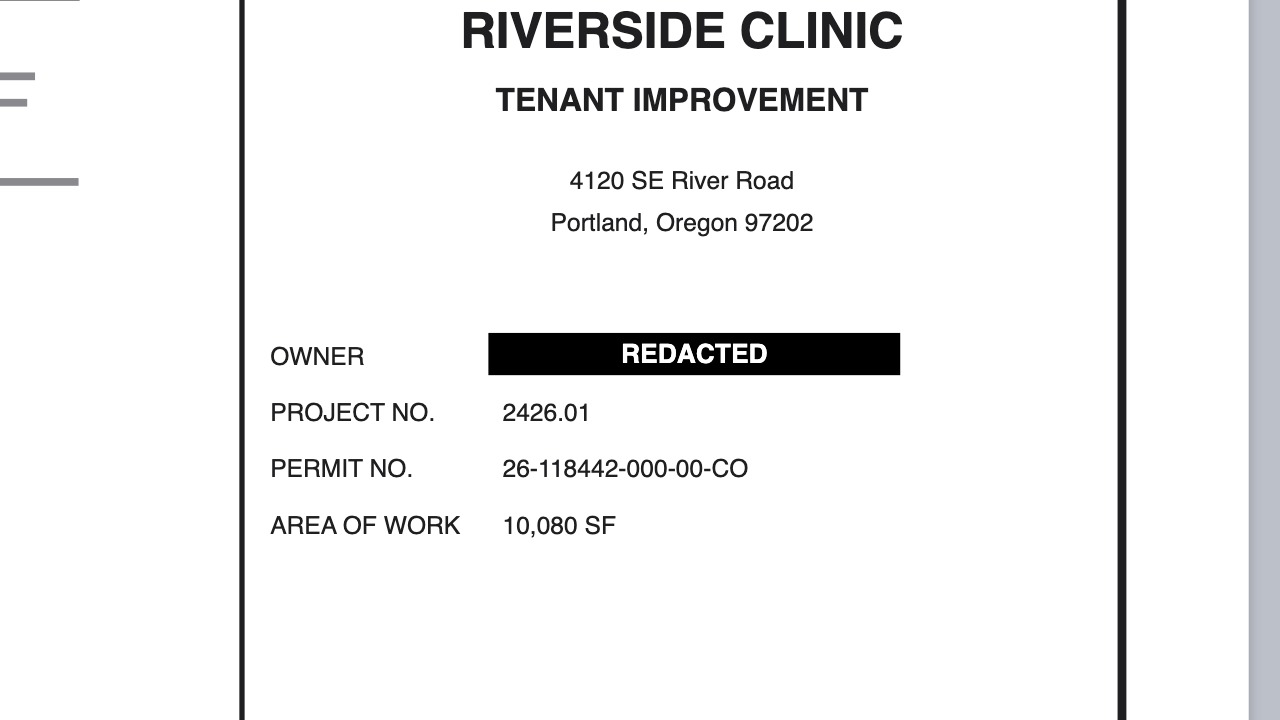 RedactionRemove sensitive content for good.
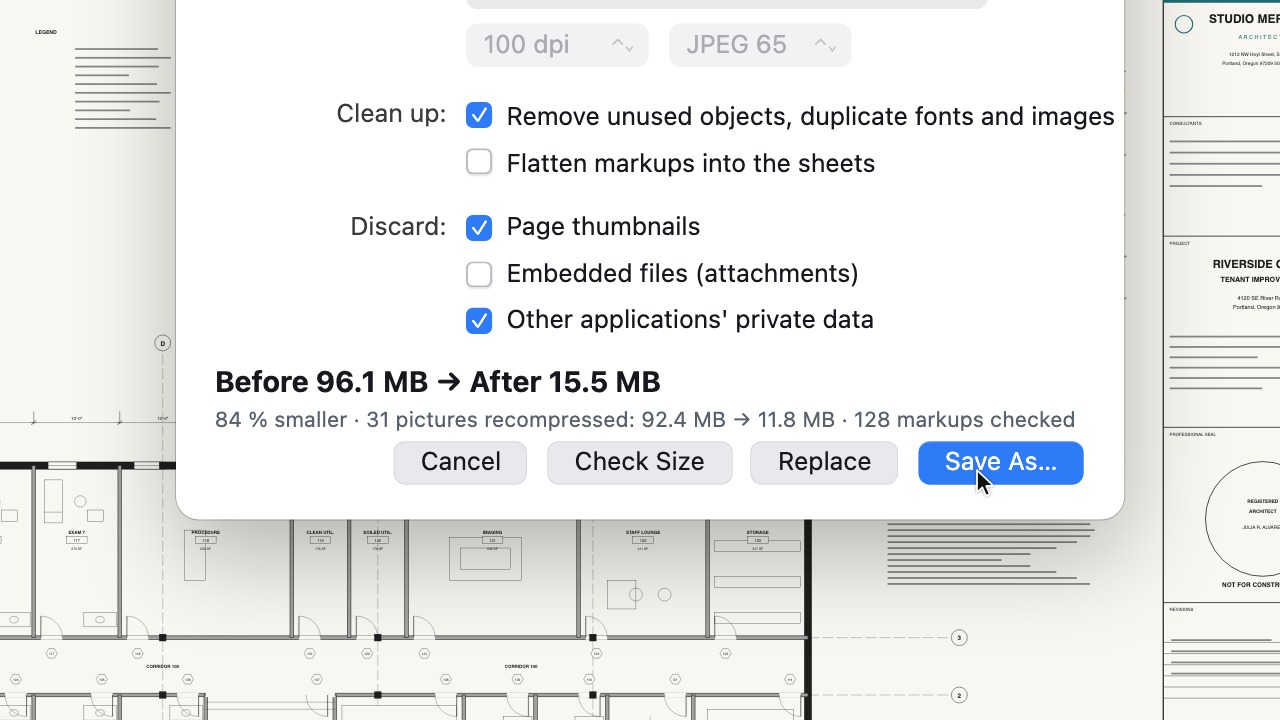 Reduce File SizeShrink scanned sets small enough to email.
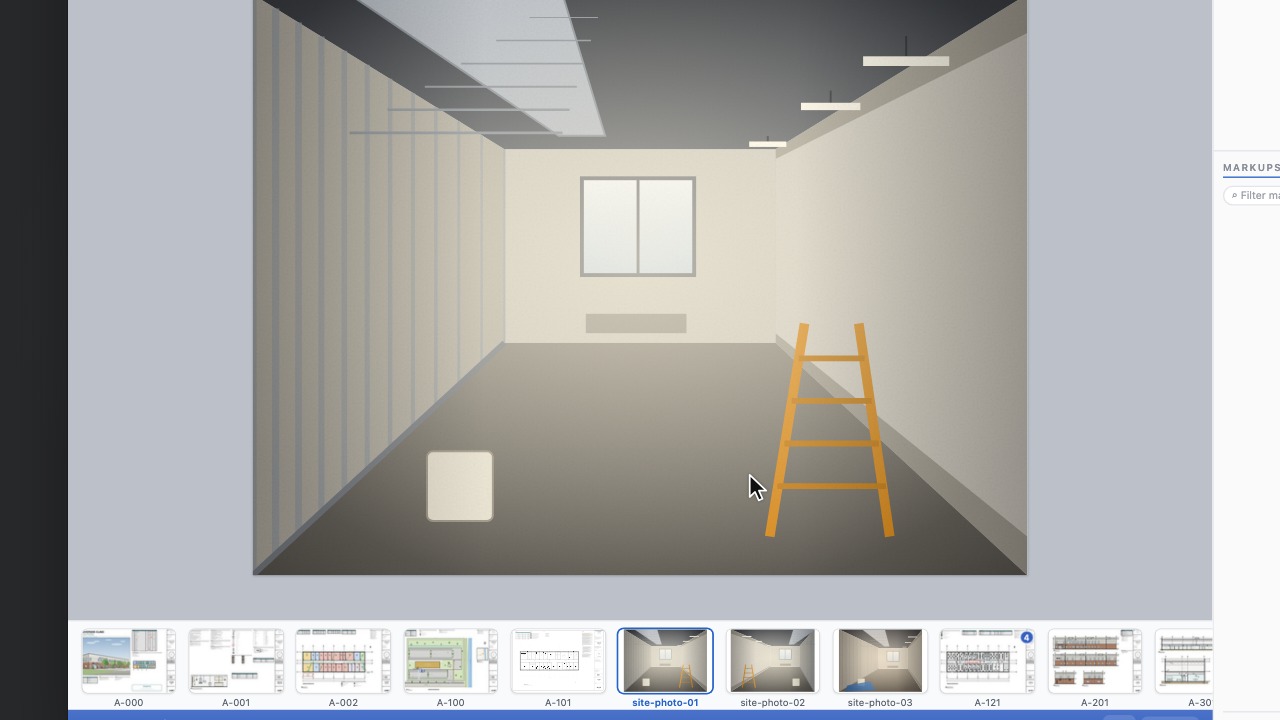 Pictures as sheetsOpen a PNG or JPEG as a drawing, or add photos as sheets.
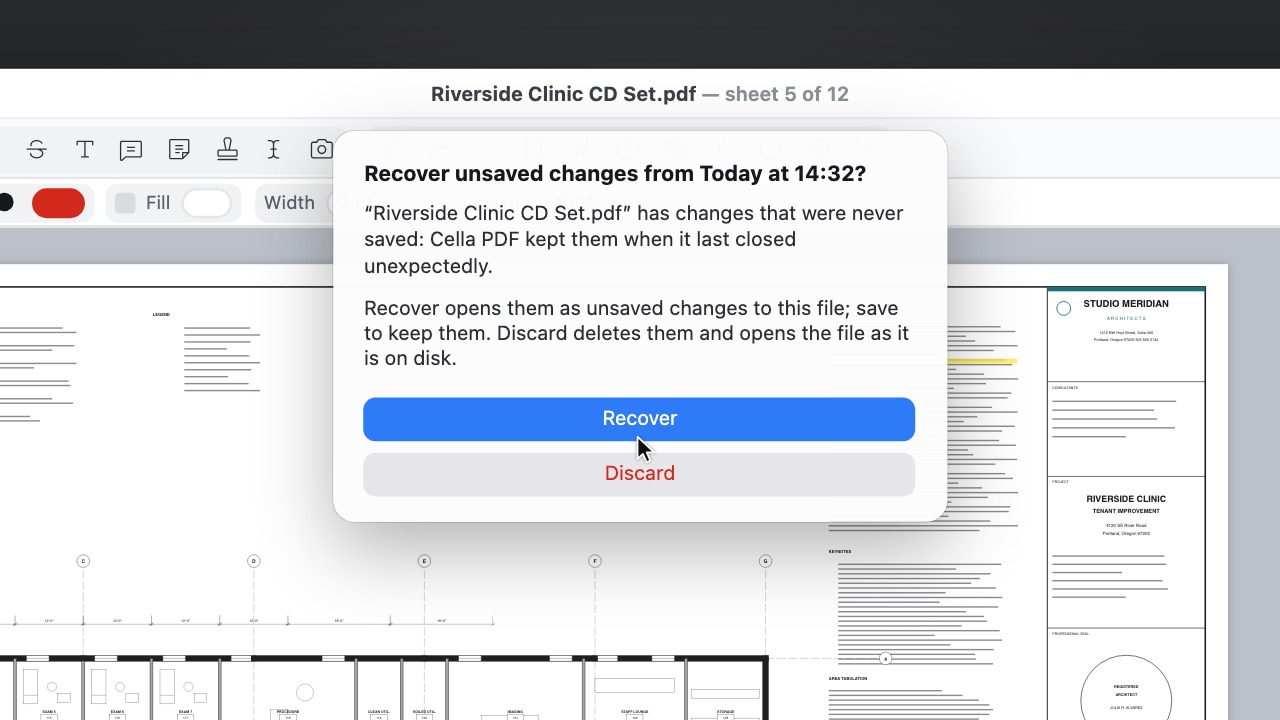 Safe savingEvery save checked, with autosave and crash recovery.
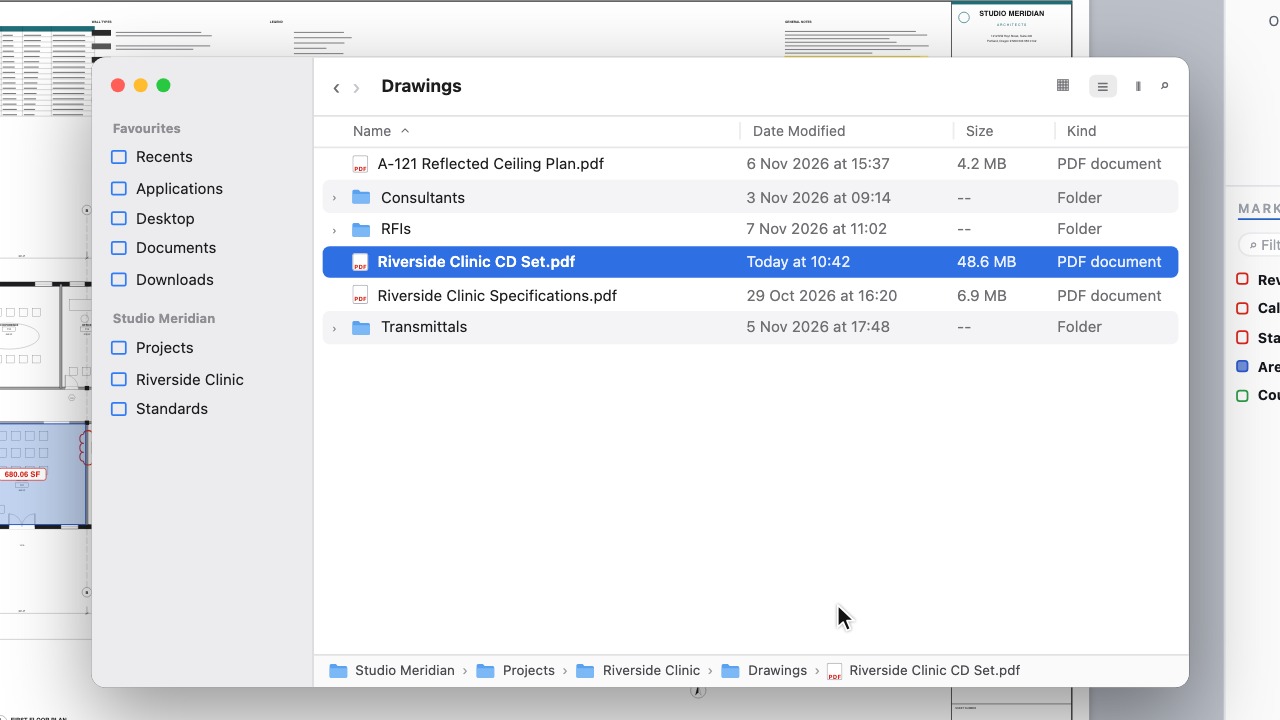 Show the document's folderOpen the folder a drawing is in, with the file selected.
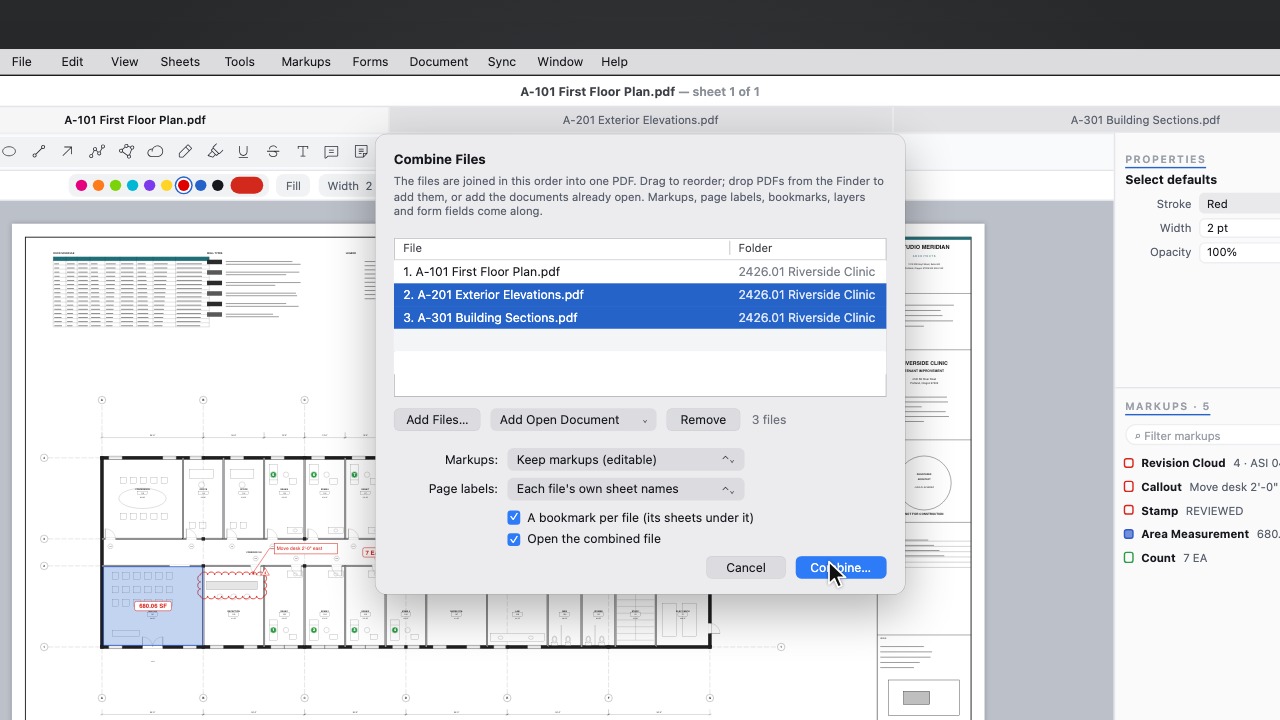 Combine open documentsCombine Files can add the documents you already have open.
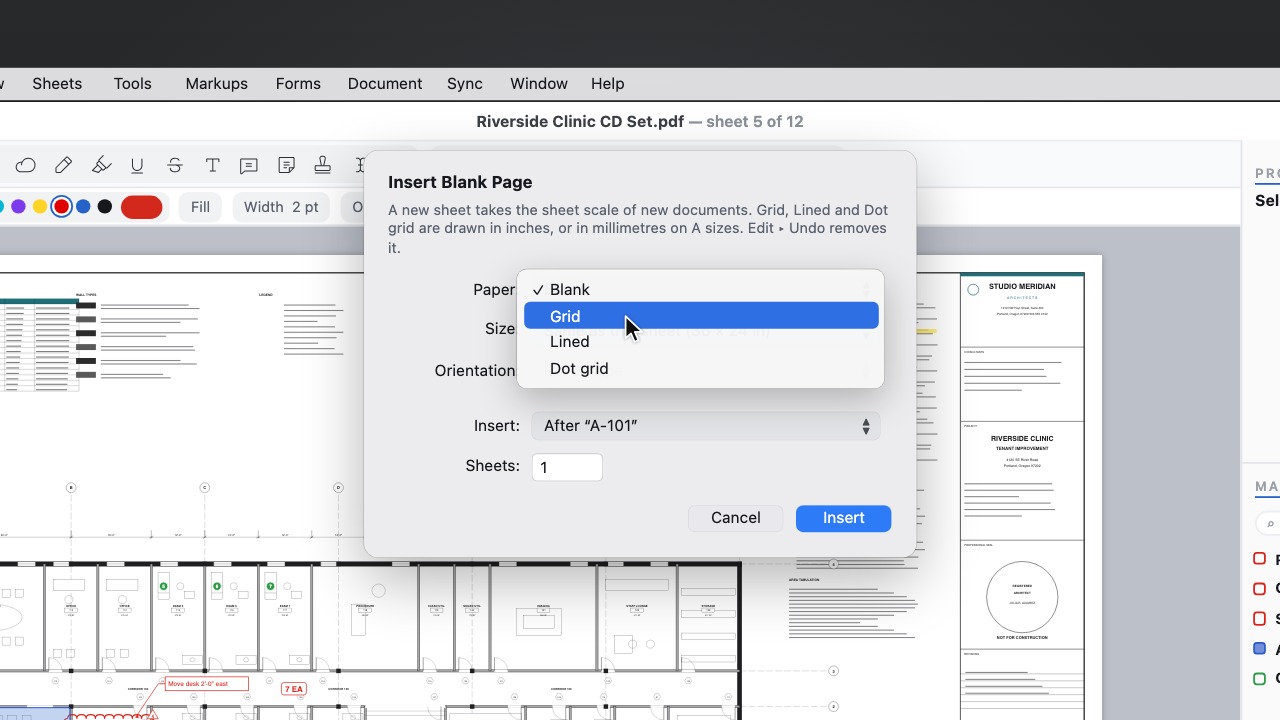 Paper stylesAdd a blank sheet in Grid, Lined or Dot grid paper for notes and sketches.
Cloud and team
7 tools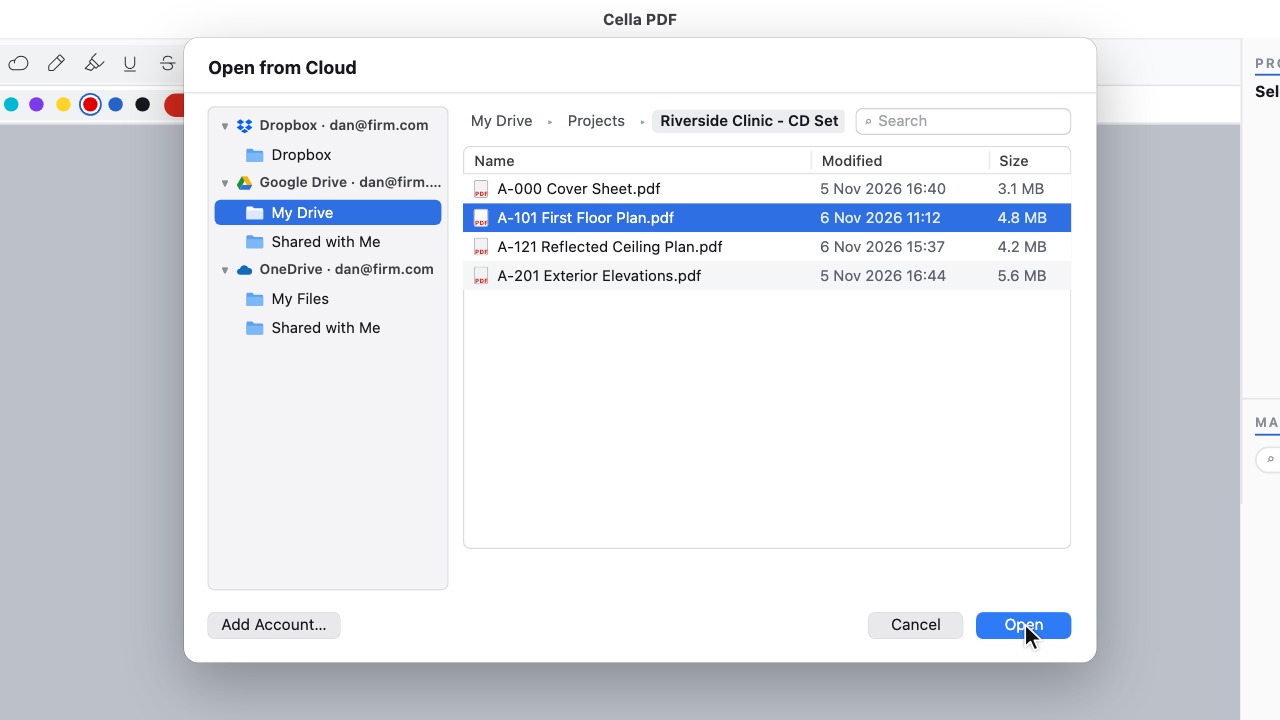 Dropbox, OneDrive and Google DriveOpen drawings where your firm keeps them, and save back as a new version.
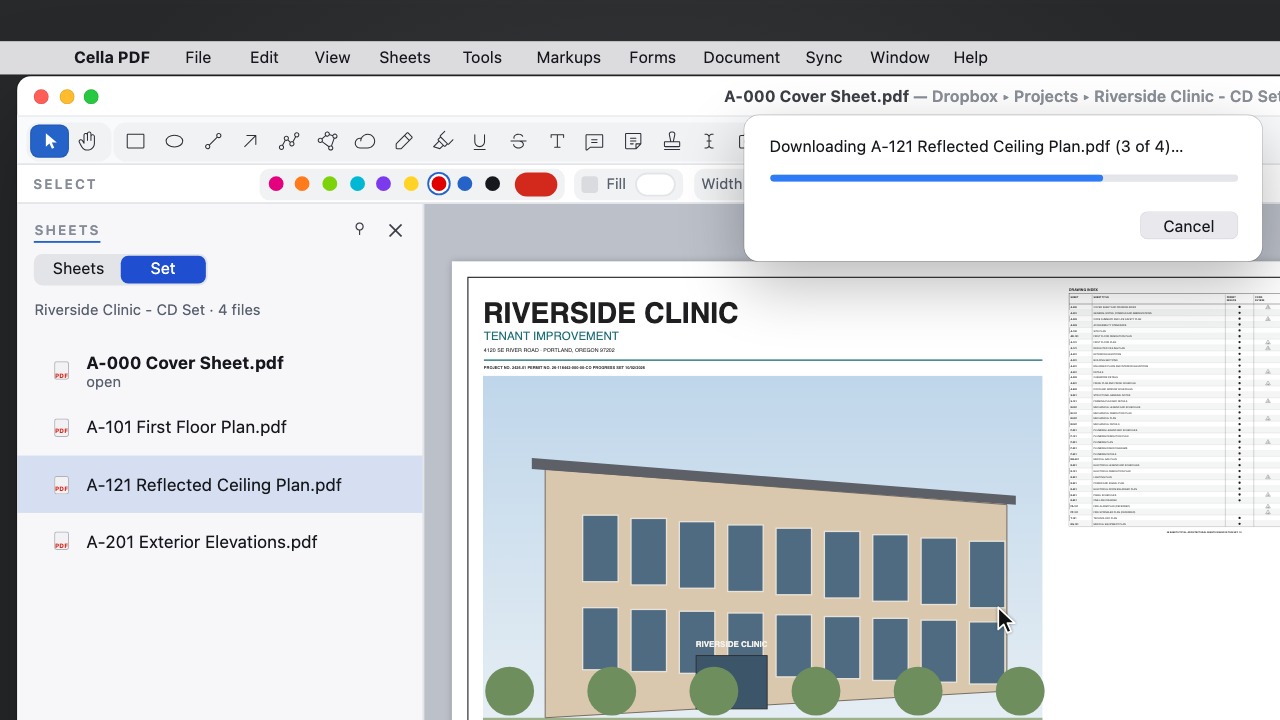 Cloud setsOpen a cloud folder as a set; only the files that changed are downloaded again.
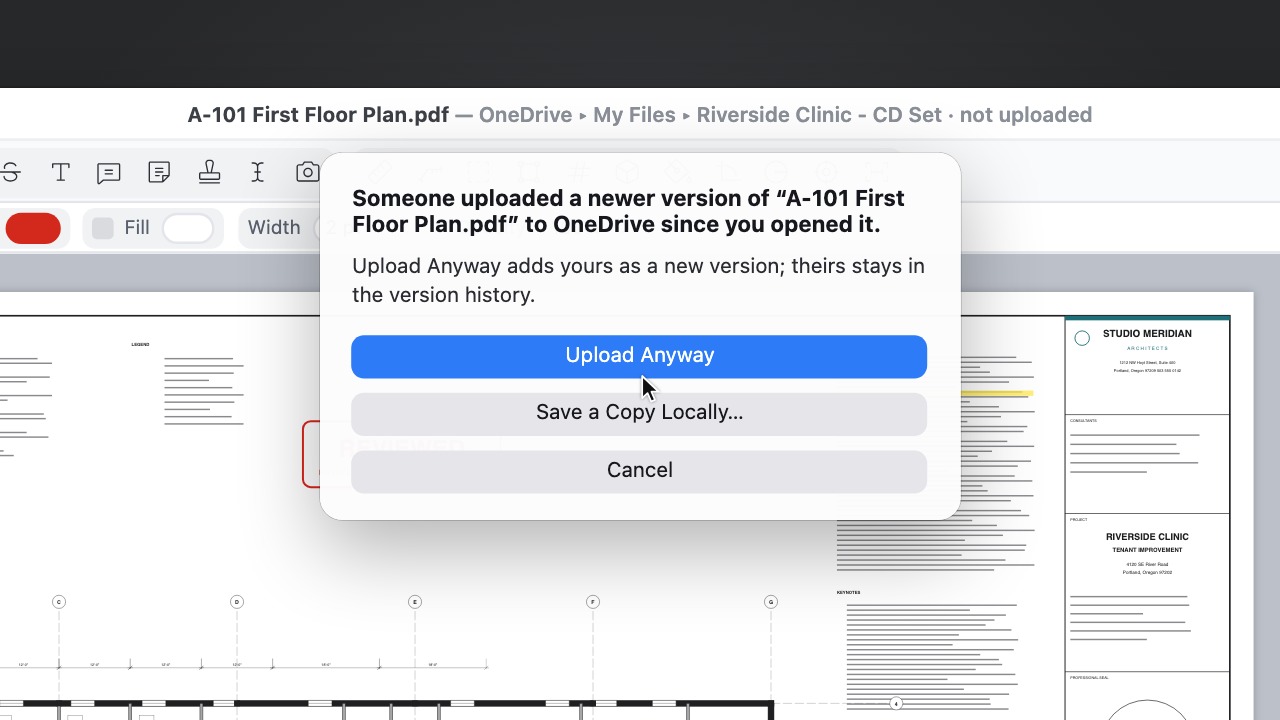 Saves that go back upSave keeps the file here first, then uploads a new version, and asks if someone else got there first.
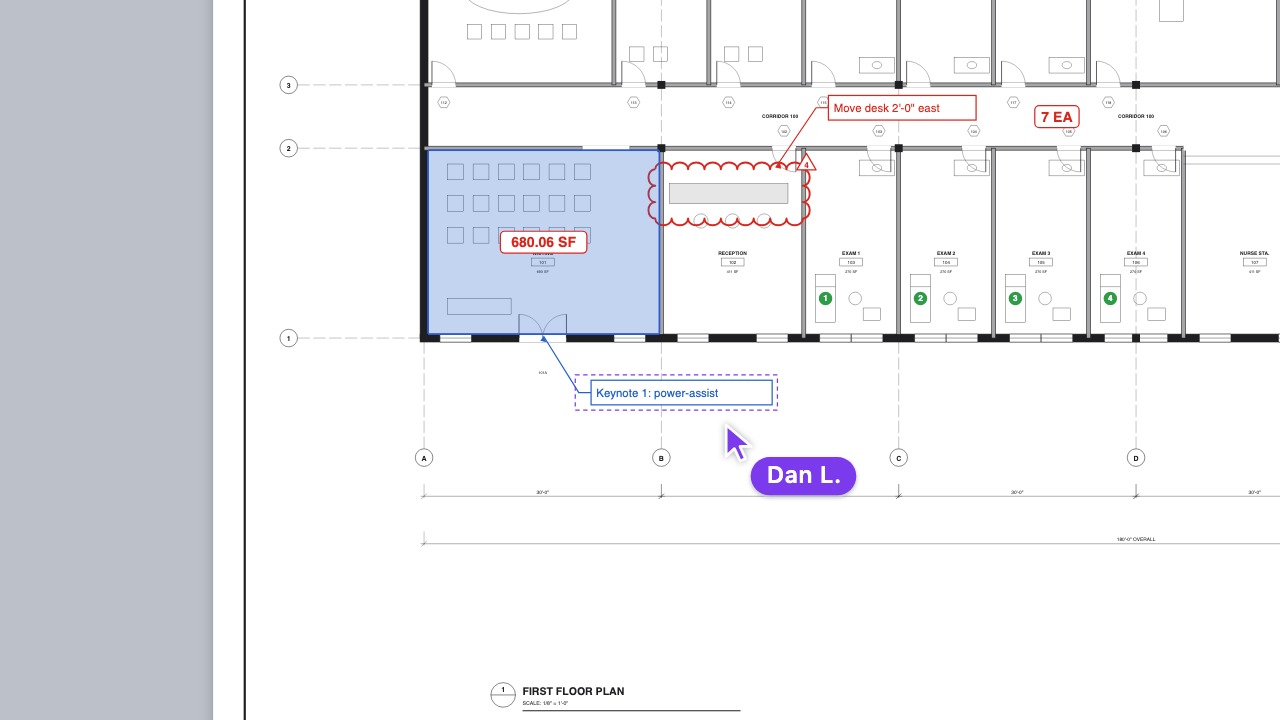 Project ToolsShare tools with everyone on a synced project; on the Mac, see who's on the sheet.
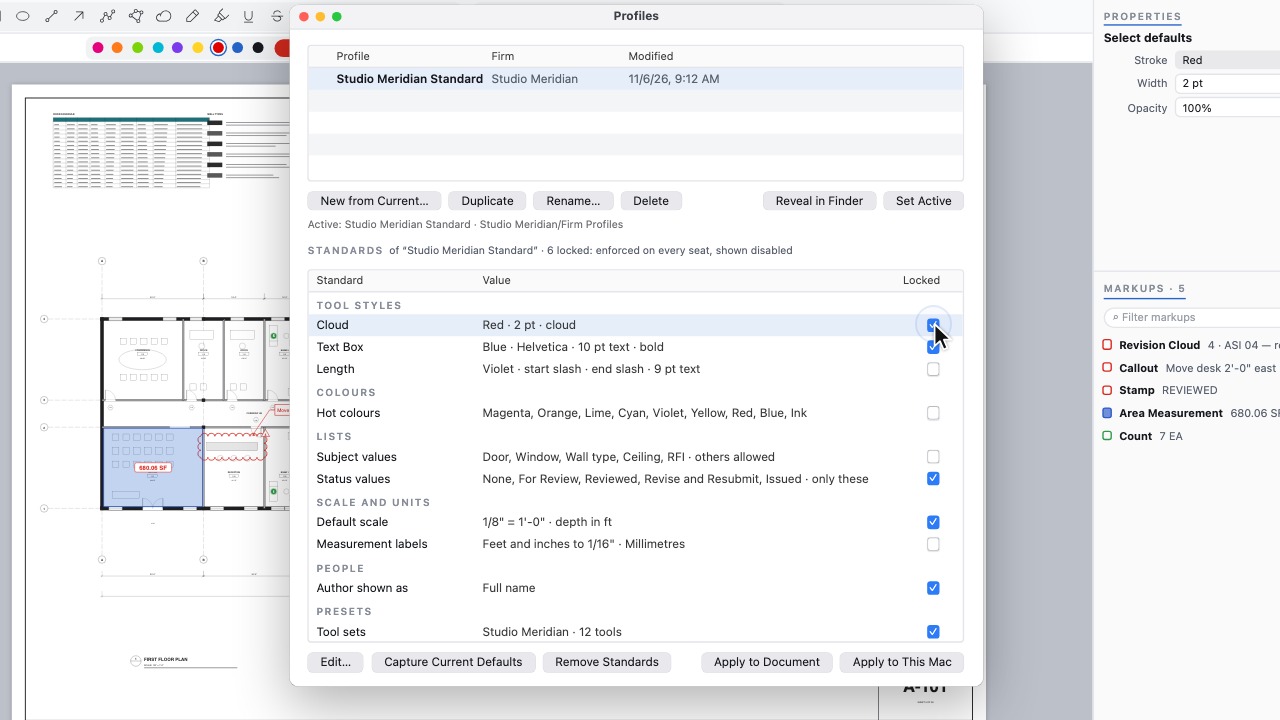 Office standardsShare tool sets and lock your firm's styles.
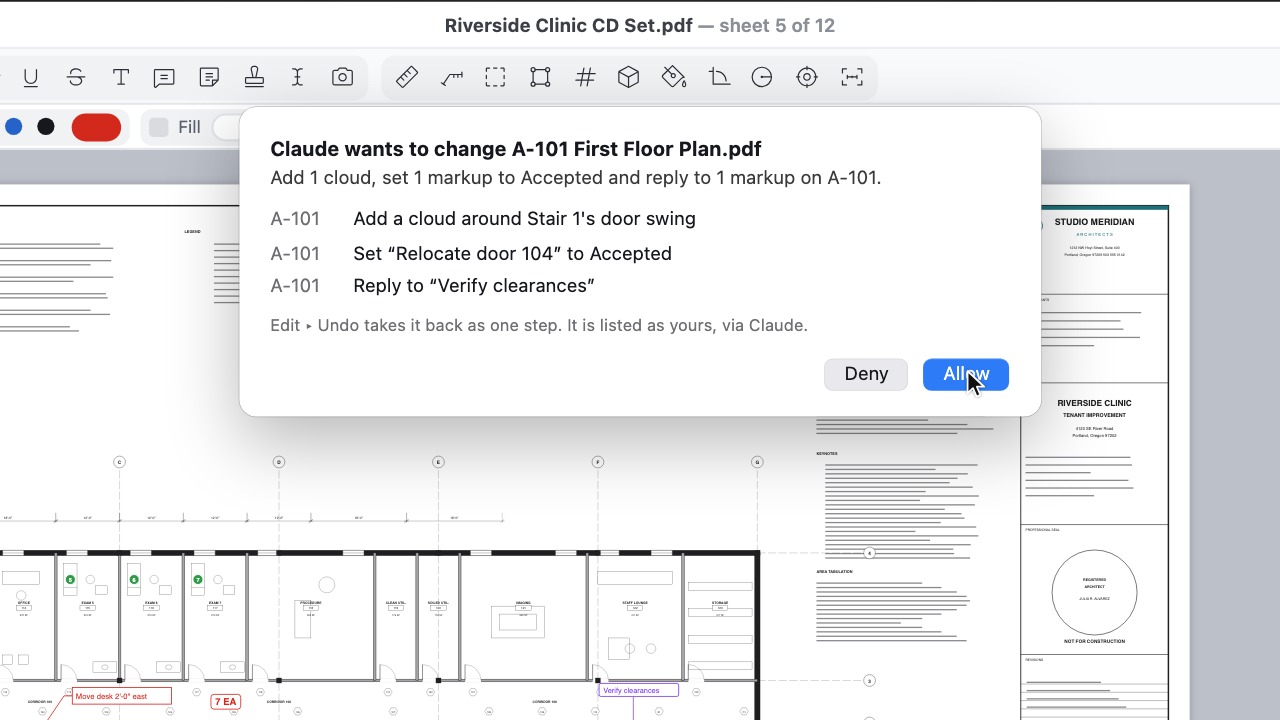 AI assistantsYour assistant reads the set; you approve each change.
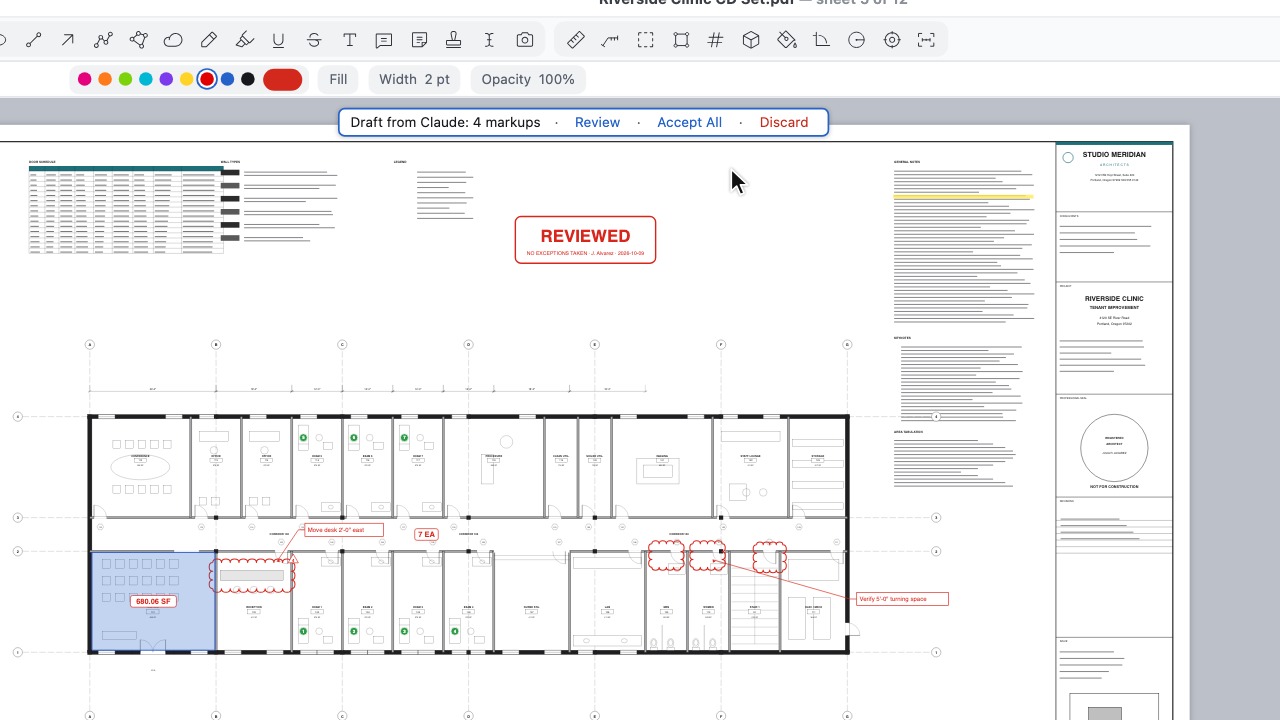 Drafts from an assistantApprove once: the assistant's markups collect on a draft layer for you to accept or discard.
Workspace and shortcuts
12 tools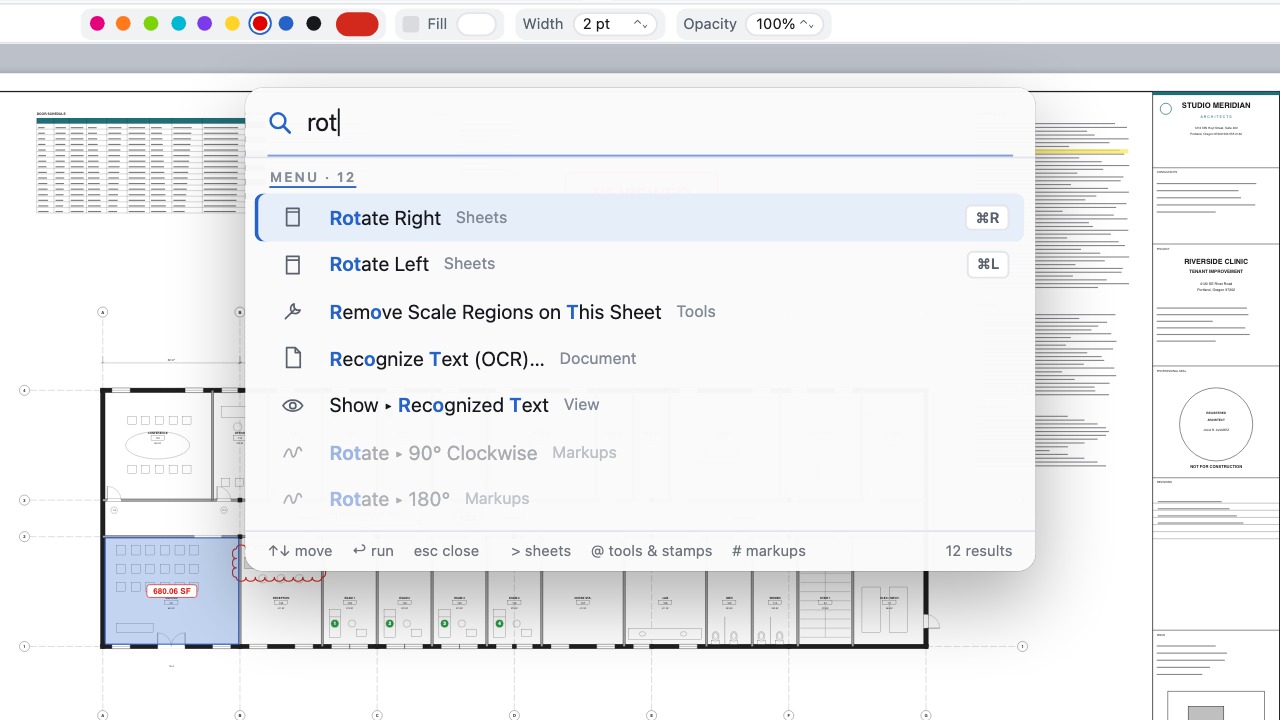 Command paletteOne shortcut finds any command, sheet, tool or markup; documents open in tabs.
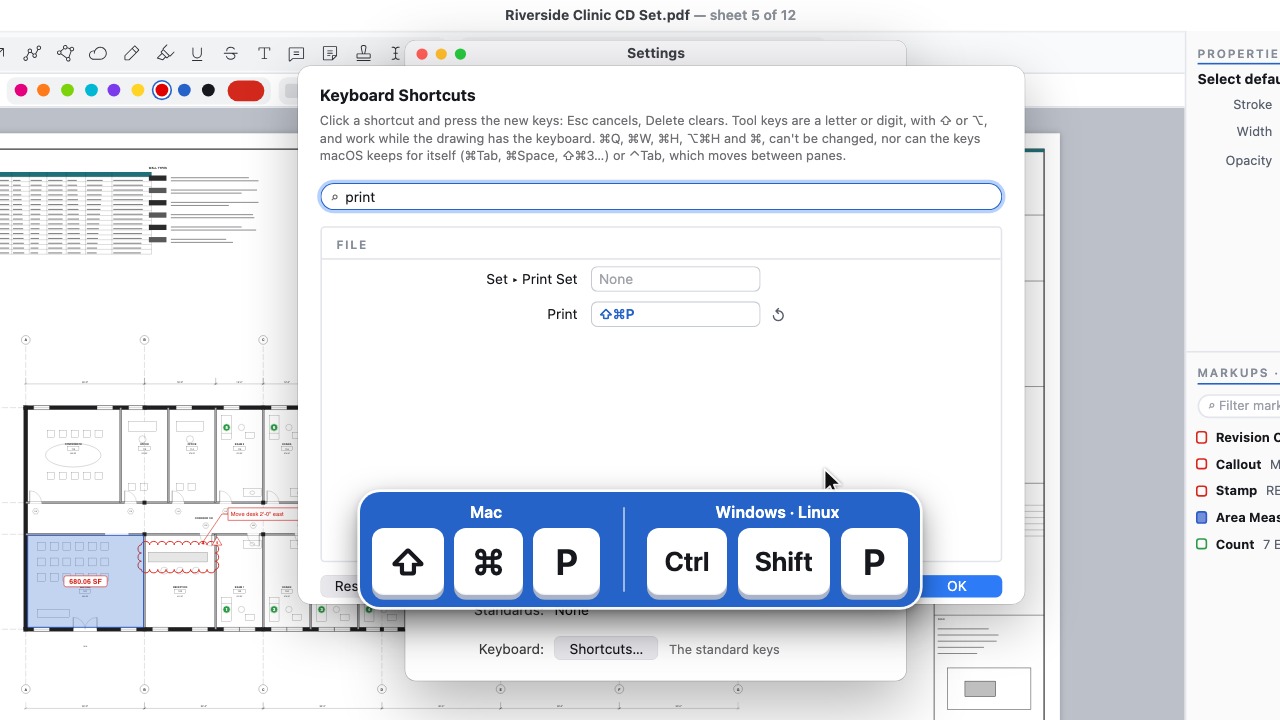 Your shortcutsChange any key, and share them in your firm's profile.
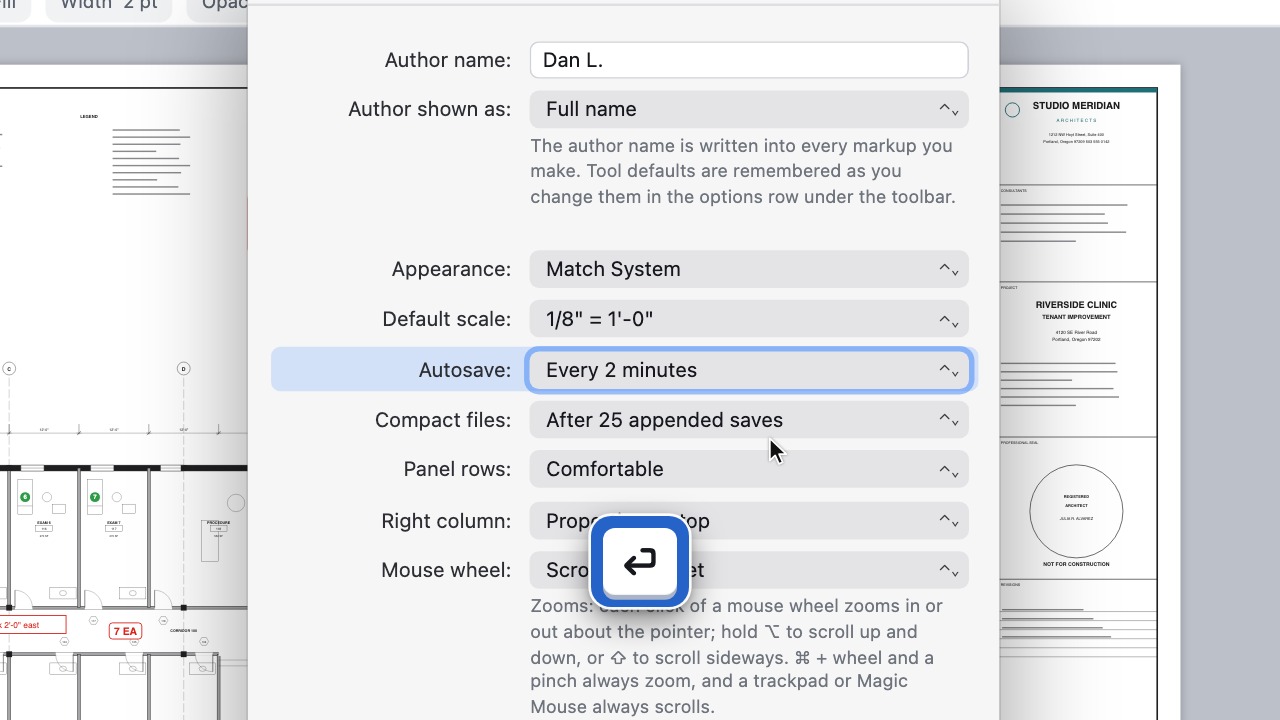 Settings at your fingertipsType part of a setting's name in the command palette and go straight to it.
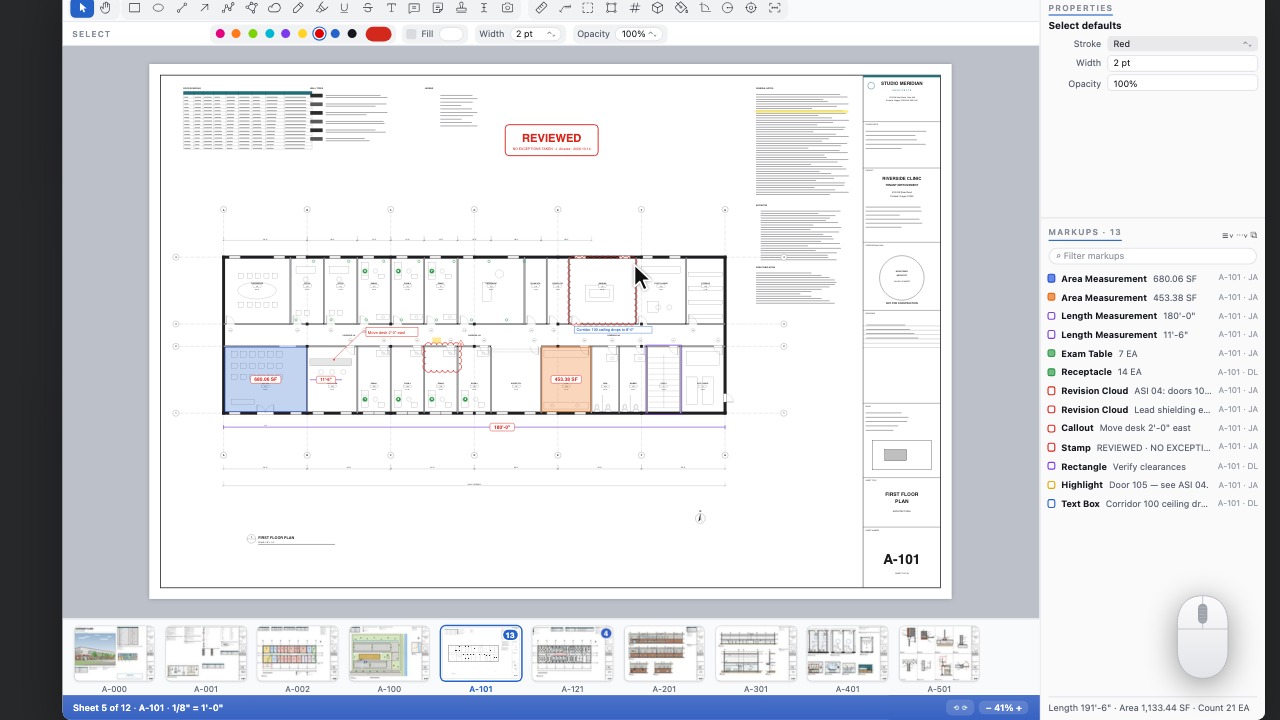 Zoom to extentsDouble-click the middle mouse button to see the whole sheet, as in CAD.
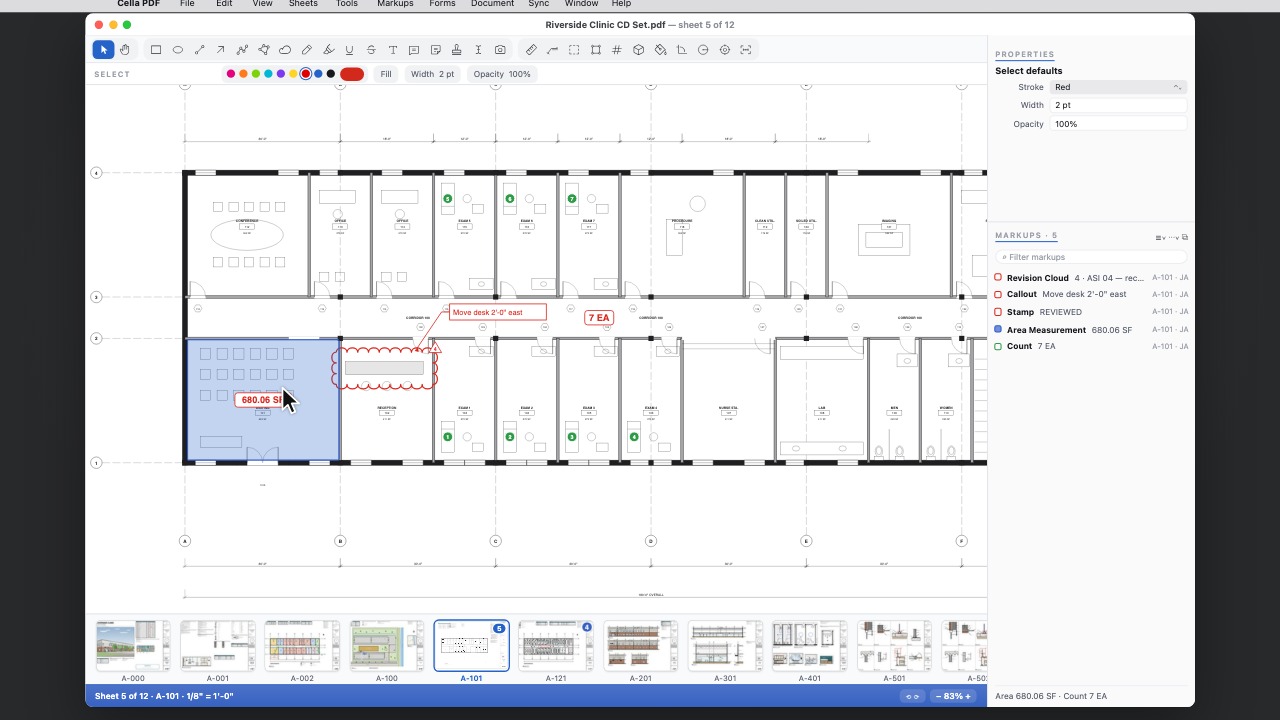 Mouse wheel zoomEven zoom steps about the pointer, a stop at Fit Page, and a setting to make the wheel zoom.
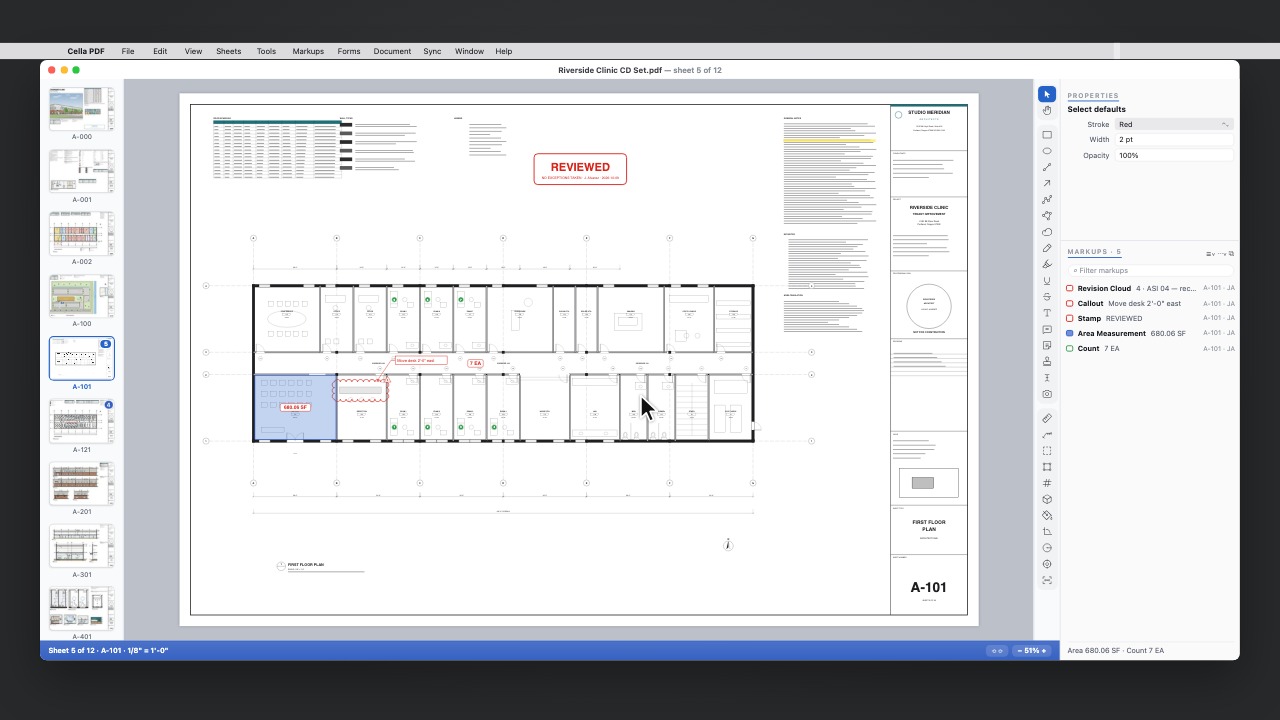 Thumbnails and toolbar at the sidePut the sheet thumbnails or the toolbar at the left or right to give the drawing more height.
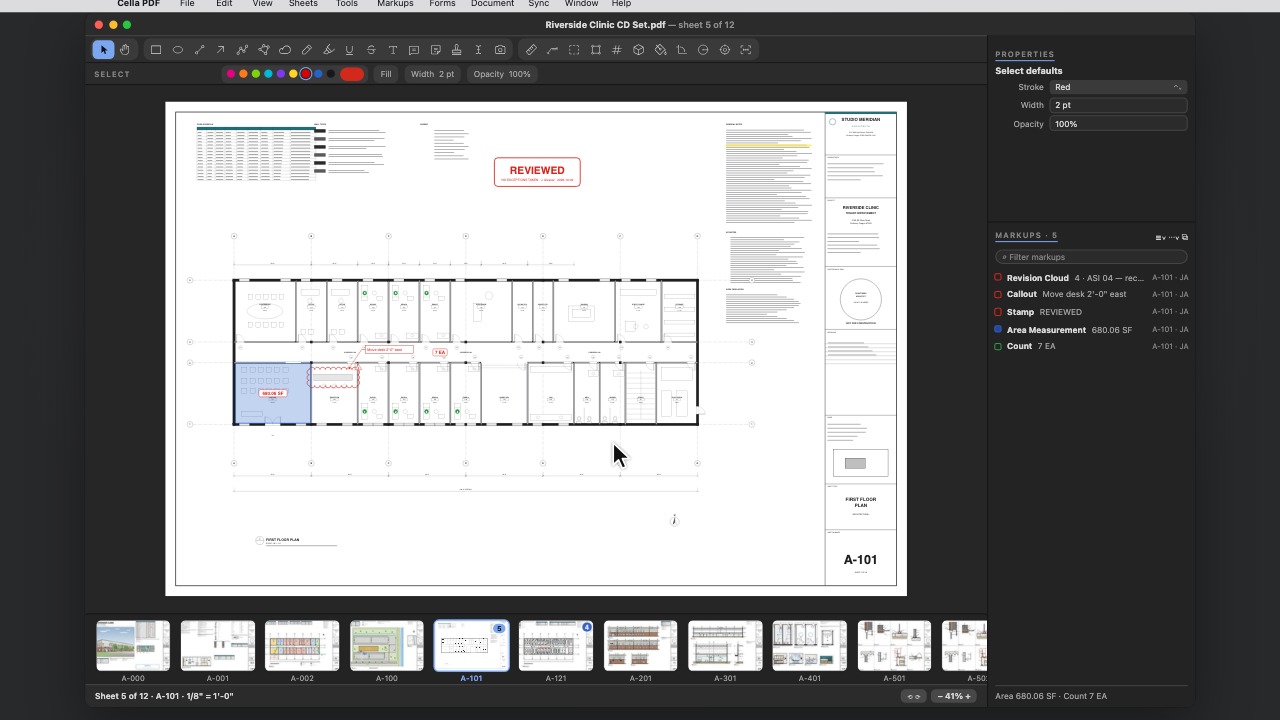 Dark interfaceLight, Dark or match your system, with the drawing left exactly as it is.
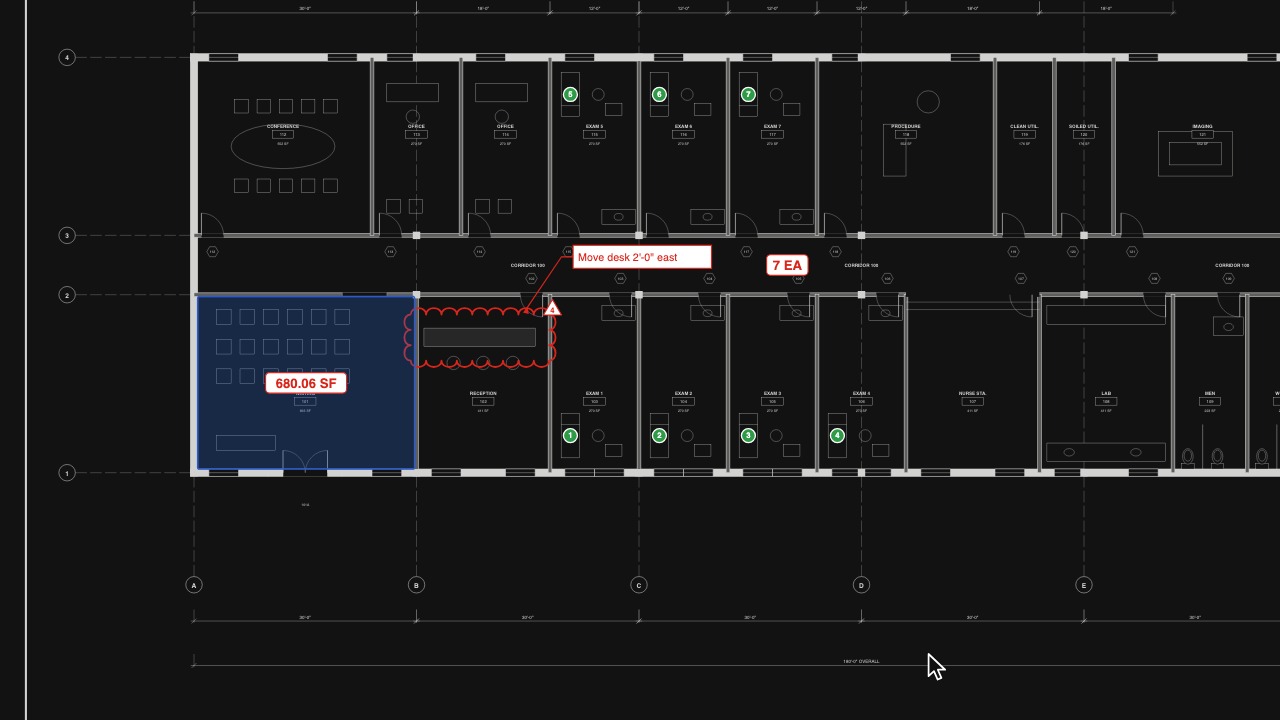 Invert DrawingWhite lines on black for late nights.
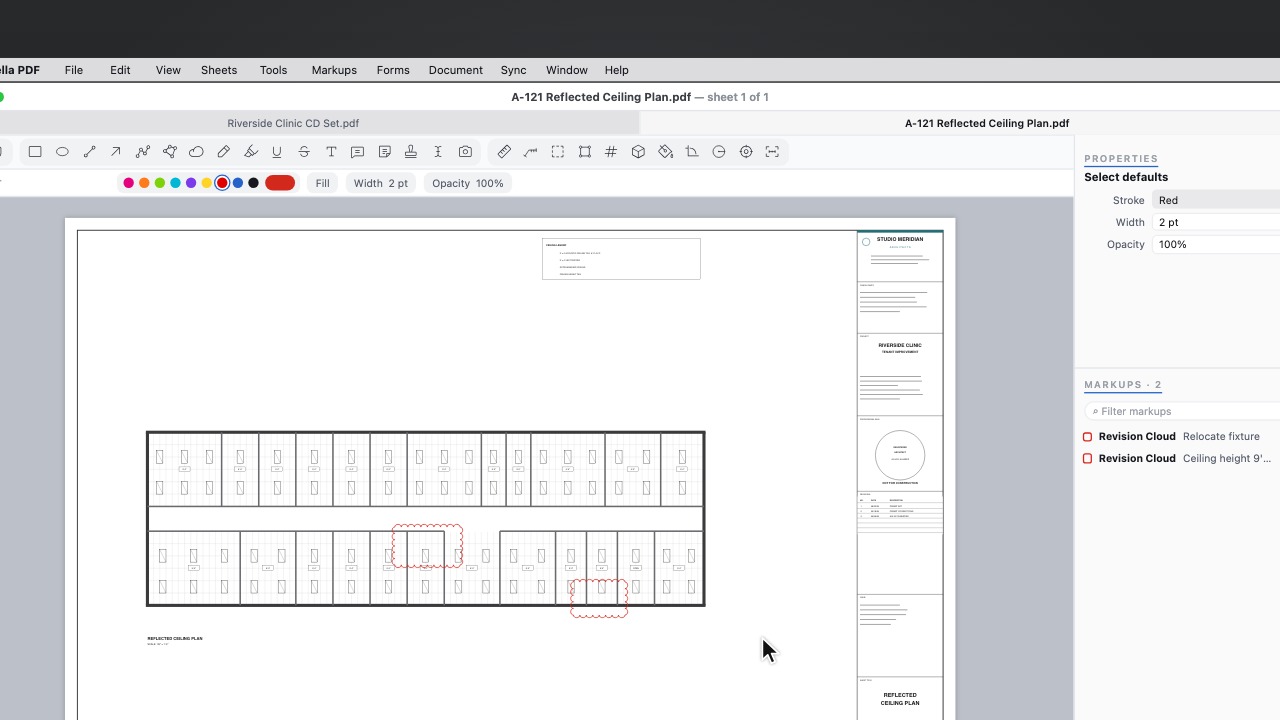 New TabA new tab opens on your recent documents and sets; what you pick opens in it.
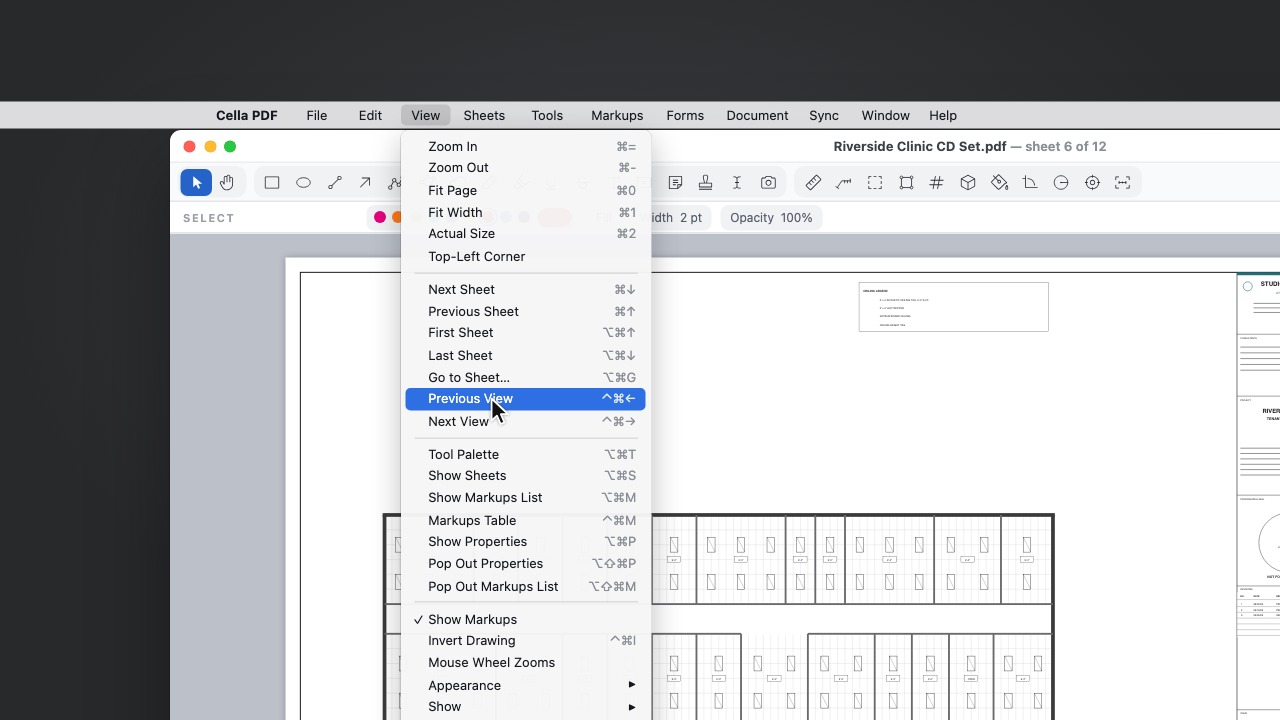 Previous and Next ViewFollow a link or a search result, then step back to where you were.
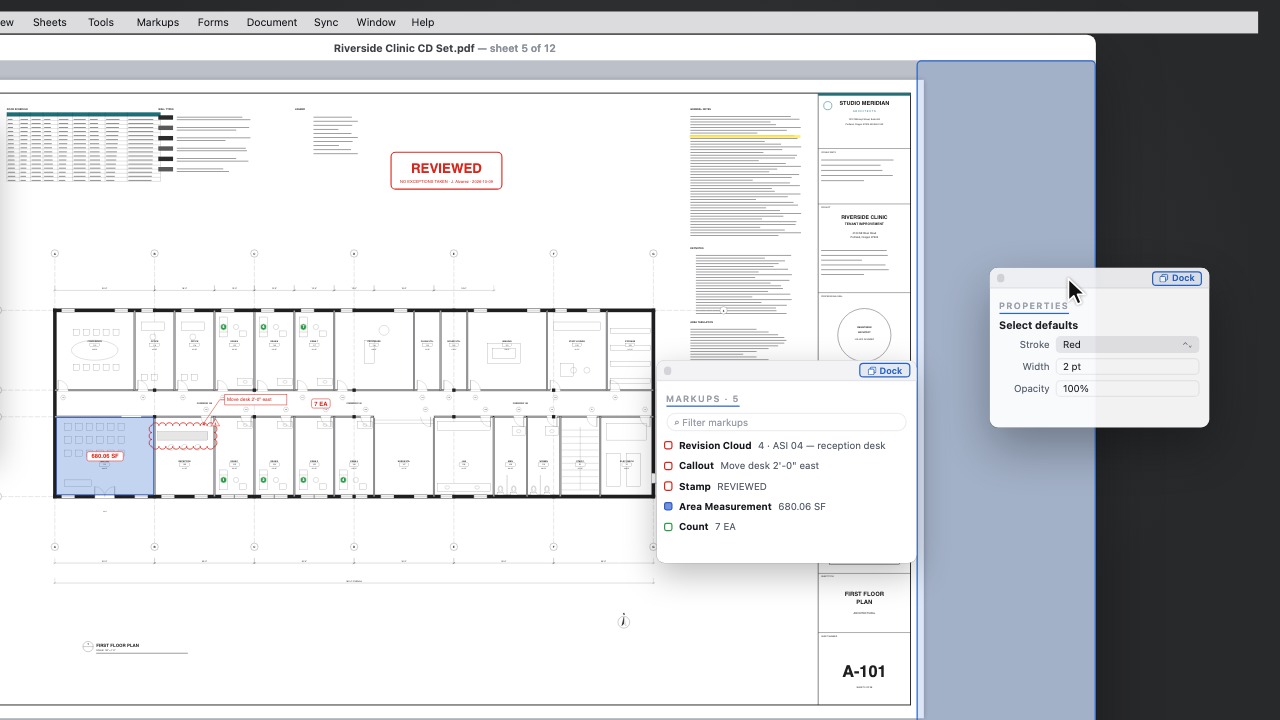 Dock any panelDrag a floating panel to the window's edge to dock it; Dock All Panels puts them all back.
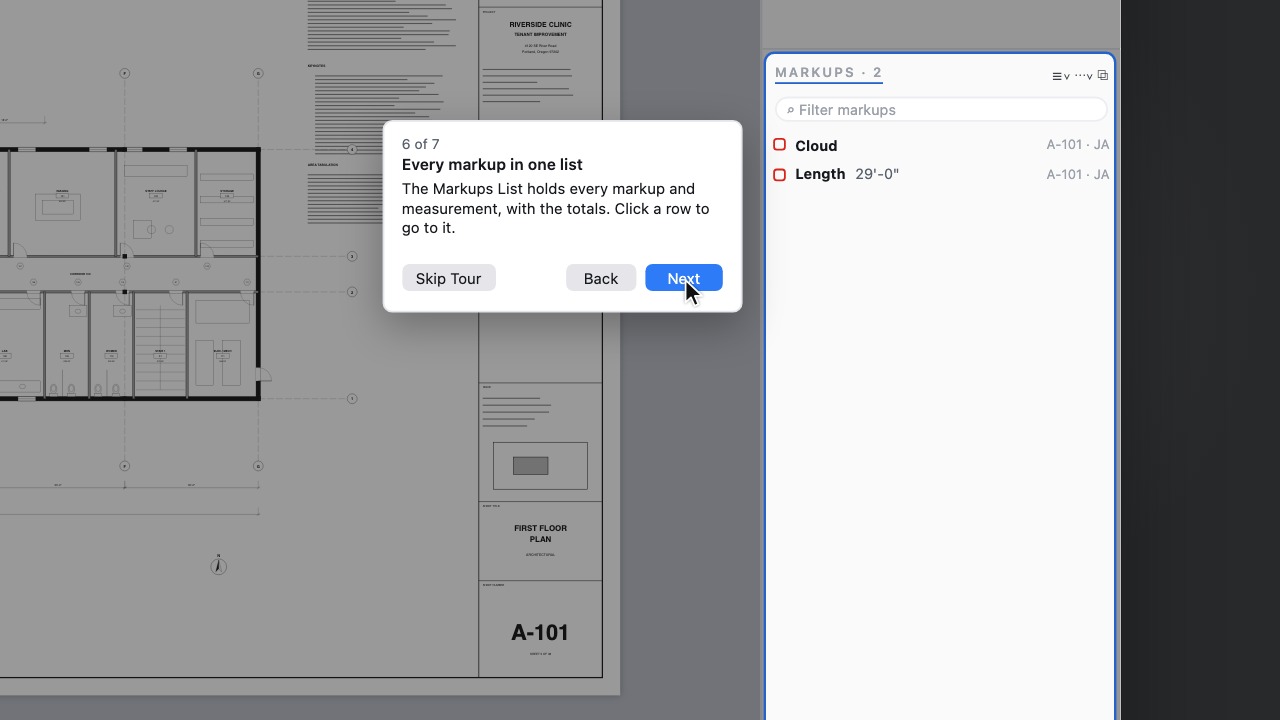 Take the TourSeven quick steps on the sample sheet point at the real controls and wait while you draw and measure.